


 Top Rated Course

We may not have the course you’re looking for. If you enquire or give us a call on +91-181-5047001 and speak to our training experts, we may still be able to help with your training requirements.
How to Make Google Chrome Your Default Browser on Any Device?
The Knowledge Academy 03 February 2026To know How to Make Chrome Default Browser, open Chrome settings, go to Default Browser, and click “make default” to set it as your primary browser. This ensures a consistent, and seamless browsing experience across all your devices. This provides a familiar interface, with access to saved bookmarks, passwords, and synced settings.

Training Outcomes Within Your Budget!
We ensure quality, budget-alignment, and timely delivery by our expert instructors.
Table of Contents

Have you ever wondered why links keep opening in a browser you don’t prefer? Constantly switching browsers can be frustrating, especially if you're a fan of Google Chrome. So, if you're looking for a seamless browsing experience, it’s time to learn How to Make Chrome Default Browser. But what are the exact steps? Is it a complicated process, or is it just a few clicks away?
In this blog, we’ll talk about How to Make Chrome Default Browser on any device. Whether you’re using a PC, Mac, smartphone, or tablet, we’ve got you covered. Set up Chrome for a faster, and more efficient browsing experience. Let’s get started!
Table of Contents
1) How to Make Google Chrome the Default Browser on Windows 11?
2) How to Make Google Chrome the Default Browser on Windows 10?
3) How to Make Chrome the Default Browser on iPhone or iPad?
4) How to Make Google Chrome the Default Browser on macOS?
5) How to Make Google Chrome the Default Browser on Android?
6) Why Should I Set Google Chrome as My Default Browser?
7) What to do if Chrome is Not Showing as the Default Browser Option?
8) Conclusion
How to Make Google Chrome the Default Browser on Windows 11?
Windows 11 does not automatically allow users to switch default browsers with a single click. Instead, manual adjustments are required in system settings to ensure that Chrome is used for all web-related activities. Here are the steps to set Google Chrome as your default browser using both Windows Settings and Chrome’s built-in option.
Method 1: Using Windows Settings (Recommended)
1) Install Chrome: Download and install Google Chrome from the official website
2) Open Settings: Tap the Start menu and select Settings
3) Go to Default Apps: Navigate to Apps > Default Apps
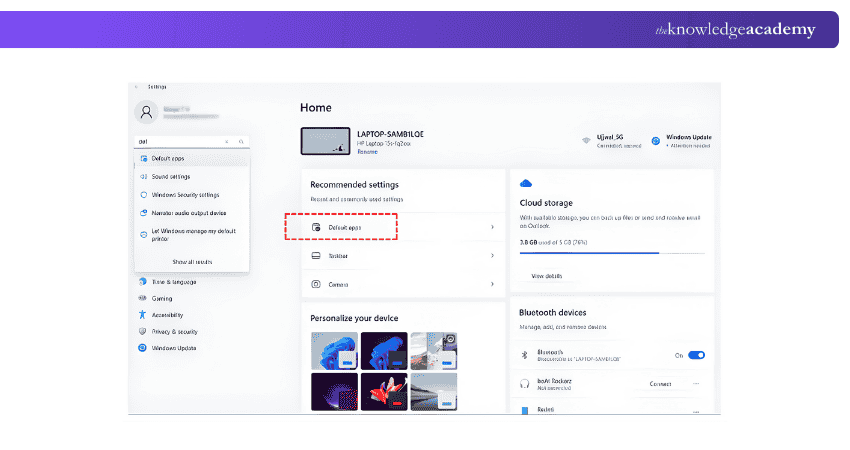
4) Search for Web Browser: In the search box, type "Web Browser" and click on the current default browser (likely Microsoft Edge).
5) Select Chrome: Choose Google Chrome from the list
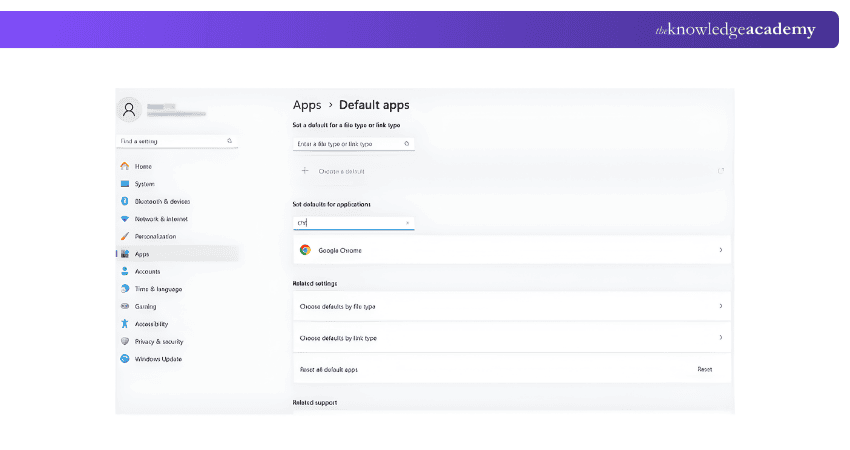
6) Change File Type Associations (Optional but Recommended): Scroll down to manually set Chrome as the default for:
a) .htm
b) .html
c) HTTP
d) HTTPS
7) Once done, Chrome will be your default browser

Method 2: Using Chrome (Redirects to Windows Settings)
1) Open Google Chrome
2) Click the three-dot menu in the top right corner
3) Go to Settings > Default browser
4) Click Make Default (This will redirect you to Windows Settings, where you must manually set Chrome as the default).
How to Make Google Chrome the Default Browser on Windows 10?
Windows 10 allows users to change their default browser easily, but some system updates may reset the settings to Microsoft Edge. To ensure Google Chrome remains your default browser, follow these steps using both Windows Settings and Chrome’s built-in option.
Method 1: Using Windows Settings (Recommended)
1) Install Chrome: Download and install Google Chrome from the official website
2) Open Settings: Press the Windows key + I to open Settings
3) Navigate to Default Apps: Click on Apps > Default apps
4) Change Web Browser: Scroll down to Web Browser and click on the currently set browser (likely Microsoft Edge).
5) Select Google Chrome: Choose Google Chrome from the list
6) Confirm Selection: If a confirmation prompt appears, click Switch anyway or OK
Method 2: Using Control Panel
1) Open the Control Panel: Begin by clicking the Start menu. Then, type Control Panel in the search box, and press Enter.
2) Go to Default Programs: In the Control Panel window, click Programs, then select Default Programs. After that, click Set your Default Programs.
3) Select Google Chrome: Click on Google Chrome from the default web browser.
4) Confirm the Change: Once selected, Chrome will become your default browser.
Method 3: Using Chrome (Redirects to Windows Settings)
1) Open Google Chrome
2) Click on the three-dot menu in the top right corner
3) Select Settings > Default browser
4) Click Make Default (This redirects you to Windows Settings, where you must manually set Chrome as the default)
Learn how to organise files, collaborate smarter, and work faster from anywhere with Google Drive Training – Join today!
How to Make Google Chrome the Default Browser on iPhone or iPad?
If you are using an iPhone or iPad with iOS 14 or later, you can set Google Chrome as your default browser in a few simple steps. Let’s look at the steps below.
1) Open Settings on your iPhone or iPad and scroll to find Chrome in the list of apps
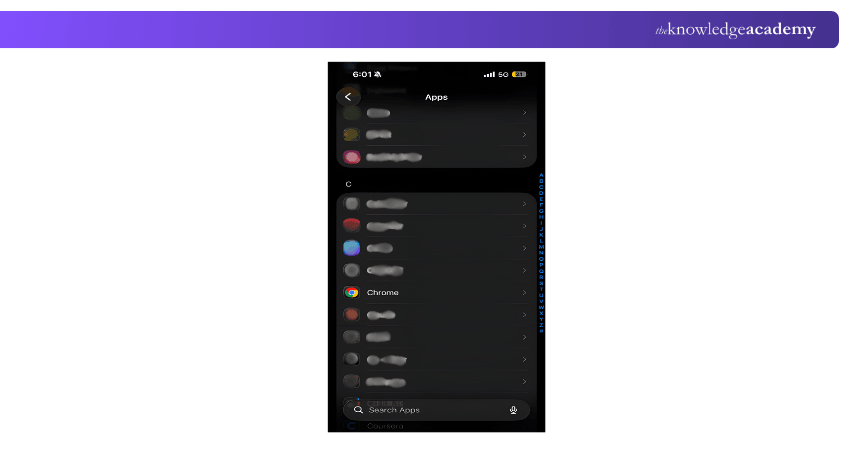
2) Tap Chrome, then select Default Browser App
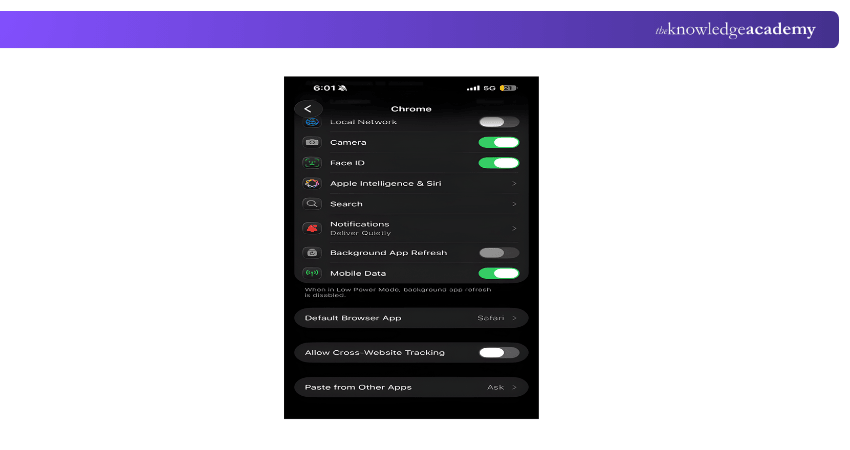
3) Choose Google Chrome to set it as your default browser
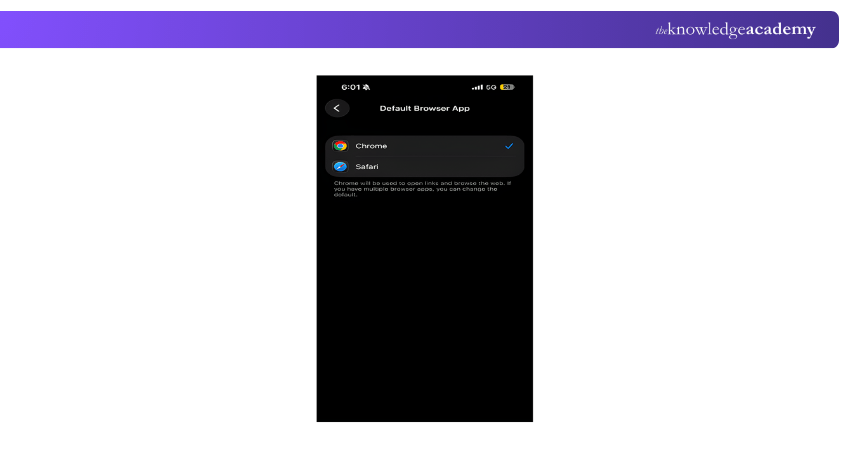
4) Once set, all web links will open in Chrome
How to Make Google Chrome the Default Browser on macOS?
On macOS, Safari is the default web browser, but you can easily switch to Google Chrome. Changing the default browser ensures that all links from e-mails, documents, and other apps open in Chrome. Let’s look at the steps below.
1) Open Google Chrome on your Mac and click the three-dot menu and select Settings.
2) In the Default Browser section, click Make Default.
3) When prompted, choose Use Chrome to confirm the change.
4) Once set, all web links will open in Chrome
How to Make Google Chrome the Default Browser on Android?
Most Android devices come with Google Chrome pre-installed as the default browser, but some manufacturers set their own browsers instead. If your device opens links in another browser, follow all these steps to set Google Chrome as your default browser for a seamless browsing experience.1) Install Chrome App: Ensure you have Google Chrome installed from the Google Play Store.
2) Open Settings App: Go to your device's main settings menu
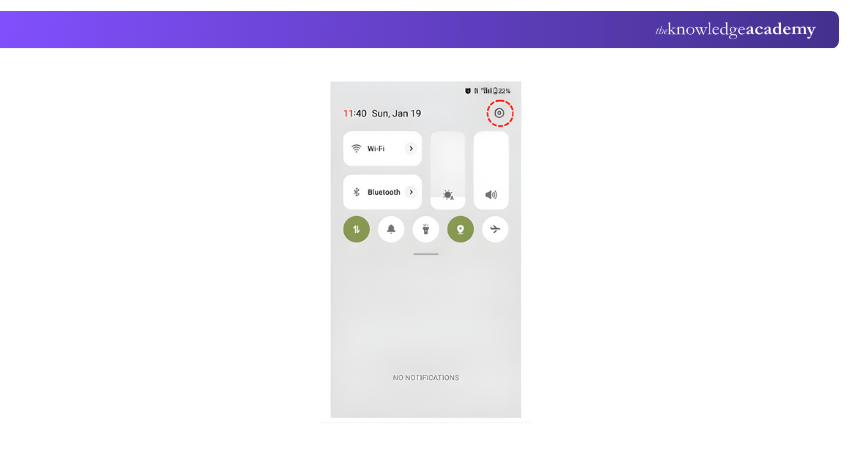
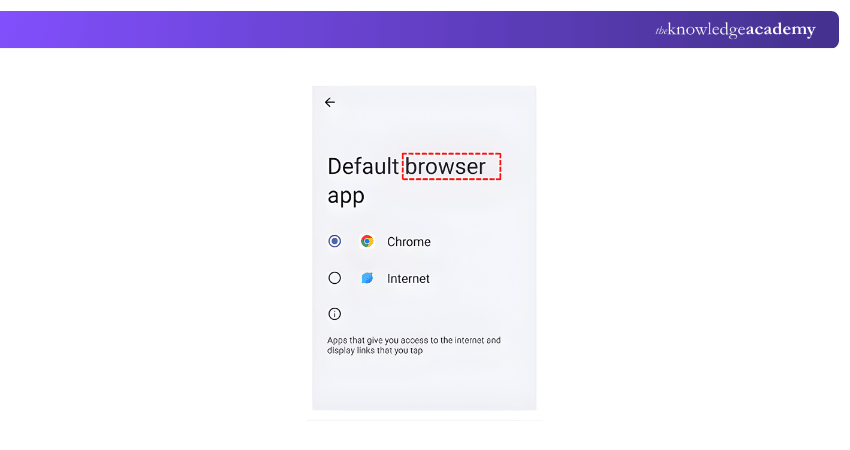
3) Apps Notifications: Select either "Apps" or "Apps and notifications," depending on your device.
4) Default Apps Setting: Look for an option labelled "Advanced" or "Default apps"
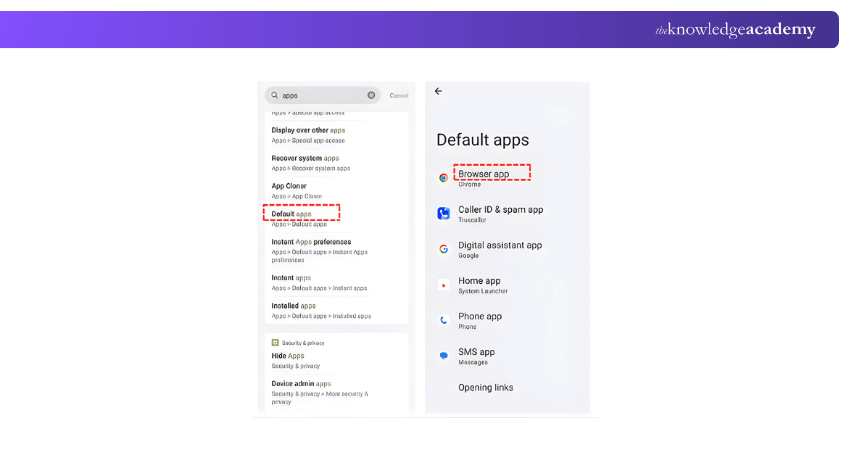
5) Browser App Selection: Tap on "Browser app" and choose Google Chrome from the list of installed browsers.
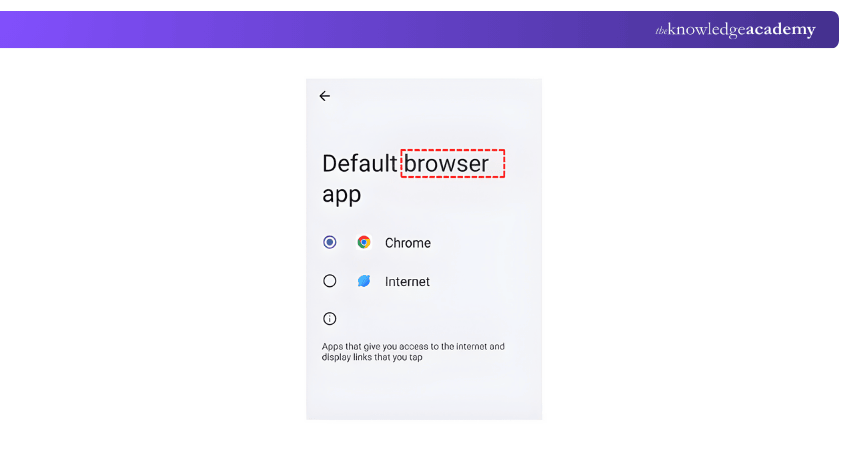
Once set, any links you click will now open in Google Chrome
Launch your career in Web Development - join our comprehensive App & Web Development Training now!
Why Should I Set Google Chrome as My Default Browser?
Google Chrome is the preferred choice for professionals due to a variety of reasons. Let’s look at the key reasons to set Google Chrome as the default browser:
1) Fast and efficient performance, making multitasking seamless and quicker.
2) Built-in security features, such as Google Safe Browsing for safer web access.
3) Wide range of extensions for productivity, automation, and customisation.
4) Seamless sync across desktop, laptop, tablet, and mobile devices.
5) Easy Google account integration for personal and enterprise management.
6) Ensures all links from e-mails, documents, and apps open automatically in Chrome.
What to do if Chrome is not Showing as the Default Browser Option?
If Google Chrome does not appear as a default browser option, you can fix this by following the steps below:
1) Open Windows Settings and go to Default Apps
2) Scroll down and click Set defaults by app
3) Find Google Chrome in the apps list and select it
4) Click Manage to view the file types and link types
5) Replace Microsoft Edge with Google Chrome for each web-based option
6) Once updated, Chrome should appear and work as your default browser
Conclusion
Learning How to Make Chrome Default Browser helps to create a smoother, faster, and consistent browsing experience. Whether you are a Windows, macOS, Android, or iOS user, the steps are simple, direct, and easy to follow. Following the steps will enable you to avoid unnecessary interruptions, improve productivity, and secure a familiar browsing environment whenever you go online.
Unlock your potential with expert End User Training - master skills and boost productivity!
Frequently Asked Questions
How Does Google Browser Work?

Google Chrome works by rendering web pages, executing JavaScript, and managing browsing data through a streamlined engine. It uses the Blink rendering engine and offers features like speed, security, and seamless synchronisation across devices.
What is the Main Purpose of a Google Default Browser?
The main purpose of setting Google Chrome as the default browser is to ensure all web links open automatically in Chrome. This provides a faster, secure, and personalised browsing experience, eliminating the need to manually select the browser each time.
What are the Other Resources and Offers Provided by The Knowledge Academy?
The Knowledge Academy takes global learning to new heights, offering over 3,000+ online courses across 490+ locations in 190+ countries. This expansive reach ensures accessibility and convenience for learners worldwide.
Alongside our diverse Online Course Catalogue, encompassing 19 major categories, we go the extra mile by providing a plethora of free educational Online Resources like Blogs, eBooks, Interview Questions and Videos. Tailoring learning experiences further, professionals can unlock greater value through a wide range of special discounts, seasonal deals, and Exclusive Offers.
What is The Knowledge Pass, and How Does it Work?
The Knowledge Academy’s Knowledge Pass, a prepaid voucher, adds another layer of flexibility, allowing course bookings over a 12-month period. Join us on a journey where education knows no bounds.
What are the Related Courses and Blogs Provided by The Knowledge Academy?
The Knowledge Academy offers various End User Training, including Introduction to Mac Pages Course, Google Drive Training, and Introduction to Mac Numbers. These courses cater to different skill levels, providing comprehensive insights into How to Clear Cache.
Our Office Applications Blogs cover a range of topics related to Browser settings, offering valuable resources, best practices, and industry insights. Whether you are a beginner or looking to advance your Office Application skills, The Knowledge Academy's diverse courses and informative blogs have got you covered.

The Knowledge Academy


Global Training Provider
The Knowledge Academy is a world-leading provider of professional training courses, offering globally recognised qualifications across a wide range of subjects. With expert trainers, up-to-date course material, and flexible learning options, we aim to empower professionals and organisations to achieve their goals through continuous learning.

Upcoming Office Applications Resources Batches & Dates
Date
 Introduction to Mac Pages
Introduction to Mac Pages
Fri 21st Aug 2026
Introduction to Mac Pages
Fri 20th Nov 2026

 If you wish to make any changes to your course, please


