


 Top Rated Course

We may not have the course you’re looking for. If you enquire or give us a call on +44 1344 203 999 and speak to our training experts, we may still be able to help with your training requirements.
Blender Shortcut Keys for Faster Workflow
Richard Harris 02 March 2026Blender shortcut keys are keyboard and mouse commands that boost productivity by speeding up modelling, animation, sculpting, rendering, and navigation tasks. They reduce repetitive actions and help artists work with greater precision. Learning essential shortcuts streamlines workflows and supports efficient creative output in Blender.

Training Outcomes Within Your Budget!
We ensure quality, budget-alignment, and timely delivery by our expert instructors.
Table of Contents
Blender is a robust tool for making 3D models; however, the interface may seem complicated to a novice. Even the smallest improvements in efficiency can change the way you work to be more relaxed and smoother. Getting to know Blender Shortcut Keys will make you a faster and more confident user, not only of the key shortcuts dealt with next in this blog but also in general.
Table of Contents
1) What are the Blender Shortcut Keys
2) Essential Blender Shortcut Keys
3) Can I Customise Shortcut Keys in Blender?
4) Quick but Essential Blender Hotkeys
5) Conclusion
What are Blender Shortcut Keys
Blender shortcut keys are combinations of keyboard and mouse which are fast and let users perform operations in a split second without going through the menus. They help in speeding up things like object selection and mesh editing and thus help in making workflows run without any hiccups.
The shortcuts are organised according to their functions, and they cover the entire range of activities conducted in Blender, like navigation, modelling, sculpting, animation, and rendering. With the use of hotkeys, the artists are able to spend less time looking for tools and more time creating and thus, Blender appears to be more productive.

Essential Blender Shortcut Keys
The Essential Blender Shortcut Keys are the ground on which faster and smoother workflows are built. Enhancing navigation, editing, and overall efficiency are the most useful shortcuts which will be highlighted in the sections below.
Blender Shortcut Keys for Navigation
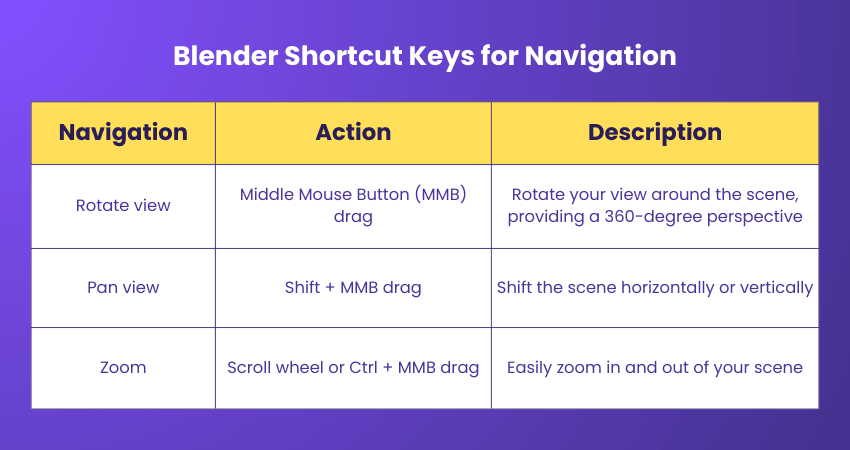
Blender's User Interface (UI) might appear complicated to newcomers, primarily due to the myriad of tools, options, and panels it presents. However, its navigation shortcuts, while simple, form the foundation of a smooth workflow. Here are some crucial shortcut keys in Blender explained in detail:
Rotate View
When you drag with the middle mouse button held down, Blender allows you to orbit around the current focal point of your scene. This focal point is often the selected object or if nothing is selected, the last known point of interest.
This feature is particularly useful when modelling, sculpting, or texturing, as it lets you access and view different parts of your 3D object or scene without moving the object itself. It offers a comprehensive 360-degree perspective, ensuring you can inspect and work on every nook and cranny of your project.
Pan View
The pan view shortcut works by pressing down the 'Shift' key and dragging with the middle mouse button allows you to move the view parallel to the screen. This action does not change the orientation of the scene but simply shifts it in the X or Y direction based on your drag direction.
Panning is invaluable when you're zoomed in on a particular detail and want to move laterally across your object or scene without zooming out. It ensures that you maintain the same level of zoom while navigating to different areas, making detailed edits and inspections much more convenient.
Zoom
The zoom functionality in Blender lets you move your view closer to or further away from the current focal point. You can zoom in or out by using the the scroll wheel on your mouse. Alternatively, holding down the 'Ctrl' key and dragging with the middle mouse button lets you smoothly zoom based on the drag direction.
Zooming is essential for moving between broad, overarching views of your scene and close-ups where you might be working on fine details. Whether you're positioning a camera, adding minute details, or trying to fit a particular element into your viewport, the zoom function ensures that you have the flexibility to see exactly what you need.
Gain the skills to craft mesmerising storylines in our comprehensive Animation and Design Training - Sign up now!
Blender Shortcut Keys for Selection
Navigating your 3D space in Blender is one aspect, but selecting elements within that space is another crucial skill to master. Effective selection is the starting point for most operations, whether you're modelling, rigging, texturing, or animating. Here are the primary selection shortcut keys in Blender:

Select Object
A simple right-click will let you select individual objects in 'Object Mode' or individual vertices, edges, or faces in 'Edit Mode', depending on what you're aiming at. This is the most basic yet essential selection method in Blender. Whether you're about to transform an object, edit its geometry, or apply a specific material, your action starts with this simple click. It gives you pinpoint accuracy in choosing exactly what you want to work with.
Select Multiple
Holding the 'Shift' key and right-clicking on multiple elements allows you to expand your selection to include multiple objects, vertices, edges, or faces. Often, you'll want to apply a transformation or edit to several elements simultaneously. This shortcut allows you to gradually build up a selection, giving you granular control over which elements are selected.
Box Select
After pressing 'B', dragging your mouse will create a rectangular marquee. Everything within this rectangle becomes selected. When you have a dense scene or a complex mesh, individually clicking on each element can be tedious. With the box select, you can swiftly encapsulate multiple elements, making bulk selections both quick and efficient.
Circle Select
Pressing 'C' activates a brush-based selection tool. Clicking and dragging over elements will select them. The size of the brush can usually be adjusted with the scroll wheel. This method combines precision with speed. It's especially useful for organic selections, where you want to select elements based on visual patterns or contours rather than a strict rectangular area.
Deselect all
Hitting the 'A' key acts as a toggle. If anything is selected, it will deselect all. If nothing is selected, it will select everything. In many situations, you'll want to clear your current selection to start afresh or to ensure no unwanted elements are selected before a major operation. Conversely, quickly selecting everything can be useful for operations that affect the whole scene or object.
Join our 2D Animation Course and get a kick-start for your Animation career.
Blender Shortcut Keys for Mesh Selection
Sometimes the use of keyboard shortcuts for mesh selection can make working with vertices, edges, or faces much faster. The use of these tools for editing brings in more precision and faster control over the models being shaped and refined.
Blender Shortcut Keys for Sculpting Workspace
Sculpting shortcuts are handy tools for brushing control, and you can easily modify the brush size with F and strength with Shift+F as well as change tools at once. These shortcuts allow for a more fluid and less interrupted creative process in sculpting that is more responsive and less tiring.
Blender Shortcut Keys for UV Editing
Shortcuts for UV editing make it easier to perform operations such as unwrapping, selecting islands, and aligning UVs through the use of commands like U, L, and S. They also enhance the precision of texture placement and reduce the time taken for mapping process.
Blender Shortcut Keys for Node Editor
The shortcuts available in the Node Editor enable speedy addition, duplication, and connecting of nodes with the use of Shift+A, Shift+D, and F. These shortcuts have a great impact on shader and material creation, making node workflows tidy and productive.
Blender Shortcut Keys for Edit Mode
The shortcuts for the Edit Mode allow for rapid modifications to the model such as moving, scaling, and extrusion of the model with the use of G, S, and E. They can be used for thorough mesh editing and consequently make it easier to keep a smooth modelling workflow.
Blender Shortcut Keys for Manipulation
In the domain of 3D creation, flexibility and the ability to rectify or replicate actions are paramount. Blender understands this and offers a suite of manipulation tools designed for precision and efficiency. Here is a closer look at these shortcut keys in Blender:

Undo
Pressing 'Ctrl' and 'Z' together makes Blender revert to your most recent action, taking your project back one step. Even seasoned professionals can make inadvertent changes or decide against a particular transformation after seeing its result. The undo function is a safety net that ensures your work remains error-free, allowing you to experiment with confidence.
Redo
If you’ve used the undo function but then decide you want to reinstate the action you undid, 'Ctrl', 'Shift' and 'Z' will restore it. It’s common to be indecisive during creation, especially when fine-tuning details. The redo function complements the undo, giving you the flexibility to switch back and forth between recent states until you’re satisfied with the outcome.
Delete
Pressing 'X' or the 'Delete' key will allow you to permanently remove your currently selected elements, objects, vertices, edges, or faces. Maintaining a clean and efficient workspace is crucial. The delete function lets you quickly eliminate unnecessary or unwanted elements, ensuring that your scene remains uncluttered and optimised.
Duplicate
Holding 'Shift' and pressing 'D', you create an exact replica of your selected elements or objects, which you can then position as required. Duplication is a cornerstone of efficient 3D modelling. Whether you’re populating a scene with multiple instances of an object, or you want a base version of a mesh to work with while preserving the original, duplication speeds up the process and ensures consistency.
Can I Customise Shortcut Keys in Blender?
Absolutely, Blender provides the feature of shortcut keys customisation through the Preferences menu located under Keymap section. The existing hotkeys can be modified, or even new ones can be invented to synchronise with your workflow and increase the speed of the work done.
The customisation allows you to use combinations of Ctrl, Shift, and Alt giving you the complete authority over the access to the tools. These custom settings will make the Blender application more friendly and suitable to create process.
Quick but Essential Blender Hotkeys
Navigating Blender's extensive toolset becomes markedly easier with the right hotkeys. These shortcuts, while simple, boost efficiency and streamline workflows. Mastering these shortcut keys in Blender is the gateway to a seamless experience during the animation process.
1) Render (F12): One of Blender's primary features is its rendering capability. Pressing 'F12', will let you can get an immediate glimpse of their final scene or animation, allowing them to review and make necessary amendments without waiting for a complete render cycle, making it an essential part of the Render in Blender process.
2) Render in viewport (Shift + Z): For those who wish to avoid the full rendering process but still want to see a polished view, 'Shift + Z' is invaluable. It presents a rendered view directly within the viewport, balancing speed and visual clarity.
3) Hide selected (H): As scenes grow complex, the ability to declutter becomes crucial. You can temporarily hide selected objects or elements by pressing' H'. This not only aids focus on specific areas but also helps optimise the performance by reducing on-screen elements.
4) Unhide all (Alt + H): After working on specific portions of a scene, reviewing the entire ensemble is often necessary. 'Alt + H' ensures that any elements previously hidden are brought back into view, restoring the complete scene for inspection.
5) Search for a function (F3): If you ever feel lost in shortcuts, this opens a search bar to locate any Blender function, aiding recall and learning. Remember, it was 'Space' in older versions.
Conclusion
Learning to use shortcuts can really speed up your workflow and also make the whole process feel a bit smoother. Eventually, your confidence in navigating through the tools will be higher and your creativity will be greater. Blender Shortcut Keys put the control in your hands for faster and more accurate building.
Start your Animation Course today and bring your creative ideas to life.
Frequently Asked Questions
How do I Bring up the Search bar to Find Blender Commands?

Pressing F3 will open the operator search panel to allow you to find Blender commands quickly.
What is Normal in Blender?
Normals in Blender are unseen arrows that indicate the orientation of a surface, and they thereby assist the software in accurately determining the lighting and shading. They make sure that the models are depicted in the right way by directing the interaction of light with each surface.
What are the Other Resources and Offers Provided by The Knowledge Academy?
The Knowledge Academy takes global learning to new heights, offering over 3,000+ online courses across 490+ locations in 190+ countries. This expansive reach ensures accessibility and convenience for learners worldwide.
Alongside our diverse Online Course Catalogue, encompassing 17 major categories, we go the extra mile by providing a plethora of free educational Online Resources like Blogs, eBooks, Interview Questions and Videos. Tailoring learning experiences further, professionals can unlock greater value through a wide range of special discounts, seasonal deals, and Exclusive Offers.
What is The Knowledge Pass, and How Does it Work?
The Knowledge Academy’s Knowledge Pass, a prepaid voucher, adds another layer of flexibility, allowing course bookings over a 12-month period. Join us on a journey where education knows no bounds.
What are the Related Courses and Blogs Provided by The Knowledge Academy?
The Knowledge Academy offers various Animation and Design Courses, including the Animation Course, Video Editing Training, and Logo Design Course. These courses cater to different skill levels, providing comprehensive insights into Cartography.
Our Office Applications Blogs cover a range of topics related to Blender Shortcut Keys, offering valuable resources, best practices, and industry insights. Whether you are a beginner or looking to advance your Office Applications skills, The Knowledge Academy's diverse courses and informative blogs have got you covered.

Richard Harris


Senior Full Stack Developer and Technology Educator
Richard Harris is a highly experienced full-stack developer with deep expertise in both frontend and backend technologies. Over his 12-year career, he has built scalable web applications for startups, enterprises and government organisations. Richard’s writing combines technical depth with clear explanations, ideal for developers looking to grow in modern frameworks and tools.

Upcoming Office Applications Resources Batches & Dates
Date
 Blender Creator Training
Blender Creator Training
Fri 4th Sep 2026
Blender Creator Training
Fri 23rd Oct 2026
Blender Creator Training
Fri 11th Dec 2026

 If you wish to make any changes to your course, please


