


 Top Rated Course

We may not have the course you’re looking for. If you enquire or give us a call on 01344 203999 and speak to our training experts, we may still be able to help with your training requirements.
Docker Commands List | Beginner to Advanced
Lily Turner 30 March 2026Docker Commands are the magic spells for seamless Container Management! From launching containers to optimising deployments, these commands simplify everything. Whether you're cleaning up resources, networking containers, or scaling applications, mastering Docker commands will make your life easier and your workflow smoother!

Training Outcomes Within Your Budget!
We ensure quality, budget-alignment, and timely delivery by our expert instructors.
Table of Contents
Let’s say that you are deploying a complex application, and everything seems to be running smoothly; until a container starts misbehaving. How do you troubleshoot and manage it effectively? Given this circumstance, Docker Commands can help you. With Docker revolutionising the way you manage containers, having the right commands at your fingertips can save you time and hassle.
In this blog, we will talk about some of the most important Docker Commands that can help streamline your Container Management process. Ready to optimise your Docker experience? Let’s dive in!
Table of Contents
1) What is Docker?
2) Top 20 Basic Docker Commands
3) How to Install Docker Command Line?
4) How to Run Docker Command Without Sudo?
5) Conclusion
What is Docker?
Docker is a platform that allows developers to develop, ship, and run applications as containers. Containers are lightweight, portable, and can run on any system that supports Docker. Thus, making it a go-to choice for application deployment.
Docker Commands are essential for interacting with Docker containers and images. They allow you to perform tasks like
a) starting containers
b) managing images
c) inspecting container details
Top 20 basic Docker Commands
Discussed below are 20 of the basic Docker Commands that helps in the management of containers and images.
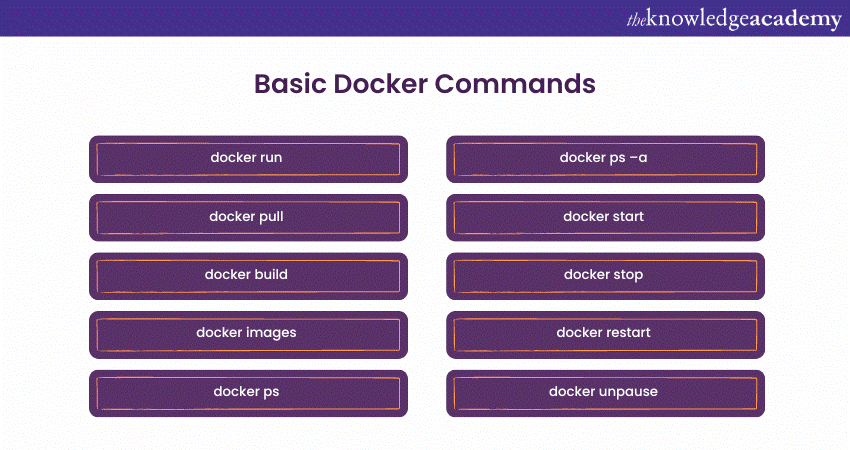
Docker Run
This command is used to create and start a new container from an image. It's one of the fundamental Docker Commands that allows you to run applications within isolated environments known as containers.

When you use docker run, you specify the image you want to use, and Docker creates a container based on that image, starting the application contained within it.
Docker Pull
This command is your ticket to accessing Docker images hosted on remote registries like Docker Hub. It securely downloads the specified image to your local machine. It ensures that you have the required resources available for creating and running containers.

This process facilitates consistent and efficient application deployment across different environments.
Docker Build
This command is your builder for creating custom Docker images for your specific requirements. It works in tandem with a Dockerfile, which contains instructions for assembling the image. Docker build empowers you to create images with precise configurations, packages, and dependencies, ensuring your applications run optimally within containers.

Docker Images
The 'docker images' command is a useful tool for managing your Docker environment. When executed, it provides a detailed list of all Docker images stored on your local system. This inventory is essential for Docker users, as it offers a quick reference to the images at your disposal, especially when using the Docker Image commands.

Knowing which images are readily available is crucial for creating and managing containers. This ensures that you have the right resources on hand for your development, testing, and deployment needs.
Docker ps
This command offers a real-time view of your running Docker containers, presenting vital information such as container names, IDs, and status.

It provides a quick overview of your active containers, helping in monitoring and management. By showing which containers are operational, developers and administrators can ensure that their applications are up and running as expected. Therefore, making it an indispensable tool for maintaining Docker-based systems.
Docker ps –a
This command provides a comprehensive snapshot of your Docker container landscape. It lists all containers, including those that have been stopped. This is invaluable for both monitoring and management. You can quickly identify active containers and those that have completed their tasks or encountered issues.

This insight is essential for various reasons; including resource optimisation, debugging, and maintaining a clean environment. By displaying key details like container names, IDs, and statuses, "docker ps -a" is a vital tool in ensuring efficient and organised container operations.
Expand your DevOps skills- Sign up for our Certified DevOps Professional (CDOP) Course now!
Docker Start
This command comes to the rescue when you need to retrieve a previously stopped container. It revives the container, restoring it to its last-known state. Docker start is invaluable for applications requiring maintenance or updates without data loss. It ensures the smooth resumption of your services.

This feature enhances the versatility of Docker, allowing for seamless management of containers, especially in production environments. By using 'docker start,' you minimise downtime, guaranteeing that your applications remain available and responsive to users while retaining their previously configured settings.
Docker Stop
This command plays a crucial role in Docker Container Management. When executed, it terminates a running container, allowing it to conclude its processes and free up system resources. Stopping a container is essential for tasks like maintenance, updates, and when an application no longer needs to be active.

Docker ensures that the container's internal processes are given the opportunity to clean up and exit properly. By doing so, it helps maintain data integrity and provides a controlled shutdown. It is thus a fundamental command for Docker users to ensure smooth operations in containerised environments.
Gain expertise in security-driven DevOps practices with the DevSecOps Foundation Certification— join us now!
Docker Restart
This command offers a simple and effective way to refresh a running container. It easily stops the container, ensuring that ongoing processes are safely terminated, and then restarts it. This action can be particularly useful when you need to apply changes to the container configuration or when you encounter unexpected issues.

By restarting the container, you give it a clean slate, allowing it to start fresh. It often resolves problems and ensures that any configuration adjustments take effect without the need to recreate the entire container from scratch.
Docker Pause
This command offers a way to temporarily halt a running container without terminating it. When you execute 'docker pause,' it freezes all processes within the container, effectively suspending its operation. This capability is valuable in scenarios where you need to analyse the container behaviour, troubleshoot the container behaviour, examine its internal state briefly, and conserve system resources.

When you're ready to resume normal operation, you can use 'docker unpause' to bring the container back to life, allowing its processes to continue where they left off. This fine-grained control enhances Container Management and debugging in Docker environments.
Docker Unpause
This command strengthens a paused container, allowing it to resume its operations. When a container is paused, all its processes are temporarily frozen, conserving its current state. This can be advantageous when you want to maintain the exact conditions within a container for a specific period without shutting it down.

Once you execute 'docker unpause,' the container's processes pick up where they left off, ensuring continuity in your application's functionality. It's a practical feature for scenarios where temporary interruptions are necessary, preserving the environment and data within the container.
Docker rm
This command is your disposal crew in the Docker world. It allows you to remove containers that are no longer needed. Containers are temporary, and you might want to clean up after your applications have run their course.

By specifying the container's name or ID, 'docker rm' ensures that the resources held by the container are freed up. This means you can efficiently manage your system's resources and keep it clutter-free, making room for new containers and optimising your Docker environment.
Docker rmi
It is similar to a "delete" button for Docker containers. When you're done with a container, whether it's a stopped application or a temporary test environment, 'docker rm' helps tidy up. By specifying the container's name or ID, it permanently removes it from your system.

This action frees up disk space, reduces clutter, and ensures that you're only holding onto containers you genuinely need. It makes your Docker environment organised and efficient. It's like clearing away unused tools after you've finished a project, leaving your workspace clean and ready for the next task.
Step into a leadership role with our DevOps Leader Certification – sign up now!
Docker exec
This command is your tool for interacting with a running Docker container without having to enter it directly. It allows you to run a command or script within a container that's already up and running. It is a versatile way to perform tasks, troubleshoot, or retrieve information from a container's environment.

By using 'docker exec,' you can ensure that specific operations are executed smoothly within a container. This also keeps your applications run as expected and aids in debugging or maintenance activities.
Docker logs
This command serves as a window into the activities of a Docker container. It lets you see what's happening inside, providing insights into the application's behaviour. By simply running "docker logs" followed by the container's name or ID, you can access a clear, plain-text record of the container's activities. The activities include showing error messages, system responses, or other relevant information.

This can be invaluable for debugging your application, troubleshooting your application, and monitoring your application. It also allows you to spot issues, understand how the application is functioning, and keep it running smoothly.
Docker Network ls
This command provides a straightforward way to view all the Docker networks on your system. It's like looking at a list of connections in your home or office. Each network is a virtual environment that helps Docker containers communicate with each other or the outside world.

By listing these networks, you can better understand how your containers are linked and ensure they can work seamlessly together. It is similar to map of connections that keeps your containers talking and collaborating effectively.
Docker Volume ls
This command provides a simple way to take inventory of Docker volumes on your system. Volumes are like storage containers for your data, allowing it to persist across different containers and even after containers are removed.

By running 'docker volume ls,' you can see a list of these storage compartments, making it easier to keep track of where your data is stored. It also ensures that your vital information remains safe and accessible for your containerised applications. It's a valuable tool for effective data management within the Docker environment.
Join our DevOps Foundation Certification and embark on your journey to mastering Docker commands for efficient DevOps and Container Management. Join now!
Docker-compose Up
It simplifies the deployment of multiple services or applications. It reads instructions from a plain-text file called a Docker Compose file, which defines how your services should work together. When you run 'docker-compose up,' it orchestrates the simultaneous launch of all these services with their designated settings.

docker-compose up eliminates the need to run a series of individual 'docker run' commands, making it an efficient way to start complex applications. This command streamlines the entire process, ensuring your services communicate and interact as intended. This in return saves your time and effort when working with interconnected containers.
Docker-compose Down
docker-compose down is like a cleanup crew for your Docker Compose-based applications. When you run this command, it stops all the containers, networks, and volumes defined in your Docker Compose file.

It ensures that any resources used by your application are neatly packed away, stopping services and freeing up system resources. It's a smart practice to use after you've finished working with your Compose setup or when you want to reclaim system space. Thus, it makes sure everything is cleaned up and ready for the next use.
Docker Login
This command plays a crucial role in Docker's ecosystem by enabling secure access to Docker registries, such as Docker Hub. Docker login authenticates users, ensuring that only authorised individuals can upload images to the registry. This security measure is essential for safeguarding the integrity of shared images and tracking their provenance.

Once logged in, users gain permission to push their images to the registry, contribute to the collective pool of available images, and foster collaboration. Improves the Docker experience for developers, DevOps professionals, and the large containerisation community.
How to Install Docker Command Line?
To install Docker Command Line, begin by updating your system, installing the necessary packages, and adding Docker’s GPG key and repository. Then, install Docker with sudo apt-get install docker-ce and verify the installation using docker --version.
How to Run Docker Command Without Sudo?
To execute Docker commands without sudo, simply add your user to the Docker group by running sudo usermod -aG docker $USER. After logging out and back in, you can use Docker commands without needing sudo.
Conclusion
Becoming proficient in Docker commands is like unlocking a new level of efficiency in Container Management. Be it for running containers or orchestrating services with Docker Compose, these commands streamline operations and make deployments effortless. For those preparing for Docker Interview Questions, mastering these commands is invaluable. Now, it's time to put your knowledge into action—spin up containers, automate processes, and scale like a pro.
Build a strong foundation in DevOps and boost your skills – join our DevOps Foundation Certification now!
Frequently Asked Questions
What are Containers in Kubernetes?

Containers in Kubernetes are lightweight, portable, and isolated environments that package applications along with their dependencies. They ensure consistency across different computing environments, making deployment seamless. Kubernetes manages these containers, scaling them efficiently and ensuring high availability.
What is Pod in Kubernetes?
A Pod in Kubernetes is the smallest deployable unit that encapsulates one or more containers, sharing storage, networking, and configuration. Pods enable efficient communication between containers and ensure they function as a single unit. Kubernetes dynamically schedules and manages Pods for optimal resource utilisation.
What are the Other Resources and Offers Provided by The Knowledge Academy?
The Knowledge Academy takes global learning to new heights, offering over 3,000+ online courses across 490+ locations in 190+ countries. This expansive reach ensures accessibility and convenience for learners worldwide.
Alongside our diverse Online Course Catalogue, encompassing 17 major categories, we go the extra mile by providing a plethora of free educational Online Resources like Blogs, eBooks, Interview Questions and Videos. Tailoring learning experiences further, professionals can unlock greater value through a wide range of special discounts, seasonal deals, and Exclusive Offers.
What is The Knowledge Pass, and How Does it Work?
The Knowledge Academy’s Knowledge Pass, a prepaid voucher, adds another layer of flexibility, allowing course bookings over a 12-month period. Join us on a journey where education knows no bounds.
What are the Related Courses and Blogs Provided by The Knowledge Academy?
The Knowledge Academy offers various DevOps Certification, including the DevOps Foundation Certification Course, DevOps Engineering Foundation Course and the DevSecOps Practitioner Certification Course. These courses cater to different skill levels, providing comprehensive insights into DevOps Engineer Job Description.
Our Programming & DevOps Blogs cover a range of topics related to Docker Commands, offering valuable resources, best practices, and industry insights. Whether you are a beginner or looking to advance your Docker Commanding Skills, The Knowledge Academy's diverse courses and informative blogs have got you covered.

Lily Turner


Senior AI/ML Engineer and Data Science Author
Lily Turner is a data science professional with over 10 years of experience in artificial intelligence, machine learning, and big data analytics. Her work bridges academic research and industry innovation, with a focus on solving real-world problems using data-driven approaches. Lily’s content empowers aspiring data scientists to build practical, scalable models using the latest tools and techniques.
View Detail
Upcoming Programming & DevOps Resources Batches & Dates
Date
 Certified DevOps Professional (CDOP)
Certified DevOps Professional (CDOP)
Thu 18th Jun 2026
Certified DevOps Professional (CDOP)
Thu 10th Sep 2026
Certified DevOps Professional (CDOP)
Thu 17th Dec 2026

 If you wish to make any changes to your course, please


