


 Top Rated Course


We may not have the course you’re looking for. If you enquire or give us a call on + 1-866 272 8822 and speak to our training experts, we may still be able to help with your training requirements.
How to Change Language in Google Assistant? A Quick Guide
Lily Turner 29 December 2025Are you struggling with the question - How to Change Language in Google Assistant? Switching it up is easier than you think! You can talk to your Assistant in French, Spanish, or any language, this blog walks you through all steps. From tweaking settings to voice preferences, we’ve got you covered. Let’s make your Assistant truly yours!

Training Outcomes Within Your Budget!
We ensure quality, budget-alignment, and timely delivery by our expert instructors.
Table of Contents
Ever tried speaking to Google Assistant and got a response in a language you didn’t expect? Or maybe you want to practice a new language while interacting with your virtual assistant? Learning How to Change Language in Google Assistant is a handy skill, whether for convenience or fun.
Thankfully, Google Assistant makes it easy to customise your language settings. With just a few taps, you can set your preferred language, add a second one, or even change the voice style to match your preference. Let's explore How to Change Language in Google Assistant and make it truly yours!
Table of Contents
1) Steps to Change the Language of Google Assistant
2) How to Add Second Language to Google Assistant?
3) How to Change the Google Assistant Voice?
4) How to Customise Google Assistant's Voice?
5) How to Change Google Assistant's Speech Speed?
6) Conclusion
Steps to Change the Language of Google Assistant
Here following are the steps to change the language of Google Assistant
Step 1: Open Settings
To change the language of Google Assistant, you first need to access your phone’s settings:
a) Unlock your phone and open the Settings app
b) Scroll down and look for Google settings. This section controls various Google-related features, including Assistant settings

Step 2: Assistant Settings
Now, you need to enter the Assistant settings:

a) Tap on Google and then select Settings for Google Apps.
b) From here, go to Search, Assistant & Voice.
c) Tap on Google Assistant to open its settings. This is where you can change Assistant’s behaviour and language.
Step 3: Language Settings
Once you are in the Google Assistant settings:

a) Scroll down to find the Languages option under "All Settings."
b) This is where you can modify the default language for Google Assistant.
Step 4: Select Language
Now, you can pick the language you want Google Assistant to use:
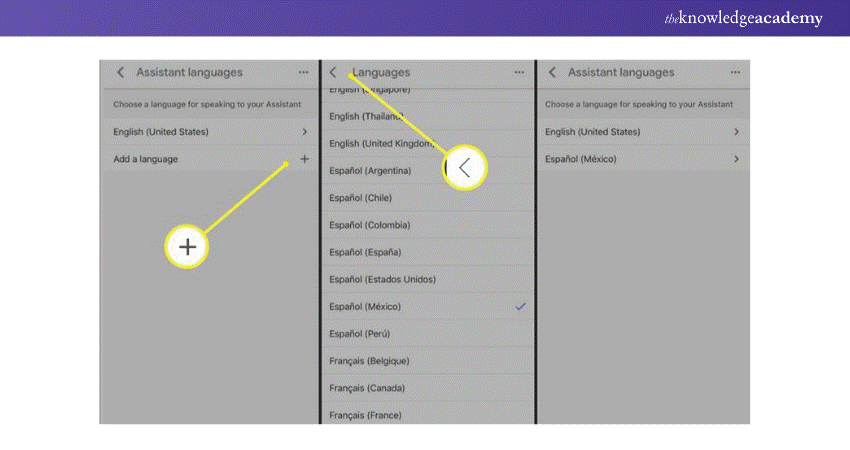
a) You will see a list of available languages.
b) Tap on the one you prefer.
c) If your desired language isn’t available, your device might not support it yet.
Step 5: Reorder Preferences
If you speak multiple languages and want Google Assistant to understand them:
a) You can add a second language along with your primary one.
b) The primary language will be the default, but Google Assistant can also respond in the secondary language if spoken to in that language.
Unlock the potential of AI automation with our Google Assistant Training - Sign up now!
Step 6: Confirm Changes
To ensure your changes are saved:
a) Exit the settings menu
b) Your Google Assistant will now start responding in the selected language
Step 7: Test Language
To verify that the language has changed:
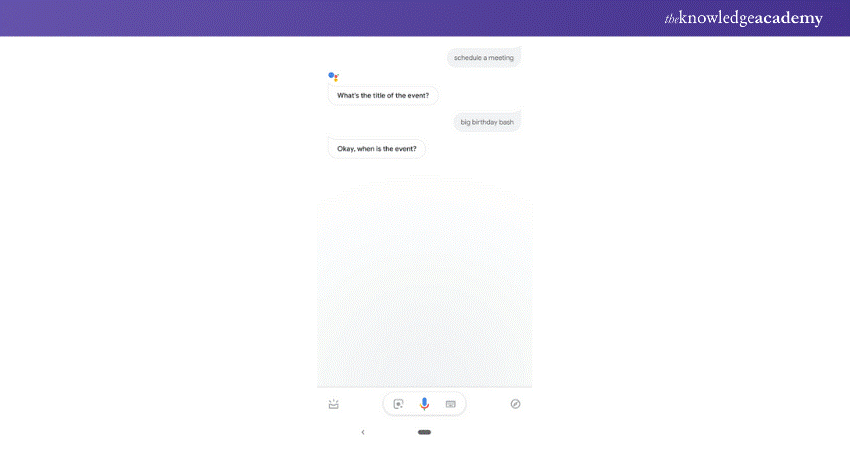
a) Say "Hey Google" and ask a simple question, like "Tell Me a Joke"
b) Check whether Assistant responds in the newly selected language.
c) If it still responds in the old language, restart your device and try again.
How to Add Second Language to Google Assistant?
Google Assistant allows you to interact with it in two different languages, meaning you can speak to it in either language, and it will understand and respond accordingly. Here’s how you can set it up:
1) Open Google Assistant Language Settings:
a) Navigate to Google Assistant settings as mentioned earlier
b) Go to the Languages section under 'All Settings’
2) Tap Add a Language:
a) You will find an option to add a language just below the primary language setting.
b) Tap on it to see a list of available languages.
3) Select a Second Language:
a) Choose the second language you want Google Assistant to recognise
b) Once selected, Google Assistant will understand and respond in both languages
How to Change the Google Assistant Voice?
Google Assistant offers various voices so you can personalise its tone to match your preference. Whether you prefer a male or female voice, or even a celebrity voice (if available in your region), changing it is simple.
Steps to Change the Voice of Google Assistant:
1) Open Google Assistant Settings:
a) Unlock your device and open Google Assistant by saying “Hey Google” or press and hold the home button (on Android).
b) Tap on the profile picture in the top-right corner.
c) Scroll down and tap on the Assistant Voice & Sounds under the "All Settings" section.
2) Choose a Voice:
a) You’ll see a list of available voice options.
b) Google often represents voices by colours (e.g., Red, Orange, Blue) instead of names.
c) Tap on each option to hear a preview of how the Assistant sounds.
3) Select Your Preferred Voice:
a) Once you find a voice that you like, click on it to set it as the default voice
Unleash the power of Alexa with our Alexa Course - Sign up today!
How to Customise Google Assistant's Voice?
Google Assistant offers various ways to personalise its voice to match your preferences. You can change the default voice, adjust its tone and accent, and even choose a celebrity voice if it's available in your region. If you're setting up a new device, you might also find it helpful to learn How to Connect Google Home to WiFi for a seamless experience.
Steps to Customise Google Assistant’s Voice:
1) Open Google Assistant Settings:
a) Say "Hey Google, open Assistant settings" or manually navigate to Settings > Google > Google Assistant.
b) Tap on Assistant Voice & Sounds under "All Settings."
2) Explore Different Voice Styles:
a) Google provides multiple voice options, represented by colours (like Red, Orange, Blue, Green) instead of names.
b) Tap on each voice option to hear a preview and select the one that sounds best to you.
3) Check for Accents & Regional Variations:
a) In some regions, Google Assistant offers voices with different accents (e.g., British English, American English, Australian English).
b) Experiment with these to find a tone that feels more natural to you.
4) Enable Celebrity Voices (If Available):
a) Google sometimes offers celebrity voices (like John Legend or Issa Rae in certain regions).
b) To check availability, say: "Hey Google, talk like a celebrity."
c) If supported, follow the instructions on-screen to enable the voices.
5) Apply the Changes:
a) Once you have chosen your preferred voice, simply exit the settings.
b) Google Assistant will now respond in the selected voice style across all connected devices.
How to Change Google Assistant's Speech Speed?
Google Assistant allows you to adjust the speed at which it speaks, which can be helpful if you prefer faster responses or need it to slow down for better clarity. Here’s how you can customise the speech speed:
Steps to Change Google Assistant’s Speech Speed:
1) Activate Google Assistant
a) Say "Hey Google" or press and hold the home button (on Android) to bring up Google Assistant.
2) Give the Command
a) Say "Change speech speed" or "Adjust speaking rate" to trigger the speed control settings.
3) Adjust the Speed Using the Slider
a) A slider will appear on the screen, allowing you to increase or decrease the speech rate.
b) Move the slider to the left to slow down speech or to the right to speed it up.
4) Test the New Speed
a) Once adjusted, ask Google Assistant a question like "Tell me joke" or “What’s the weather today in my location?”
b) Listen to how fast or slow it responds and adjust the speed of reading if needed.
Conclusion
Modifying speech, voice, or language settings on Google Assistant adds a personal touch, but if you prefer not to use it at all, turning off Google Assistant is also an option. In just a few clicks, you can add a new language, change the current language to your native one, or even adjust the Assistant's voice to suit you. Make these changes today and get more value out of your Assistant.
Enhance the productivity of IOS Siri with our Integrate Siri Using SiriKit Course - Register now!
Frequently Asked Questions
What is the Disadvantage of Google Assistant?

First, privacy is a key issue. Many people don’t want their voice recordings saved to the internet, where they can be analysed. There are also limitations on where this AI can be used. For example, without an internet connection, the Assistant won't function and in case of loud noise, commands may not be understood.
What Cool Things Can Google Assistant Do?
In addition to calling contacts, Google can play music, take and send text messages, set up reminders, answer questions, translate languages, and make calls. Google excels in automation, since third-party apps can be integrated for extra functionality. The best part is that it can detect speakers, increasing its usefulness as an AI buddy!
What are the Other Resources and Offers Provided by The Knowledge Academy?
The Knowledge Academy takes global learning to new heights, offering over 3,000+ online courses across 490+ locations in 190+ countries. This expansive reach ensures accessibility and convenience for learners worldwide.
Alongside our diverse Online Course Catalogue, encompassing 19 major categories, we go the extra mile by providing a plethora of free educational Online Resources like Blogs, eBooks, Interview Questions and Videos. Tailoring learning experiences further, professionals can unlock greater value through a wide range of special discounts, seasonal deals, and Exclusive Offers.
What is The Knowledge Pass, and How Does it Work?
The Knowledge Academy’s Knowledge Pass, a prepaid voucher, adds another layer of flexibility, allowing course bookings over a 12-month period. Join us on a journey where education knows no bounds.
What are the Related Courses and Blogs Provided by The Knowledge Academy?
The Knowledge Academy offers various AI Voice Assistant Training, including the Alexa Course, Google Assistant Training and the Cortana Intelligence Training. These courses cater to different skill levels, providing comprehensive insights into What is Google Assistant.
Our Data, Analytics and AI Blogs cover a range of topics related to Google Assistant, offering valuable resources, best practices, and industry insights. Whether you are a beginner or looking to advance your Artificial Intelligence skills, The Knowledge Academy's diverse courses and informative blogs have got you covered.

Lily Turner


Senior AI/ML Engineer and Data Science Author
Lily Turner is a data science professional with over 10 years of experience in artificial intelligence, machine learning, and big data analytics. Her work bridges academic research and industry innovation, with a focus on solving real-world problems using data-driven approaches. Lily’s content empowers aspiring data scientists to build practical, scalable models using the latest tools and techniques.
View Detail

 If you wish to make any changes to your course, please


