


 Top Rated Course

We may not have the course you’re looking for. If you enquire or give us a call on +39 800580270 and speak to our training experts, we may still be able to help with your training requirements.
Microsoft Word Borders: Page, Text, and Customisation Guide
The Knowledge Academy 05 March 2026In MS Word, borders can be added from Design > Page Borders for pages or Home > Borders for text, with options for style, colour, width, and scope. This guide explains how to add page borders, format text borders, and customise layouts to create professional, structured, and visually appealing documents with ease.

Training Outcomes Within Your Budget!
We ensure quality, budget-alignment, and timely delivery by our expert instructors.
Table of Contents

Ever noticed how a simple border can instantly make a document look more polished and professional? In Microsoft Word Borders are powerful formatting tools that help organise content, highlight important sections, and improve overall readability.
In this blog, we will explore how to add page and text borders, customise their appearance, and use them effectively to create well-structured, visually appealing documents with confidence.
Table of Contents
1) Understanding Microsoft Word Borders
2) How to add Borders to a Microsoft Word Page?
3) Customising Border Styles
4) Applying Borders to text
5) How to Create Borders?
6) Saving and Reusing Border Styles
7) Conclusion
Understanding Microsoft Word Borders
The Microsoft Word Border allows you to add visual lines to the content, paragraphs or complete pages to make them stand out and appear more organised and nicer. Borders may be placed on either side; top, bottom, left or right and customised to match your formatting requirements.
Microsoft Word Borders can also be used in combination with shading to emphasise portions of your document. You can make your layout easily readable and add a classy and professional appearance using the built-in border tools on the toolbar of Word.

How to add Borders to Microsoft Word Page?
Borders around the pages in Microsoft Word can be used to enhance document structure and appearance. The process is easy and does not need any special conditions, and also works across Windows, MacOS, and the web version. Follow these steps to add Microsoft Word Borders:
Step 1: Go to the Design tab and select Page Borders.
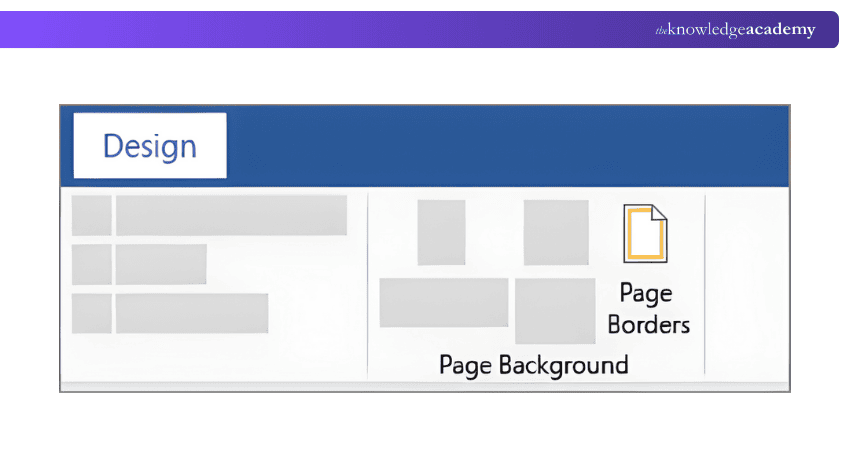
2) Step 2: Choose your preferred border style, colour, width, and page placement.
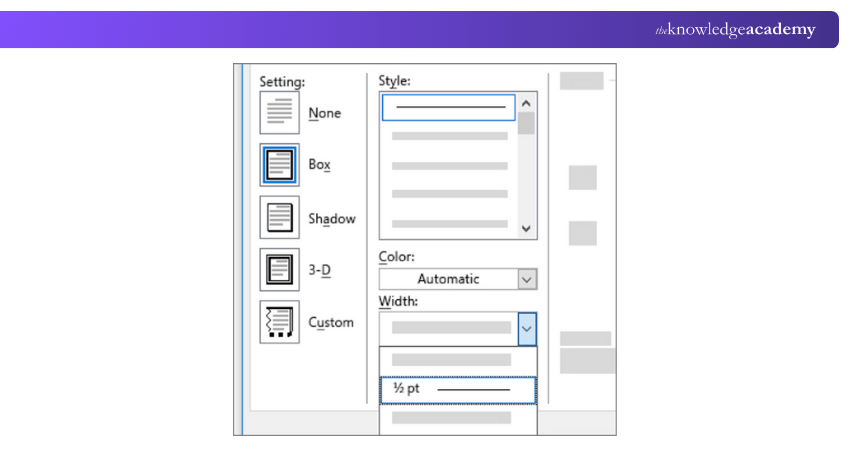
3. Step 3: Click Options to adjust the distance between the border and the page edges.
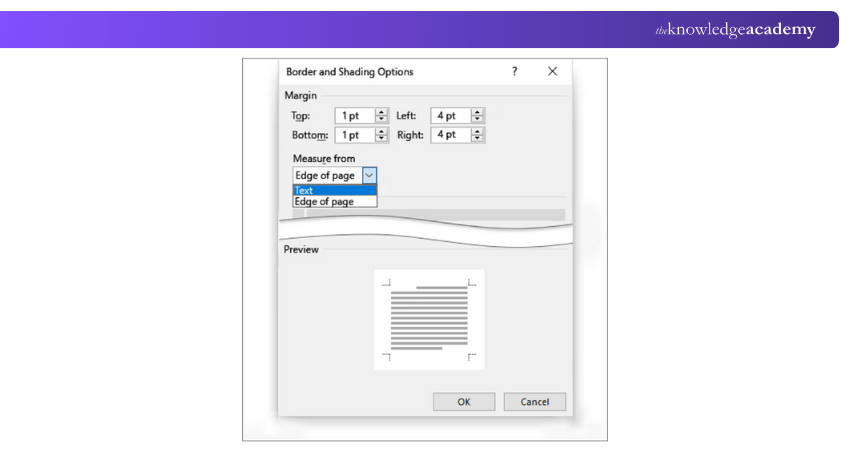
4. Step 4: Select OK to apply the border to your document.
Customising Border Styles
Microsoft Word offers a range of customisation options to help you create visually appealing and unique border styles. Here's how you can customise the styles for Microsoft Word Borders:
1) Select the element, such as a paragraph or a table, to which you want to add a border on Microsoft Word.
2) Click on the "Home" tab located at the top of the Microsoft Word window.
3) In the "Paragraph" or "Table" section, click on the "Borders" button on Microsoft Word.
4) A drop-down menu will appear, displaying various border styles.
5) Choose the desired border style from the drop-down menu on Microsoft Word.
6) In order to further customise the border, click on the "Borders and Shading" option at the bottom of the drop-down menu.
7) The "Borders and Shading" dialogue box will open, allowing you to adjust the border settings.
8) In the dialogue box, you can modify the line style, colour, and width and apply artistic effects to your border.
9) Preview the changes in the "Preview" section to see how the customised border will appear on Microsoft Word.
10) Once you are satisfied with the customised border style, press the "OK" button to apply it to the selected element.
By customising the border styles in Microsoft Word, you can add a personal touch to your documents and make them visually engaging. Experiment with different line styles, colours, and widths to create borders that suit your document's overall design and purpose.
Take your Microsoft Office skills to the next level – sign up for our Microsoft InfoPath Course!
Applying Borders to Text
In Microsoft Word, you can apply borders to specific text within your document to draw attention or highlight important information. Here's how you can apply Microsoft Word Borders to text:
1) Choose the text to which you want to add a border on Microsoft Word.
2) Then, right-click on the selected text and choose the "Borders and Shading" option from the context menu.
3) The "Borders and Shading" dialogue box will appear, providing you with various customisation options for the text border.
4) In the dialogue box, select the desired border style, such as a solid line or a dashed line, from the available options.
5) Choose the colour for your border by clicking on the drop-down menu under "Colour."
6) Adjust the width of the border by selecting the appropriate value from the "Width" drop-down menu.
7) Preview your border settings in the "Preview" section of the dialogue box to see how they will appear on Microsoft Word.
8) If you are satisfied with the applied border settings, press the "OK" button to apply the border to the selected text.
By applying Microsoft Word Borders, you can make specific content stand out and add visual emphasis to important sections. Experiment with different border styles, colours, and widths to achieve the desired effect.
Remember to consider the overall design and purpose of your document to ensure that the applied text borders enhance its visual appeal and readability.
How to Create Borders?
Borders can be produced directly in Word or on the elements of a web page to increase the level of readability and to make certain parts emphasised. With the correct settings or the CSS techniques, you are able to dictate whether to have a border around the text, around the paragraph or the whole container. The steps include:
1) For Word: Use the Home > Borders or Design > Page Borders options to apply borders to text, paragraphs, or entire pages.
2) For Web Elements: Set the element to display: inline-block to ensure the border only spans the text width, not the full container.
3) Use Border-bottom: Apply a bottom border or pseudo-elements (::after) for custom underlines or decorative effects.
4) Adjust Style and Thickness: Choose border style, colour, and width to match your document or webpage design.
Learn, create, and collaborate efficiently with Microsoft 365 Office Training – Join now!
Saving and reusing border styles
Once you have customised a border style that you like, you can save it for future use. This saves time and ensures consistency across your documents. To save and reuse a border style, follow these steps:
1) Customise the border style according to your preferences.
2) Right-click on the element with the customised border and select the "Save Selection to Quick Styles Gallery" option from the context menu.
3) Give the border style a name and click on the "OK" button.
4) The saved border style will now appear in the "Quick Styles" section, accessible from the "Home" tab.
Conclusion
Take your documents from ordinary to professional! Understanding Microsoft Word borders is key to creating visually appealing and well-structured content. Borders help emphasise important sections, organise information, and enhance overall readability. By experimenting with styles, colours, and placement, you can make your documents stand out and look polished. Regular practice ensures you use borders effectively for reports, presentations, and creative projects.
Organise, analyse, and manage data efficiently with our Microsoft Access Training – Join now!
Frequently Asked Questions
Can You Download More Borders for Microsoft Word?

Yes, MS Word comprises the option to download more borders. To do this, you should open Microsoft Word, select 'Graphics' and type in 'Borders'. Later, you should click on the search icon to browse border images. Choose the border image you want to use and download it.
How Do I Add a Border to a Table in Word?
To add a border to a table in Word, first select the table. Then, navigate to the "Design" tab, click on "Borders," and choose the desired border style. Alternatively, right-click on the table, select "Borders and Shading," and customise the border options from there.
What are the Other Resources and Offers Provided by The Knowledge Academy?
The Knowledge Academy takes global learning to new heights, offering over 3,000+ online courses across 490+ locations in 190+ countries. This expansive reach ensures accessibility and convenience for learners worldwide.
Alongside our diverse Online Course Catalogue, encompassing 17 major categories, we go the extra mile by providing a plethora of free educational Online Resources like Blogs, eBooks, Interview Questions and Videos. Tailoring learning experiences further, professionals can unlock greater value through a wide range of special discounts, seasonal deals, and Exclusive Offers.
What is the Knowledge Pass, and How Does it work?
The Knowledge Academy’s Knowledge Pass, a prepaid voucher, adds another layer of flexibility, allowing course bookings over a 12-month period. Join us on a journey where education knows no bounds.
What are Related Courses and Blogs Provided by The Knowledge Academy?
The Knowledge Academy offers various Microsoft Office Trainings, including Microsoft PowerPoint Training, Microsoft SharePoint Training, and Microsoft Word Course. These courses cater to different skill levels, providing comprehensive insights into How to Use Microsoft Word.
Our Office Applications Blogs cover a range of topics related to Microsoft Word, offering valuable resources, best practices, and industry insights. Whether you are a beginner or looking to advance your Office Application skills, The Knowledge Academy's diverse courses and informative blogs have got you covered.

The Knowledge Academy


Global Training Provider
The Knowledge Academy is a world-leading provider of professional training courses, offering globally recognised qualifications across a wide range of subjects. With expert trainers, up-to-date course material, and flexible learning options, we aim to empower professionals and organisations to achieve their goals through continuous learning.

Upcoming Office Applications Resources Batches & Dates
Date
 Microsoft Word Course
Microsoft Word Course
Fri 17th Jul 2026
Microsoft Word Course
Fri 16th Oct 2026

 If you wish to make any changes to your course, please


