


 Top Rated Course

We may not have the course you’re looking for. If you enquire or give us a call on +44 1344 203 999 and speak to our training experts, we may still be able to help with your training requirements.
What is Power BI Service?
The Knowledge Academy 13 July 2026Power BI Service is a cloud platform for viewing, sharing, and collaborating on reports and dashboards. Requires a Pro or Premium licence for full access. It supports real-time collaboration and data updates across teams. Users can access insights securely from any device, ensuring informed decisions anytime, anywhere.

Training Outcomes Within Your Budget!
We ensure quality, budget-alignment, and timely delivery by our expert instructors.
Table of Contents
Related Courses
- Quick Powerful Graphics with Power View, PowerPivot, Power Query, Power Map and Power BI M55164
- Microsoft Power BI for End Users 55400AC
- Retired : Designing and Implementing Enterprise-Scale Analytics Solutions Using Microsoft Azure and Microsoft Power BI DP500
- Microsoft Power BI Data Analyst PL300
- Microsoft BI Training

Power BI Service is a cloud-based solution that empowers companies to disseminate information and work together via dynamic visuals and reports. It allows groups to securely retrieve live data from any location. By offering smooth integration and robust sharing capabilities, it empowers users to make decisions based on data and knowledge. Let us examine the process and significance of this technology for organisations.
Table of Contents
1) What is Power BI?
2) Understanding What is Power BI Service
3) Power BI: Desktop vs Service
4) Advantages of Power BI
5) Disadvantages of Power BI
6) Conclusion
What is Power BI?
Power BI is a cloud-based business analytics platform that enables users to connect, visualise, and analyse data quickly and efficiently. It offers interactive dashboards, AI-driven insights, and rich visualisations to transform data into actionable intelligence. Power BI seamlessly integrates with a wide range of live data sources and is part of Microsoft Fabric, an end-to-end data platform.
At its core, Power BI helps users model data, create reports, and visualise key metrics to drive informed decision-making. Its integration with familiar Microsoft products like Excel, and its ability to blend, filter and present data rapidly, make it a strong choice for both technical analysts and business users.

Understanding What is Power BI Service
Microsoft Power BI Service, often referred to as Power BI's Software-as-a-Service (SaaS) or Power BI Online, plays a crucial role in the Power BI Tutorial journey. It is an Azure cloud-based platform that enables you to interpret data with greater efficiency and deeper insights.
By connecting you with data sources through intuitive dashboards, informative reports, and workbooks, it enhances Data Analysis. Since Power BI is built on the Azure Cloud platform, it aligns with the HTML5 standard, facilitating Power View support.
The Power View tool is specifically used for data visualisation, allowing users to create compelling infographics. Now, we’ll get started with Service of Power BI, you need to Sign-in to the Power BI site by using “powerbi.microsoft.com” or buy a subscription account.
Here are the various elements described in detail to explain the Service of Power BI:
1) Workspaces
Workspaces are built on capacity. Capacities are represented as the fundamental concept of Power BI. It is a set of data resources like storage, memory, and process used to transport and host your Power BI data. Capacities are either dedicated capacity or shared capacity.
The dedicated capacity is committed only to a single customer, and the shared capacity is shared among Microsoft users. Workspaces are of two types and they are discussed below.
The Workspace also referred to as App workspace is used in collaborating and sharing content with co-workers. With this, you can create, manage and publish applications for your business. Precisely consider them as containers filled with contents in them.
With this feature, you can add your co-workers to share your dashboards, datasets, workbooks, reports, and some other files. This is a subscription feature from the Power BI Pro package of Service. Make sure you have subscribed for app services, especially if you're working with DAX in Power BI to create advanced calculations and measures.
2) My Workspace
My Workspace is the personal workspace for Service users to work with their content. It’s a private space, accessed only by you. If you wish to share your content through my workspace, you can follow anyone of the below options.
1) Create an App Workspace. Compile the content to the App. Then share it with team members.
2) Create an App Workspace and grant access to the team members.
3) Datasets
Data is the nucleus of Power BI and Datasets are the collective data in Power BI. These Datasets include Data from Power BI Desktop files, Excel, CSV, SQL Azure database, Data Warehouse and data from online server packs like Bing, MailChimp, GitHub, etc. By using Hypertext Transfer Protocol (HTTP) you can import the data or connect datasets to Azure cloud. Datasets and workspace are interconnected. You will work with data in a workspace whereas datasets are available in more than one workspace.
Here are the key take aways:
1) Datasets can be repeatedly used in multiple workspaces.
2) Data sets can be in numerous reports.
3) Datasets can be renamed, refreshed or deleted.
4) Graphs and reports generated from one dataset can be used in multiple dashboards.
Become a Microsoft-certified Data Analyst with our Microsoft Power BI Data Analyst PL300 course. Register now!
4) Reports
Reports are visuals in the form of charts, graphs, maps, etc. Each visualisation of the Power BI report comes from a single dataset. In Power BI the reports are generated by connecting datasets from Power BI Desktop, Databases, Excel, SaaS apps, etc. Each Power BI report is built from scratch. The generated reports are accessed in two ways, either by editing or reading. All the editing features of the generated report are available for the owners and authorised members. Through the reading view, users can only explore and interact with reports.
Key-take aways:
1) A single report is linked with multiple data dashboards within the workspace.
2) Tiles pinned in these reports will appear on all dashboards. (Tiles divide the data into small and manageable parts to store them in Blob storage of the database.)
3) Data from a single dataset is used to generate a report.
4) Power BI Desktop can merge multiple datasets into a single report to be imported into Power BI, but this is an exceptional case.
5) Dashboards
With Service feature, you can build your own dashboard. If not, in creating one you can make use of the already existing dashboard that someone shared with you. A dashboard is a single canvas consisting of more widgets and zero/more tiles.
Key-take aways for a dashboard:
1) Connected to a single workspace
2) Can provide visuals from a wide variety of datasets
3) Can show graphics pinned from other tools (e.g., Excel)
The other service in Power BI are in Administration and Architectural domains.
6) Administration Service in Power BI
Power BI Administration refers to managing and controlling the Power BI function for businesses. The users are responsible for configuring, monitoring, and provisioning companies’ resources.
The admin task are as follows:
1) Create a conditional access policy to manage tasks with Power BI
2) Power BI functionality can be turned on and off, in that case, make sure that the performance reports are available
3) Review auditing
4) Limit users and groups
5) Use scripts to control Power BI workspaces and other features
7) Architecture Service in power BI
1) Power BI Architecture is an Azure Cloud-based service.
2) Power BI enables Azure Active Directory (AAD) to store the data by using Azure SQL Database and Azure Blob.
3) Connects with all data sources.
4) On-premise data sources are linked to the Power BI gateway to provide continuous data for reporting and analytics.
5) Power BI reports and data visualisations are published using Power BI Service. (Also called Back-end clusters)
6) Power BI mobile apps will make you stay connected with your data across the globe.
7) Are accessible by any OS.
Power BI: Desktop vs Service
Below is the comparison between Power BI’s Desktop and Service.
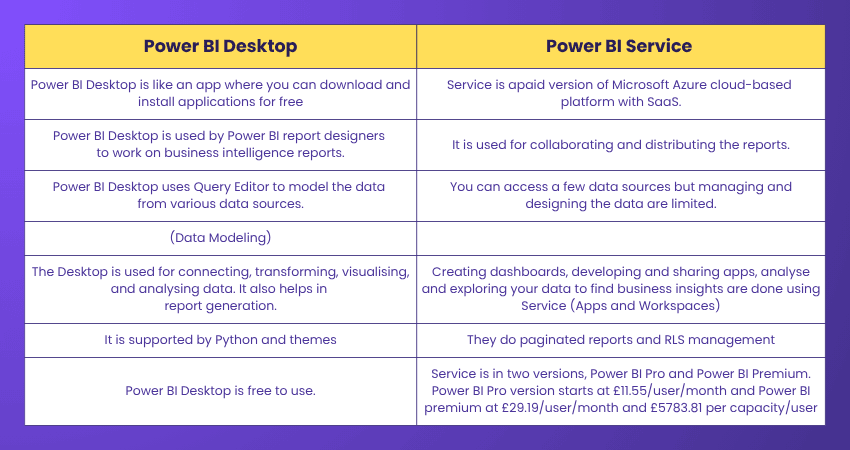
Just a few areas may co-relate with both Power BI Desktop and Services, such as reports, security, bookmarks, visualizations, and RLS in Power BI. You need to start with Power BI Desktop to build the reports, and to share the reports, you need Power BI Service.
Gain comprehensive knowledge of data analysis with our Cognos BI Reporting Course – Join now!
Advantages of Power BI
Power BI offers a range of benefits that make data analysis simple, efficient, and scalable. It is designed to suit beginners, professionals, and organisations of all sizes.
a) User-friendly interface: Power BI is easy to use, even for non-technical users. You can create reports and dashboards by dragging and dropping charts, tables, and graphs without writing any code.
b) Seamless Integration with Microsoft Tools: Power BI works smoothly with Excel, Azure, Teams, and SharePoint. You can import spreadsheets, connect to cloud services, and share reports easily, saving time and ensuring familiarity.
c) Real-time Data Access: Connect directly to live data sources for up-to-date dashboards. Changes in your data, such as sales figures, are reflected automatically, eliminating the need for manual updates.
d) Regular Updates: Microsoft frequently enhances Power BI with new features based on user feedback, ensuring the platform becomes smarter, faster, and easier to use over time.
e) Scalable for All Needs: Power BI suits individuals, small businesses, and large enterprises. Start small and scale as your requirements grow, handling both simple and complex projects without switching tools.
Disadvantages of Power BI
While Power BI is a powerful tool for data analysis and visualisation, it does have some limitations. Here are the most common drawbacks to consider before adopting the platform.
a) Cost: Power BI offers a free version with limited features. Advanced tools, report sharing, and handling large datasets require paid plans like Power BI Pro or Premium, which can become expensive for larger teams.
b) Takes Time to Learn: Although feature-rich, Power BI can feel overwhelming for beginners. Learning to create visuals, manage data, and build dashboards effectively requires time and practice, especially for those new to Microsoft tools.
c) Limited Customisation for Visuals: Basic visual adjustments are easy, but advanced customisation often requires coding with DAX or M. This can be challenging for users without technical expertise.
d) Requires Internet Access: Power BI is primarily cloud-based, so an internet connection is essential. Poor connectivity can make accessing reports and dashboards difficult, especially if data is stored online.
e) Can Be Slow with Large Datasets: Handling large or complex datasets may slow down Power BI. Loading, refreshing, or updating data can take time, particularly on devices with lower processing power.
f) Data Size Limit: Power BI Pro allows up to 10 GB per user, while Premium supports up to 100 TB. Higher limits require more expensive plans, which may not suit all budgets.
g) Limited Compatibility with Some Tools: Although Power BI integrates well with many platforms, older systems or specialised software may face issues with connectivity, importing, or syncing data.
Conclusion
The Power BI Service enables companies to take intelligent, data-based decisions by providing interactive reports and real-time collaboration. Integration of this service with other Microsoft tools is seamless, which guarantees efficiency and availability. Moreover, it transforms complex data into easy-to-understand insights thereby facilitating businesses to remain flexible and rival.
Prepare for the position of a Microsoft-certified Power BI Data Analyst, by signing up for our Microsoft Power BI Certification now!
Frequently Asked Questions
What are the 4 Roles in Power BI Service?

In Power BI Service, the four main roles include Admin, Member, Contributor, and Viewer. The admins control the entire setting of the workspace; the Members and the Contributors handle the content creation or editing, and the Viewers can only read the content and interact with the reports as though they were reading.
When Should I use Power BI Services?
In cases where you have to share reports, collaborate with others, and get dashboards access online, Power BI Service is your best platform. The service is particularly suited for publishing, distributing insights, and doing real-time analysis on already existing data models in a secure cloud environment.

The Knowledge Academy


Global Training Provider
The Knowledge Academy is a world-leading provider of professional training courses, offering globally recognised qualifications across a wide range of subjects. With expert trainers, up-to-date course material, and flexible learning options, we aim to empower professionals and organisations to achieve their goals through continuous learning.


 If you wish to make any changes to your course, please


