


 Top Rated Course

We may not have the course you’re looking for. If you enquire or give us a call on +08000201623 and speak to our training experts, we may still be able to help with your training requirements.
How to Create a Checkbox in HTML: A Quick Guide
Richard Harris 06 February 2026Do you want to know How to Create a Checkbox in HTML? Checkboxes are essential for adding selectable options to forms, making your site more interactive. With just a few lines of code, you can implement them effortlessly. This blog walks you through the simple HTML code and attributes to integrate checkboxes seamlessly into your webpage.

Training Outcomes Within Your Budget!
We ensure quality, budget-alignment, and timely delivery by our expert instructors.
Table of Contents

Imagine you’re filling out a form online, and you come across a checkbox asking if you’d like to receive updates. It’s a small action, but that little checkbox can significantly impact your web experience. Knowing How to Create a Checkbox in HTML is a must-have skill if you’re aiming to build engaging, user-friendly websites.
Learning How to Create a Checkbox in HTML is an essential skill for anyone looking to build engaging, user-friendly websites. In this blog, we’ll guide you through the process of creating a checkbox in HTML, from the basics to advanced techniques that will make your forms stand out. Whether you’re new to coding or a seasoned pro looking to add some flair, mastering checkboxes in HTML will elevate your web design game.
Table of Contents
1) What is an HTML Checkbox?
2) Checkbox Example in HTML
3) Various Checkbox Input Types
4) Styling HTML Checkboxes with CSS
5) Browser Compatibility for HTML Checkbox
6) Conclusion
What is an HTML Checkbox?
An HTML Checkbox is an input element that allows users to select one or more options from a list. It is commonly used in forms where users need to make selections, like agreeing to terms and conditions or choosing their preferences from a list of options. The checkbox can be in one of two states: checked or unchecked.
HTML Checkboxes are created using the “input” element with the “type” attribute set to "checkbox." They can be customised with labels, and their state can be managed dynamically using JavaScript or CSS.
Basic Syntax:

By adding the “id” attribute, you give the checkbox an identifier, which can be used for targeting with CSS or JavaScript. The “name” attribute is typically used to group checkboxes when submitting a form.

Checkbox Example in HTML
Now, let’s dive into a simple example. Below is the HTML code that creates a checkbox for a user to select if they agree to the terms and conditions of a website.
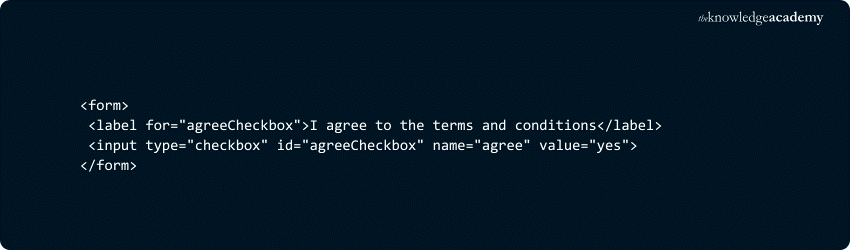
In this example:
1) The “label” element is used to make the checkbox more accessible. It provides a description for the checkbox that can be clicked on to select or deselect the box.
2) The “value” attribute indicates the value that will be sent when the form is submitted if the checkbox is selected.
Various Checkbox Input Types
HTML Checkboxes have a wide range of uses. In addition to the basic checkbox that we’ve seen so far, there are several other input types and techniques you can apply to make your forms more interactive and user-friendly.
1) Managing Multiple Checkboxes
When you need to allow users to select multiple options, you can add multiple checkboxes. For example, you might want to give users the ability to choose multiple features in a subscription plan or select preferences in a survey.
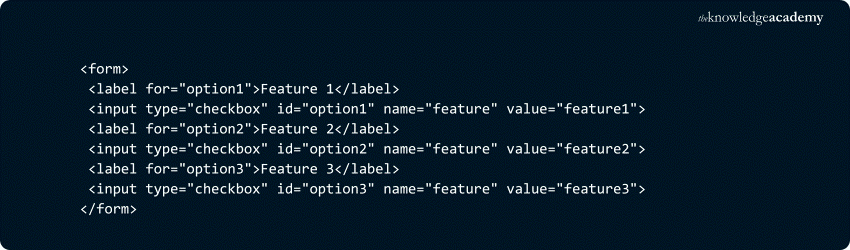
In this scenario, the user can select any combination of features. All the checkboxes have the same “name” attribute, which groups them together for easier form processing.
2) Pre-selecting Checkboxes by Default
You might want to pre-select a checkbox based on user preferences or default settings. This can be done by adding the “checked” attribute to the “input” element.

In this case, the "subscribe" checkbox will be pre-selected when the page loads, saving users the need to manually check the box.
3) Expanding the Clickable Area for Checkboxes
By default, only the box itself is clickable. However, you can expand the clickable area by styling the checkbox with a label. This improves accessibility, especially on mobile devices.

Here, clicking anywhere on the label will toggle the checkbox state, making it easier for users to interact with.
4) Creating Indeterminate State Checkboxes
Sometimes, you may want to create a checkbox that is neither fully checked nor unchecked. This state, known as the "indeterminate" state, is often used in situations like a multi-select list where not all options are selected. You can manage this state programmatically using JavaScript.

In the example above, the checkbox will appear in a partially selected state, indicating a mixed selection.
Create, code, and captivate! Start with our Introduction to HTML Course and build the skills to bring your web ideas to life. Join us today!
Styling HTML Checkboxes with CSS
While the default checkbox style is functional, it’s often not very attractive or customisable. CSS allows you to style checkboxes to match your website's design, resulting in a cleaner, more visually appealing experience that improves overall UI and UX.
Here are a few techniques to style HTML Checkboxes:
1) Custom Checkboxes
You can hide the default checkbox and replace it with a custom design. This allows you to have more control over appearance.

In this example:
a) The “input” checkbox is hidden using “display: none”.
b) The Span In HTML element is styled to look like a checkbox, and when checked, its background changes color.
2) Hover and Active States
Adding hover and active states to checkboxes can make your website more interactive and engaging.
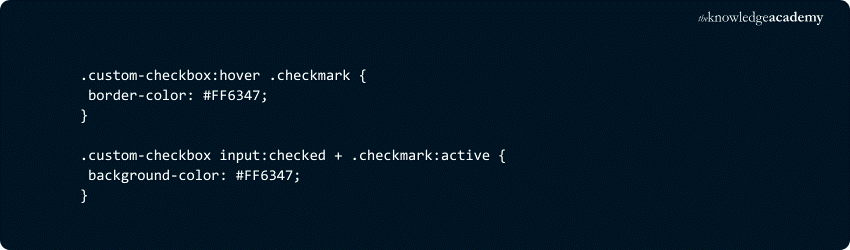
These styles will change the checkbox appearance when the user hovers over it or clicks it, providing a better interactive experience.
Browser Compatibility for HTML Checkbox
HTML Checkboxes are supported across all modern browsers. However, some styling techniques, especially custom checkboxes, may not render as expected in older browsers. These rendering differences can manifest in various ways, including issues with layout and spacing, sometimes necessitating the use of HTML for a Space. It's important to test your checkboxes across different platforms to ensure a consistent user experience.
Here’s a quick overview of browser compatibility:
1) Chrome, Firefox, Safari, and Edge: Fully support HTML Checkboxes, including basic styling and interactions.
2) Internet Explorer (IE 11 and below): May struggle with custom checkbox styling. It's recommended to use polyfills for more consistent support.
To improve compatibility, consider using a CSS reset and testing your design across various devices and browsers.
Want to create stunning, user-friendly websites? Master HTML and CSS with our HTML and CSS Course and start shaping your future today!
Conclusion
Creating checkboxes in HTML is straightforward, but with a little creativity, you can take them to the next level. From managing multiple checkboxes to pre-selecting options, styling with CSS, and ensuring a consistent experience across browsers, the possibilities are endless. By understanding How to Create a Checkbox in HTML and exploring advanced techniques, you can build user-friendly and visually appealing forms for any website.
Transform your passion for gaming into a career— Join in our HTML 5 Apps and Game Training and start building apps that engage and entertain!
Frequently Asked Questions
How to Add a Checkbox in a Table in HTML?

To add a checkbox in a table, place it inside a table cell by including the checkbox input within each row. This lets each row contain an individual checkbox, which can be labelled or associated with data in the other cells.
How to Set Value for a Checkbox in HTML?
Assign a value to a checkbox using the "value" attribute. When the form is submitted, only checked boxes send their values. This feature is useful for indicating a specific choice or preference associated with the checkbox.
What are the Other Resources and Offers Provided by The Knowledge Academy?
The Knowledge Academy takes global learning to new heights, offering over 3,000+ online courses across 490+ locations in 190+ countries. This expansive reach ensures accessibility and convenience for learners worldwide.
Alongside our diverse Online Course Catalogue, encompassing 19 major categories, we go the extra mile by providing a plethora of free educational Online Resources like Blogs, eBooks, Interview Questions and Videos. Tailoring learning experiences further, professionals can unlock greater value through a wide range of special discounts, seasonal deals, and Exclusive Offers.
What is The Knowledge Pass, and How Does it Work?
The Knowledge Academy’s Knowledge Pass, a prepaid voucher, adds another layer of flexibility, allowing course bookings over a 12-month period. Join us on a journey where education knows no bounds.
What are the Related Courses and Blogs Provided by The Knowledge Academy?
The Knowledge Academy offers various App & Web Development Training, including the Introduction to HTML Course, HTML And CSS Course, and the Programming in HTML5 with JavaScript and CSS3 M20480 Course. These courses cater to different skill levels, providing comprehensive insights into What is HTML.
Our Programming & DevOps Blogs cover a range of topics related to HTML, offering valuable resources, best practices, and industry insights. Whether you are a beginner or looking to advance your Programming skills, The Knowledge Academy's diverse courses and informative blogs have got you covered.

Richard Harris


Senior Full Stack Developer and Technology Educator
Richard Harris is a highly experienced full-stack developer with deep expertise in both frontend and backend technologies. Over his 12-year career, he has built scalable web applications for startups, enterprises and government organisations. Richard’s writing combines technical depth with clear explanations, ideal for developers looking to grow in modern frameworks and tools.

Upcoming Programming & DevOps Resources Batches & Dates
Date
 Introduction to HTML
Introduction to HTML
Fri 12th Jun 2026
Introduction to HTML
Fri 21st Aug 2026
Introduction to HTML
Fri 4th Dec 2026

 If you wish to make any changes to your course, please


