


 Top Rated Course

We may not have the course you’re looking for. If you enquire or give us a call on +08000201623 and speak to our training experts, we may still be able to help with your training requirements.
How to Create a Google Account: Step-by-Step Guide For 2026
Lily Turner 07 April 2026Do you want to learn How to Create a Google Account? Whether for Gmail, YouTube, or Drive, setting up an account is quick and hassle-free. Follow this updated step-by-step guide to register, secure, and customise your account effortlessly. Stay connected with Google's powerful ecosystem in just a few minutes and unlock its full potential!

Training Outcomes Within Your Budget!
We ensure quality, budget-alignment, and timely delivery by our expert instructors.
Table of Contents

Have you ever felt like the internet is just a little more locked up without a Google account? Like, sure, you can browse around, but to really dig into all the cool tools - Gmail, Google Drive, YouTube playlists - it’s like you need a golden key. Well, learning How to Create a Google Account is exactly that key!
No tech wizardry required, just a few clicks here, a quick confirmation there, and voila - you’re in. In this blog, we will show you How to Create a Google Account step-by-step. By the end, you’ll be ready to tap into all those sweet Google perks you’ve been eyeing. Let’s make it happen!
Table of Contents
1) How to Create a Google Account?
2) Creating a Google Account on a Desktop
3) Creating a Google Account on Android Devices
4) Creating a Google Account on iOS
5) How to Delete a Google Account?
6) Advantages of Having a Google Account
7) Tips for Enhancing Your Google Account
8) How Do You Activate Your Google Account?
9) Can You Have Two Google Accounts?
10) Is a Google Account the Same as a Gmail Account?
11) Conclusion
How to Create a Google Account?
To create a Google account, visit the Google Sign-Up page, provide your name, choose a unique username, set a strong password, and verify your phone number. In the process, you may also explore leaving a Google review for any services or products you’ve used or, if needed, How to Turn Off SafeSearch on Google. You’ll then accept Google’s terms, and once completed, your account will be ready to use across all Google services.
Creating a Google Account on a Desktop
Creating a Google account on a desktop is a simple process. Follow these steps to get started:
1) Visit Google’s Sign-Up Page: Open your browser and go to Google Account Creation.
2) Enter Your Personal Details: Fill in your first and last name. Choose a unique username (this will be your Gmail address).
3) Create a Strong Password: Use a combination of uppercase and lowercase letters, numbers, and symbols for better security.
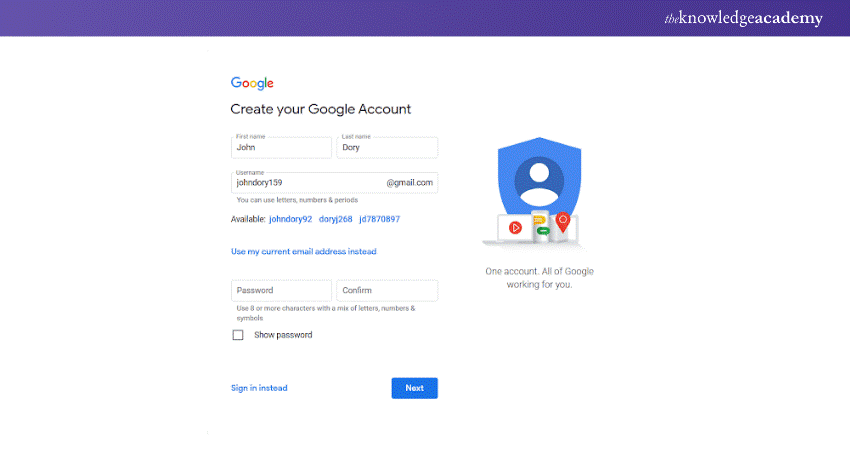
4) Confirm Your Details: Re-enter your password and click "Next."
5) Verify Your Identity: Google may ask for your phone number for verification purposes. Enter the code you receive via SMS.
6) Provide Recovery Options: You can add a recovery email and phone number to help you recover your account if needed.

7) Accept Google’s Terms and Privacy Policy: Carefully read through Google’s terms and click "Agree."
8) Set Up Your Account: Once completed, you’ll be taken to your new Google account dashboard. From here, you can start exploring Gmail, Google Drive, and other Google services.
Master data insights and predictive analysis with the Google Advanced Data Analytics Course to boost your career in data-driven decision-making.
Creating a Google Account on Android Devices
If you're using an Android phone, having a Google account is essential for accessing the Play Store, syncing contacts, and utilizing other Google services. Additionally, it allows you to Create Google Forms seamlessly. Here’s how you can set up a Google account on your Android device:
1) Open the Settings App: Scroll down and tap "Accounts" or "Users & accounts," depending on your phone model.
2) Add an Account: Select "Add account" and choose "Google."
3) Click on ‘Create Account’: Select "For Myself" or "For a Child" if you’re setting up an account for a minor.
4) Enter Personal Information: Provide your first and last name, then tap "Next."
5) Select a Username and Password: Choose a unique username and create a strong password.
6) Verify Your Phone Number: Google may ask for a phone number to send a verification code. Enter the code when received.
7) Complete Setup: Agree to Google’s terms, and your account is ready to use! You can now sync your account with various Google apps like Gmail, Google Photos, and Drive.
Learn how to query large datasets efficiently with Google BigQuery Training and enhance your cloud data skills for real-world applications.
Creating a Google Account on iOS
Even if you use an iPhone, having a Google account can be incredibly useful for accessing Gmail, YouTube, Google Maps, and other Google services. Here’s how you can create one:
1) Open the Gmail App: If you don’t have it, download it from the App Store. Alternatively, you can use Safari to visit Google Account Creation.
2) Tap "Create Account": Select whether the account is for yourself or for a child.
3) Enter Your Name and Details: Type in your first and last name, then tap "Next."
4) Pick a Username and Password: Choose a Gmail address and set a secure password.
5) Verify Your Phone Number: Google may send a code to your mobile for verification.
6) Accept Google’s Terms: Read through the privacy policy and terms of service before accepting them.
7) Start Using Your Account: Once done, you can add your Google account to your iPhone’s Mail app or continue using the Gmail app for email access.
Ready to sharpen your search skills? Register in our Google Advanced Search Certification and learn to find anything, anytime, anywhere.
How to Delete a Google Account?
If you no longer need your Google account or wish to delete it for privacy reasons, follow these steps:
1) Go to Google Account Settings: Visit Google Account Management.
2) Navigate to Data & Privacy: On the left-hand menu, click on "Data and Privacy."
3) Find "Delete Your Google Account": Scroll down and select the option to delete your account.
4) Confirm Your Identity: Google may ask you to sign in again for security reasons.
5) Review and Download Your Data: If you want to keep your emails, files, or photos, download them before deleting your account.
6) Proceed with Deletion: Click "Delete Account," and your Google account will be permanently removed.
Build a strong cloud foundation with Google Cloud Fundamentals Training and start your journey into scalable, secure, and modern cloud infrastructure.
Advantages of Having a Google Account
Having a Google account isn’t just about sending emails—it offers a host of benefits. Let’s explore why it’s worth having one:

1) It’s Free
You don’t need to spend a penny to create and use a Google account. It provides access to essential services like Gmail, Google Docs, and Google Drive at no cost.
2) Generous Storage Space
Google offers 15GB of free storage across Gmail, Drive, and Photos, making it easy to store documents, emails, and media. You can also upgrade to Google One for additional space.
3) Seamless Access Across Devices
Once signed in, you can access your Google account on multiple devices; your phone, laptop, tablet, or even a public computer. Your data syncs instantly.
4) Highly Reliable
Google’s services have minimal downtime, ensuring smooth access to your emails and files. Unlike some email providers, Gmail is rarely unavailable.
5) Secure and Protected
With two-factor authentication (2FA) and advanced encryption, Google offers robust security features to protect your data from hackers and phishing attempts.
6) Exceptional Personalisation Options
You can customise your account with profile pictures, themes, and settings to make it feel more personalised.
7) Google’s Search Function in Your Inbox
Gmail has a powerful search bar that allows you to find old emails within seconds, saving you time and effort.
8) Free Plugins and Add-ons to Customise Your Email
From email scheduling tools to AI-powered grammar checkers, you can integrate various add-ons to enhance your Gmail experience.
Showcase your expertise with a Google Cloud Certification. Validate your skills, boost your career, and join the cloud elite!
Tips for Enhancing Your Google Account
A Google account is already feature-rich, but you can make it even better with these tips:
1) Use of Extensions and Integrations
Consider installing Google Chrome extensions like Grammarly, Boomerang, and Evernote Web Clipper to improve productivity and email management.
2) Customise Your Gmail Dashboard
Use labels, filters, and themes to organise your inbox effectively. You can also enable priority inbox to sort important emails automatically.
How Do You Activate Your Google Account?
To Activate your Google Account:
1) Open your email inbox
2) Find and open the email from Google
3) Locate the verification code
4) Enter the code in the required field
5) Sign into your Google account
Can You Have Two Google Accounts?
Yes, you can have multiple Google accounts. Google allows users to create and sign in to as many accounts as they need. You can switch between them without any conflict by using Google’s account switcher feature.
Is a Google Account the Same as a Gmail Account?
No, a Google account isn’t the same as a Gmail account. A Google account provides access to all Google services, like Google Drive, Photos, and YouTube. A Gmail account is a specific Google account that includes an email address, but you can have a Google account without using Gmail. However, if you're using Gmail, you might want to Clear Search History in Gmail to keep your account organised and private.
Conclusion
Creating a Google account is a straightforward process that comes with numerous advantages, such as free cloud storage and seamless device integration. Whether you're setting up an account for work or personal use, the process remains straightforward across desktops, Android, and iOS devices. Additionally, if you haven't done so yet, it's essential to explore How to Embed Google Calendar while also learning How to Create a Google Account to efficiently manage emails and files.
Start protecting your cloud data today! Register in our Google Cloud Security Course and secure your future in tech.
Frequently Asked Questions
How Do I Create a New Google Account if I Already Have One?

To create another Google account, go to the Google Sign-Up page. Follow the usual steps, such as entering a name, choosing a username, setting a password, and verifying your details. You can use the same recovery email or phone number as your existing account.
How to Modify Data at a Later Time?
Log in to your Google account, go to “Manage your Google Account,” and navigate to the section you want to edit—like personal info, privacy settings, or recovery options. Make the changes and save them. Google makes it easy to update your data whenever you need.
What are the Other Resources and Offers Provided by The Knowledge Academy?
The Knowledge Academy takes global learning to new heights, offering over 3,000+ online courses across 490+ locations in 190+ countries. This expansive reach ensures accessibility and convenience for learners worldwide.
Alongside our diverse Online Course Catalogue, encompassing 19 major categories, we go the extra mile by providing a plethora of free educational Online Resources like Blogs, eBooks, Interview Questions and Videos. Tailoring learning experiences further, professionals can unlock greater value through a wide range of special discounts, seasonal deals, and Exclusive Offers.
What is The Knowledge Pass, and How Does it Work?
The Knowledge Academy’s Knowledge Pass, a prepaid voucher, adds another layer of flexibility, allowing course bookings over a 12-month period. Join us on a journey where education knows no bounds.
What are the Related Courses and Blogs Provided by The Knowledge Academy?
The Knowledge Academy offers various Google Cloud Certification, including the Google Advanced Search Certification, Google Search Appliance Fundamentals and the Data Engineering with Google Cloud Platform. These courses cater to different skill levels, providing comprehensive insights into Google Search Analytics and Cloud Services.
Our Cloud Computing Blogs cover a range of topics related to Google Cloud Certification, offering valuable resources, best practices, and industry insights. Whether you are a beginner or looking to advance your Google Cloud skills, The Knowledge Academy's diverse courses and informative blogs have got you covered.

Lily Turner


Senior AI/ML Engineer and Data Science Author
Lily Turner is a data science professional with over 10 years of experience in artificial intelligence, machine learning, and big data analytics. Her work bridges academic research and industry innovation, with a focus on solving real-world problems using data-driven approaches. Lily’s content empowers aspiring data scientists to build practical, scalable models using the latest tools and techniques.
View Detail
Upcoming Cloud Computing Resources Batches & Dates
Date
 Google Cloud Training
Google Cloud Training
Fri 17th Jul 2026
Google Cloud Training
Fri 25th Sep 2026

 If you wish to make any changes to your course, please


