


 Top Rated Course


We may not have the course you’re looking for. If you enquire or give us a call on +08000201623 and speak to our training experts, we may still be able to help with your training requirements.
How to Connect Alexa to TV: A Setup Overview
Lily Turner 12 February 2026Interested in learning How to Connect Alexa to TV? For this, you first begin by ensuring your TV and Alexa device are compatible, then follow the instructions in this blog to link them. Post-reading this entire piece, you will be able to control your TV easily with voice commands, further enhancing your entertainment experience.

Training Outcomes Within Your Budget!
We ensure quality, budget-alignment, and timely delivery by our expert instructors.
Table of Contents
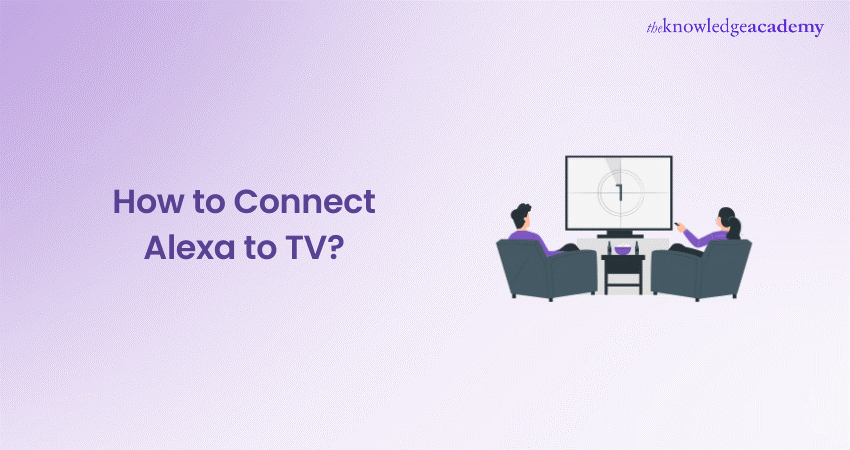
Imagine being able to control your TV, search for your favourite shows, and even adjust the volume like a walk in the park. Learning How to Connect Alexa to TV can make this possible. By opening a world of convenience at your fingertips, it can boost your entertainment and informative experience. So, are you excited to revolutionise your TV viewing experience through voice commands?
This setup blog will walk you through the simple steps to integrate Alexa seamlessly with your TV. By the end of this blog, you will know exactly How to Connect Alexa to TV and enjoy a hands-free, smarter home entertainment system. Dive in to discover further!
Table of Contents
1) Is Your TV Smart Enough?
2) How to Set Up Alexa?
3) How to Set Up Your Smart TV?
4) How to Connect Alexa to Your Smart TV?
5) Tips for Connecting Alexa to Your Smart TV
6) Troubleshooting Connection Issues
7) Conclusion
Is Your TV Smart Enough?
The initial step to connect Alexa to your TV is assessing how Alexa can integrate with your existing home setup. If you have a smart TV from brands like LG, Sony, Vizio, or Samsung, depending on the model, the setup becomes a lot simpler. Apart from this, you can use an Amazon Fire TV Stick or a Roku device (which requires specialised skills to operate) to control your media.
Some TV boxes also come with built-in smart control features, such as Verizon Fios’ VMS 1100 and Inter-process Communication (IPC) 1100, DirecTV’s Genie and Genie Mini, and many of Dish Network’s Hopper set-top boxes. Benefits of Using Alexa Device include the ability to control these devices seamlessly through voice commands, enhancing your overall viewing experience.
How to Set Up Alexa?
Setting up your Alexa device is a simple process that allows you to control your voice using your fingertips. These steps are stated as follows:
1) Download the Alexa app
2) If you don’t have an Amazon account, create one. If you already have an account, sign in.
3) Follow the on-screen guidelines to connect your device to Wi-Fi, then tap “Next” in the upper right corner when finished.
Unlock Alexa's full potential with the Alexa Commands List PDF. Download now and start controlling your smart home!
How to Set up Your Smart TV?
Setting up your smart TV is a crucial step to enjoying a seamless entertainment experience. Here are the steps explained below to set up the smart TV:
1) Enable ‘Network Sharing’ to connect your smart TV to the internet and allow Alexa’s voice commands.
2) Link your smart TV to your Wi-Fi network. If you’re using an Ethernet cable, plug one end into an available port on your router or modem and the other end into an Ethernet port on your TV. If not, follow the below steps:
a) Select “Settings,” located in the upper right corner of any screen (or press Home).
b) Select “Network,” then tap “Connections.”
c) Choose either Wired or Wireless, depending on your connection method, and enter your password if prompted.
d) Lastly, tap “OK” to confirm.
Develop cutting-edge voice assistants – join our AI Voice Assistant Training to reshape the AI future!
How to Connect Alexa to Your Smart TV?
Connecting Alexa to your smart TV requires a series of simple steps, which are explained below:
1) Open the Alexa App. If you don’t have this app, download it from the App or Google Play Store.
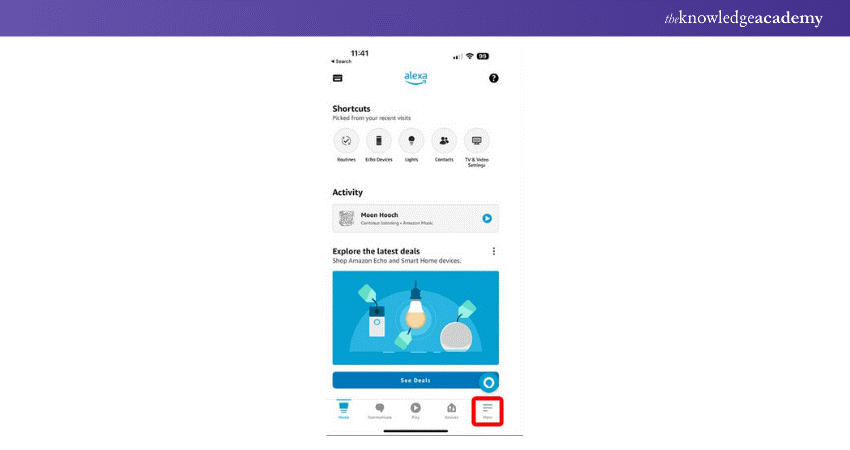
2) Tap "More", and look for the three-line icon in the bottom-right corner of app.
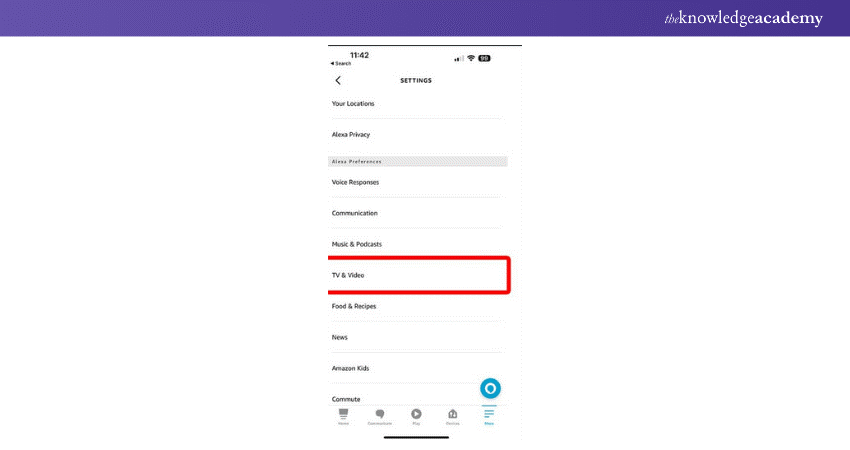
3) Navigate to "Settings."

4) Select "TV & Video"under Alexa Preferences.
5) Choose your content or service provider
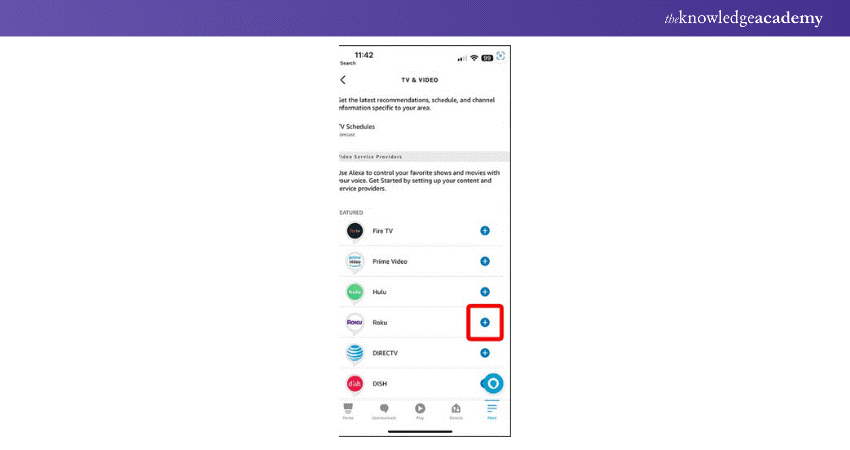
6) Tap Link or Enable (option may vary depending on your selected provider).
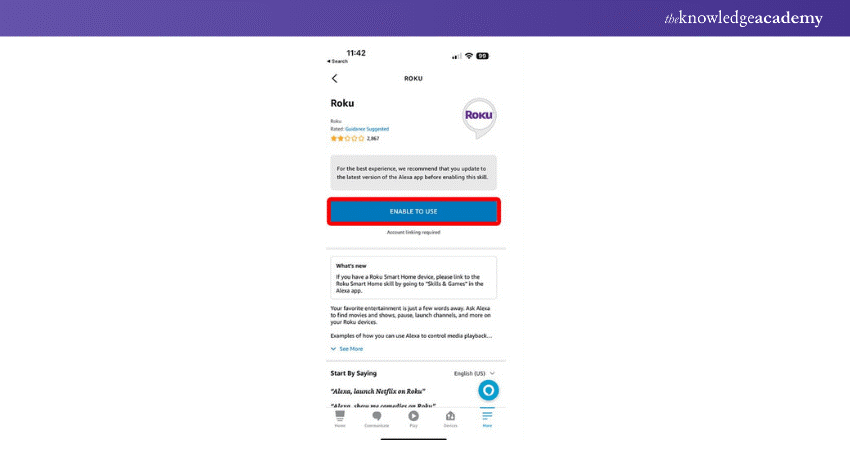
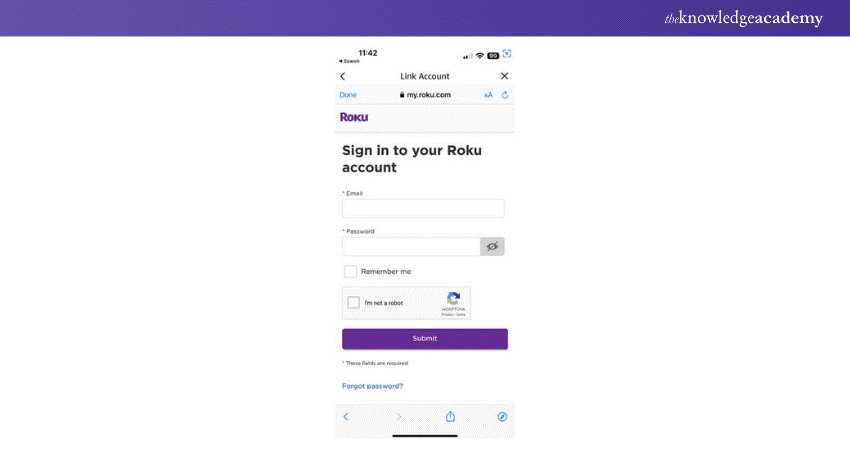
7) Follow the on-screen steps to connect Alexa to your TV, streaming device, or service. While you perform these steps, you will typically need to select which devices you want Alexa to control and which Alexa devices to use for control.
Need help with Alexa Echo? Grab the Alexa Echo User Guide and get started!
Popular Commands to Use With Alexa
Alexa, Amazon’s virtual assistant, can make your life easier and seamless with a wide range of voice commands. Here are some popular commands you can use through Alexa:
1) “Alexa, turn on/off the TV.”
2) “Alexa, open [streaming service name].”
3) "Alexa, turn the volume up/down.”
4) “Alexa, change the channel to [channel].”
5) "Alexa, play/pause/stop [TV, show, movie].”
6) “Alexa, watch [TV show] on [streaming app].”
Upgrade your professional abilities with our Cortana Intelligence Training – secure your place now!
Additional Ways to Control Your TV with Alexa
There are numerous Alexa-compatible ways you can utilise to enhance your TV experience. Below, illustrated are those key pathways:
1) Fire TV Stick with Built-in Alexa: Setting up this streaming stick is simple. Just plug it into an HDMI port and pair a Fire Stick remote by pressing the microphone button to activate Alexa commands.
2) Fire Edition TV: Any Echo device, like the Echo Dot or Echo Show, can connect to a Fire Edition TV (such as those from Toshiba and Insignia) or a TV with Alexa compatibility (models from premium brands like Samsung, LG, and Sony).
3) Smart Home Hub: If you have other Amazon devices like an Echo, Echo Dot, or Fire TV Stick, you will require an adapter to use voice commands to turn your TV on and off. This adapter converts your hub into an infrared signal controller for your TV.
4) DISH and DIRECTV: The DISH Hopper and DIRECTV Genie both respond to Alexa commands for searching shows or scheduling DVR recordings.
5) Use Your Cellphone: If your phone has an IR blaster, it can act as a hub to connect Alexa to your TV, further bypassing the need for an adapter.
Transform your app’s user experience by integrating Siri – join our Integrate Siri Using SiriKit Training today!
Tips for Connecting Alexa to Your Smart TV
To connect Alexa to your smart TV, you need to ensure that your devices are compatible and ready to pair. Here’s how you can perform these steps:
1) Check Compatibility: Ensure your smart TV is Alexa-compatible or has a connected Fire TV device.
2) Enable the Features: Open the Alexa app and enable the relevant features for your TV brands, like TCL or Samsung.
3) Pair Devices: Follow the on-screen instructions to pair Alexa with your smart TV by connecting to your Wi-Fi network.
Seamless Streaming Awaits! Follow These Steps to Connect Chromecast to WiFi.
Troubleshooting Connection Issues
If you're having trouble connecting Alexa to your smart TV, don't worry—many users face similar issues. Here are some common troubleshooting tips to help you resolve connectivity problems and even change Alexa’s voice for a more personalized experience:
1) Check Compatibility: Ensure your smart TV is compatible with Alexa. Refer to your TV's user manual or manufacturer's website for more details.
2) Verify Wi-Fi Connection: You must ensure that both your Alexa device and smart TV are connected to the same Wi-Fi network. Double-check your network settings and reconnect if necessary.
3) Enable the Right Feature: Make sure you have enabled the specific feature for your TV brand in the Alexa app. If the feature isn't enabled, Alexa won't be able to recognise commands related to your TV.
4) Update Firmware: Ensure that both your smart TV and Alexa device have the latest updated firmwares installed.
5) Restart Devices: At times, a simple restart can resolve the connectivity issues. Unplug your TV and Alexa device, wait a few seconds, then plug them back in.
6) Reset Network Settings: If you still face trouble, try resetting the network settings on your TV and Alexa device to establish a new connection.
Conclusion
We hope you find this blog, "How to Connect Alexa to TV," empowering and useful. Additionally, knowing How to Connect Alexa to Wi-Fi is essential for seamless operation and unlocking its full potential. By following the steps mentioned, you can easily control your TV using your voice, further making your entertainment experience smoother and more enjoyable. Continue exploring the limitless possibilities and maximising the potential of your smart devices!
Become a leader in voice assistant technology with our Google Assistant Training – register now!
Frequently Asked Questions
Why isn't Alexa Turning on my TV?

Alexa isn’t turning on your TV due to connectivity issues, incorrect settings, or a non-compatible device. Make sure your TV is 100% compatible, properly linked to Alexa, and equipped with all the vital features.
Can Alexa Be Used to Cast to a TV?
Yes, Alexa can be used to cast on TV if you have a compatible device, such as a Fire TV or a Chromecast. All you need to do is use voice commands to control streaming and other functions on your TV.
What are the Other Resources and Offers Provided by The Knowledge Academy?
The Knowledge Academy takes global learning to new heights, offering over 3,000+ online courses across 490+ locations in 190+ countries. This expansive reach ensures accessibility and convenience for learners worldwide.
Alongside our diverse Online Course Catalogue, encompassing 19 major categories, we go the extra mile by providing a plethora of free educational Online Resources like Blogs, eBooks, Interview Questions and Videos. Tailoring learning experiences further, professionals can unlock greater value through a wide range of special discounts, seasonal deals, and Exclusive Offers.
What is The Knowledge Pass, and How Does it Work?
The Knowledge Academy’s Knowledge Pass, a prepaid voucher, adds another layer of flexibility, allowing course bookings over a 12-month period. Join us on a journey where education knows no bounds.
What are the Related Courses and Blogs Provided by The Knowledge Academy?
The Knowledge Academy offers various AI Voice Assistant Trainings, including the Alexa Course, Google Assistant Training, and Integrate Siri using Sirikit Training. These courses cater to different skill levels, providing comprehensive insights into Circle to Search: Modernise Your Search Experience.
Our Data, Analytics & AI Blogs cover a range of topics related to Alexa's functionalities, offering valuable resources, best practices, and industry insights. Whether you are a beginner or looking to advance your Data, Analytics, & Artificial Intelligence (AI) skills, The Knowledge Academy's diverse courses and informative blogs have got you covered.

Lily Turner


Senior AI/ML Engineer and Data Science Author
Lily Turner is a data science professional with over 10 years of experience in artificial intelligence, machine learning, and big data analytics. Her work bridges academic research and industry innovation, with a focus on solving real-world problems using data-driven approaches. Lily’s content empowers aspiring data scientists to build practical, scalable models using the latest tools and techniques.
View Detail

 If you wish to make any changes to your course, please


