


 Top Rated Course

We may not have the course you’re looking for. If you enquire or give us a call on +33 805638382 and speak to our training experts, we may still be able to help with your training requirements.
What is RAM (Random Access Memory): Definition, Types and Uses
John Davies 16 July 2026RAM boosts system performance by storing data for active tasks. Additionally, it's volatile, meaning that it loses all data when the computer is powered off. More RAM significantly improves system performance, enabling smoother multitasking and more efficient handling of demanding applications like video editing or gaming.
Home
 Resources
IT Infrastructure & Networking
What is RAM (Random Access Memory): Definition, Types and Uses
Resources
IT Infrastructure & Networking
What is RAM (Random Access Memory): Definition, Types and Uses
Resources
IT Infrastructure & Networking
What is RAM (Random Access Memory): Definition, Types and Uses

Training Outcomes Within Your Budget!
We ensure quality, budget-alignment, and timely delivery by our expert instructors.
Table of Contents

If you picture your computer as a busy office, then the Random Access Memory (RAM) is the desk where all the active work happens. That means the bigger the desk, the more tasks you can juggle at once without chaos. RAM is the temporary memory your system uses to store data and run programs quickly, playing a key role in overall speed and performance.
Essentially, it doesn’t just hold data; it keeps your digital world running smoothly, from streaming videos to switching between apps in a flash. This blog explores What is RAM in detail, highlighting its types, your RAM requirements, common uses and more. So read on and learn how it powers everything from browsing to gaming with ease!
Table of Contents
1) What is RAM?
2) How Does RAM Work?
3) Why is RAM Important?
4) How Much RAM do I Need?
5) Different Types of RAM
6) When Should You Upgrade Your RAM?
7) Why is RAM Called Random Access?
8) Common Uses of RAM
9) Difference Between RAM, ROM and General Storage
10) RAM vs Virtual Memory
11) RAM vs Flash Memory
12) Conclusion
What is RAM?
Random Access Memory (RAM) is a part of a computer that temporarily stores data the system is currently using. This includes the operating system, software, and active files, making them quickly accessible to the processor. RAM is also called the computer's main memory, different from cache or other storage types.
Random Access Memory (RAM) is a critical part of a computer’s main memory which works much faster than other storage devices such as hard drives or SSDs. However, RAM is temporary because it only keeps data while the computer is on. Once the computer is powered off, everything within the RAM is erased. So, when you restart your computer, the Operating System and files must load into RAM again from the hard drive or SSD.

How Does RAM Work?
RAM has the ability to access any storage location directly through its memory address, allowing access to be performed randomly. Here's how RAM works:
1) RAM is designed to store and retrieve data directly from specific locations, making it fast and efficient for the computer to use.;
2) Although devices like hard drives and CDs also allow direct access to data, the term “random access” is mostly used to describe RAM.
3) Originally, the term "Random Access Memory" was used to separate regular memory from offline storage such as magnetic tape, which could only be accessed by reading through data sequentially.
4) Think of RAM like a grid of tiny boxes arranged in rows and columns, where each box holds a binary value, either 0 or 1.
5) Each box in RAM has a unique address. So, to locate a specific one, the RAM controller sends signals for the row and column using fine electrical lines on the chip.
6) The data stored in RAM is returned to the processor through separate data lines once the location is identified.
7) Physically, RAM is very small and is stored on microchips, which are grouped together into memory modules that fit into slots on a computer’s motherboard.
8) A bus, which is a group of electrical paths, connects these motherboard slots to the processor, allowing data to move back and forth quickly.
9) RAM holds a smaller amount of data compared to storage devices. For instance, a typical laptop might have 8 GB or 16 GB of RAM, while a hard drive can hold up to 10 TB of data.
Learn to solve, support, and supercharge IT systems with confidence. Sign up for our IT Support and Solution Training now!
Why is RAM Important?
RAM is important because it helps a computer run faster and work more smoothly. These are what drives its significance:
1) Speed and Performance: RAM delivers really fast read and write access to storage mediums and is much quicker than hard drives or even SSDs. Whenever you run a program, it gets loaded into the RAM, which makes it easy for the CPU to access it.
2) Multitasking: With increased RAM, your computer can handle multiple applications simultaneously. For example, you can browse the web, stream music, and edit a document simultaneously without any lag.
3) System Responsiveness: It helps your system respond quickly to any command. If your system runs out of RAM, it employs the hard drive as Virtual Memory which is much slower and can create noticeable delays.
4) Gaming and Graphics: Modern games and graphic design software need a lot of memory to load textures, models and other assets. So, insufficient RAM can lead to stuttering, crashes, or poor performance.
5) Data Caching: RAM is used to cache frequently accessed data, thereby speeding up access times and improving overall efficiency.
How Much RAM do I Need?
The amount of RAM you need depends on how you use your computer. It’s not just about how powerful your computer is but what tasks you do. Consider the following points:
1) If most of what you do is browse the internet and use basic programs like Word or Excel, 8 GB of RAM is usually enough.
2) Most desktop and laptop computers today have between 4 and 8 GB of RAM, except for old computers. You can easily check the needed amount of RAM for your computer.
3) If you work on heavy programs like Photoshop or Final Cut Pro, having 32 GB of RAM will make the editing process smoother and faster. These programs handle large files, and more RAM helps speed up your work.
4) As a content editor, you’re likely to have many apps open at once. More RAM means multiple programs can be run without slowing down your computer.
5) Gamers should go for at least 16 GB of RAM. Big games like Grand Theft Auto V need a lot of memory, but they are also well-optimised.
6) It’s important to remember that most gamers don’t run many other programs in the background while playing.
7) If you work on large data files or perform heavy multitasking, you may need more than 16 GB of RAM.
8) The good news is that gaming PCs are easy to upgrade which allows you to add more RAM later if needed.
Launch your IT career with the essentials that power the digital world. Sign up for our IT Fundamentals Training now!
Different Types of RAM
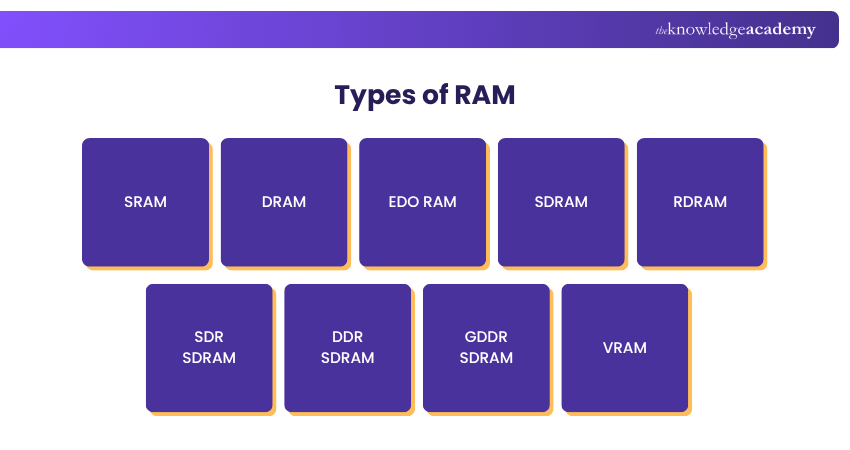
RAM comes in various types, each offering unique characteristics and uses. Understanding these types will help you pick the right memory for your specific needs. Let’s dive in:
1) SRAM
Static RAM (SRAM) stores data using transistors and needs a constant, small amount of power to maintain the data integrity. It’s called “static” because it doesn’t require refreshing. SRAM is primarily used in cache memory, where your processor stores frequently used files for quick access.
2) DRAM
Dynamic RAM (DRAM) stores data in capacitors, but they slowly lose charge over time. It’s called “dynamic” because the memory needs to be refreshed regularly. If the power is turned off, the stored electrical charges are lost, and all data in the RAM is erased.
3) EDO RAM
Extended Data Output RAM (EDO RAM) is an older version of DRAM, which was used in the 1990s to improve memory access speed. It doesn’t wait for one piece of data to finish before starting the next. Once it finds the first bit, it quickly moves on to find the next one.
4) SDRAM
Synchronous DRAM (SDRAM) works in perfect sync with the computer’s CPU clock speed. This helps your system know exactly when the data will be ready and allows the CPU to handle more instructions in less time. It was much faster than the older DRAM, with speeds up to 133 MHz.

5) RDRAM
Rambus DRAM (RDRAM) was developed in the 1990s and 2000s for faster data transfer. It could transfer data at speeds ranging from 800 Mbps to 1,600 Mbps. This RAM operates in parallel but generates more heat due to its high speed. Versions like Direct RDRAM and Concurrent RDRAM followed the same pattern.
6) SDR SDRAM
Single Data Rate SDRAM (SDR SDRAM) was the first to match memory timing with the CPU’s clock. It sent one piece of data per clock cycle. This improved speed but reached its limit by the late 1990s, making way for faster memory types.
7) DDR SDRAM
Double Data Rate SDRAM (DDR SDRAM) was introduced around 2000 and could send two pieces of data per clock cycle, one at the start and one at the end. It has evolved into DDR2, DDR3, DDR4, and now DDR5. Each new version transfers data faster and uses less power, though older and newer versions are not compatible.
8) GDDR SDRAM
Graphics DDR SDRAM (GDDR SDRAM) is made for graphics cards. Like DDR RAM, it sends data multiple times in one clock cycle, but it’s built for higher power and performance. It’s ideal for tasks such as 3D modelling and CAD. GDDR has also improved over time, with the latest iteration being GDDR6, which offers higher speed and lower power consumption.
9) VRAM
Video RAM (VRAM) is a category of memory used exclusively by graphics cards. It has two access points, allowing both the CPU and GPU to use it simultaneously. The amount of VRAM affects screen resolution and colour quality. Because true VRAM is expensive, many systems use a less expensive version called SGRAM, which offers similar performance.
When Should You Upgrade Your RAM?
Here are the common situations when you should upgrade your RAM:
1) Slow Performance When Multitasking: If your system slows down every time you open multiple apps or browser tabs or struggles to switch between them, it’s often due to memory shortage.
2) High Memory Usage: If your RAM usage frequently hovers above 80%, and you notice the system using disk (paging/swap) frequently, that’s a strong sign that the RAM is maxed out.
3) Programs Crashing or Freezing: Unexpected system freezes, app crashes or low-memory warnings during heavy tasks is a sign of the RAM being maxed out.
4) Slow Program Launches or File Loading: If apps or large files take a long time to open, it may mean that your computer is thrashing to disk because there is not enough RAM.
Become fluent in the digital language with our comprehensive Computer Science Course - Sign up now!
Why is RAM Called Random Access?
RAM is called "random access" because the memory locations can be accessed in any random order. This is in sharp contrast to older memory technologies, such as magnetic tapes, where data had to be accessed sequentially. With RAM, the time it takes to access a specific memory location is the same regardless of its physical location within the memory.
Common Uses of RAM
Here are some of the most common uses of RAM to consider:
Acts as a Temporary Storage Location
a) RAM is mainly for storing data temporarily while you’re working on it.
b) Every time you save a file, the data is moved from RAM to long-term storage like an SSD or hard drive.
c) Whenever you close an app, the Operating System frees up its memory in RAM to make room for other tasks.
d) Since RAM only stores data temporarily, the unsaved work can be lost if the computer loses power.
e) Some modern programs include built-in backup systems that automatically save copies to help recover files after a power failure or crash.
Enables Faster File Reading
a) RAM is used to quickly access the data needed for reading or working with any file.
b) It is significantly faster than a hard drive, processing data 20 to 100 times faster, depending on the task and technology.
c) When you open a file saved on your computer, the Operating System (OS) finds it in long-term storage and copies it into RAM.
d) Once the data is in RAM, the computer can read and edit it almost instantly because of RAM’s high speed.
e) Accessing data directly from a hard drive takes more time since the drive needs to spin and locate scattered data.
f) To avoid delays, the system loads a copy of the file into RAM which allows for quicker and smoother access.
Enhances Application Performance
a) RAM helps speed up the loading of apps that have been opened before.
b) When a computer is turned on, and an app like PowerPoint or Access is opened for the first time, it takes longer to load.
c) If the same app is closed and reopened, it loads much faster because its data is already stored in RAM instead of being loaded again from the hard drive.
d) The app data remains in RAM until the computer is restarted, or the app is forcibly closed using Task Manager or a similar tool.
e) On mobile devices, RAM can refresh app data in the background to enhance performance and ensure apps run smoothly.
Difference Between RAM, ROM and General Storage
Here are the key differences between RAM, ROM and general storage:

RAM vs Virtual Memory
RAM is a category of memory for storing those programs and data that your computer is currently using. When RAM becomes full, the computer utilises part of the SSD or hard drive as virtual memory to keep things running smoothly. This virtual memory allows more apps to stay open all at once, but it’s much slower than RAM because it utilises disk space. In short, RAM is real and quick, while virtual memory serves as a slower backup to prevent your system from crashing or freezing.
RAM vs Flash Memory
The key difference between RAM and flash memory lies in their functionality and intended use. RAM is a memory that stores data temporarily while the computer is running. When the power is off, everything in RAM is lost. Flash memory, on the other hand, keeps data even when the power is off. It’s used in devices such as USB drives, SSDs, and memory cards. RAM is much faster and better for quick, repeated access, while flash memory is slower but great for saving data long-term.
Conclusion
RAM is the heartbeat of your computer’s speed and performance. It handles tasks in real-time, supports multitasking, and keeps everything running smoothly. Understanding What is RAM, its types, and how it’s used can help you make smarter choices when buying or upgrading devices. Whether for work, gaming, or creativity, having the right RAM makes all the difference.
Know NGINX servers like the back of your hand with our NGINX Training - Register now!
Frequently Asked Questions
What is RAM Storage for?

RAM is used to store data and instructions temporarily that the computer’s processor needs while working. It’s much faster than hard drives or SSDs and is meant for short-term use. When you open a file or program, it is loaded into RAM, allowing your system to access it quickly.
What is RAM and ROM in a Computer?
RAM is a category of temporary memory that stores the data a computer is actively using. But everything in RAM is lost when the computer is turned off. Read-only Memory (ROM) is permanent memory that stores important instructions, such as how to start the computer. This data stays even when the power is off.

John Davies


Cyber Security Governance & Assurance Specialist
John Davies is a cybersecurity expert specialising in governance, risk management, and compliance. With over 15 years in the field, he has led enterprise-wide security programmes across finance, healthcare and public sector organisations. His content provides practical guidance on building secure environments, managing risk and aligning with regulatory frameworks.


 If you wish to make any changes to your course, please


