


 Top Rated Course

We may not have the course you’re looking for. If you enquire or give us a call on +34 932716793 and speak to our training experts, we may still be able to help with your training requirements.
What is Microsoft Project Viewer? Everything to Know
The Knowledge Academy 14 July 2026Open, view, and print Microsoft Project (.mpp) files without the full app. Access schedules, Gantt charts, tasks, and resource data easily and affordably. It enables teams and stakeholders to review project plans, monitor timelines, and collaborate efficiently without needing a Microsoft Project licence or advanced tools.

Training Outcomes Within Your Budget!
We ensure quality, budget-alignment, and timely delivery by our expert instructors.
Table of Contents
Related Courses
Imagine you're part of a project team. Every time you receive a file created in Microsoft Project, you can't open it because you don’t have Microsoft Project installed. You’re stuck waiting for someone else to share screenshots or updates, slowing down your work.
What if we suggest an alternative that doesn’t require Microsoft Project to open the files? Yes, that’s where Microsoft Project Viewer comes in! Dive into this blog to explore what it is, its tools, how it helps to manage and view files, and its benefits.
Table of Contents
1) What is Microsoft Project Viewer?
2) Various Features of Microsoft Project Viewer
3) MS Project Viewer for Mac
4) Best Microsoft Project Viewers (Free & Paid)
5) What are the Benefits of Using MS Project Viewer?
6) Is There a Free Project Viewer?
7) Can You View MS Project Files Without MS Project?
8) Conclusion
What is Microsoft Project Viewer?
A Microsoft Project Viewer, also called an MPP viewer or MS Project viewer, is a type of software that allows you to open and view Microsoft Project (.MPP) files without needing Microsoft Project software.
It is a powerful Project Management tool that offers a cost-effective and easy way for team members, clients, and stakeholders to access MPP files even without Microsoft Project installed. A MS Project Viewer lets you see what’s inside the file such as task lists, schedules, deadlines, Gantt charts, and other resources. However, you can’t edit the files unless the viewer allows it.

Various Features of Microsoft Project Viewer
Microsoft Project Viewers offer a wide range of non-negotiable features that make it easy for you to access and understand project plans without needing to invest in Microsoft Project itself. Here are some of its features:
1) Less Expensive than MS Project
One of the biggest advantages of using an MS Project Viewer is its lower cost. In general, Microsoft Project requires a paid license, often priced for enterprise use. It may not be feasible for everyone, especially clients, team members, or occasional users.
MS Project Viewers, on the other hand, are either free or much more affordable compared to MS Project. It makes them ideal for businesses that need to provide access to project plans without purchasing expensive software for each user.
2) Viewing and Printing Project Files
The core function of a Project Viewer is to open and display MPP files. You can view Gantt charts, tasks lists, calendars, resource allocations and more. This makes it easier to distribute hard copies or PDF versions of project summaries and schedules.
Additionally, you can view files created on MS Project in all formats, including MPP, MPT, MPX, XML etc. These viewers also support printing of charts or reports, which is helpful for meetings or client presentations.
The view feature allows the users to view files. This may sound unreasonable at first. But the twist in the tale is that the viewers can view files created on MS Project in all formats, including MPP, MPT, MPX, XML etc.
3) Compatible with Operating Systems
The Project Viewer is compatible with almost all Operating Systems. On the other hand, Microsoft Project only works on Windows, but most Project Viewers are designed to work across various platforms.
It is compatible with Windows, macOS, Linux, mobile devices, and web browsers. This means users on any operating system can access and review project plans. It ensures cross-platform flexibility for remote teams and diverse workplaces.
4) Creates Charts and Reports
Using Project Viewer, you can create an abundance of charts and reports. They can create team planners, calendars, Gantt Charts, project tracking reports, timeline overviews, task and resource allocation charts, and more.
These visuals help stakeholders better understand project progress at a glance, especially if they are not familiar with raw task data. Further, the MS Project Viewer provides various formats and templates to view these charts and reports.
5) Exports MS Project Files
Most Project Viewers also offer to export the files created using MS Projects. However, Viewer does not always allow users to export files of a specified type. Therefore, it becomes crucial to ensure the file type before exporting them.
You can export project data into other formats, such as PDFs, Excel sheets, XML, and more. This is useful for creating reports or integrating project information with other tools like spreadsheets, dashboards, or collaboration software.
6) Sharing Files on Cloud
Modern viewers often support cloud storage and file sharing, enabling teams to collaborate in real time. Files can be opened from and saved to Google Drive, Microsoft OneDrive, SharePoint, Microsoft Project Server, BaseCamp and so on.
Cloud compatibility ensures that everyone always sees the latest version of the project file and can access it from anywhere, without worrying about version control. It also rectifies the difficulty faced in viewing and editing files.
Enhance advanced file management and organisation skills with our Google Drive Training – Register immediately!
MS Project Viewer for Mac
Microsoft Project works only on Windows and doesn’t work on Mac. But that doesn’t mean Mac users are left out. There are several Project Viewers made for Mac that can open and show MPP files easily. Some of the viewers for Mac include Project Plan 365, MOOS Project Viewer, Seavus Project Viewer, and a lot more.
Free versions of Microsoft Project Viewers offer limited features like viewing task sheets, resource sheets, and Gantt charts. For advanced functions such as editing task names, adding notes, or collaborating, you can upgrade to subscription plans. Mac users can also access web-based versions compatible with multiple operating systems.
Best Microsoft Project Viewers (Free & Paid)
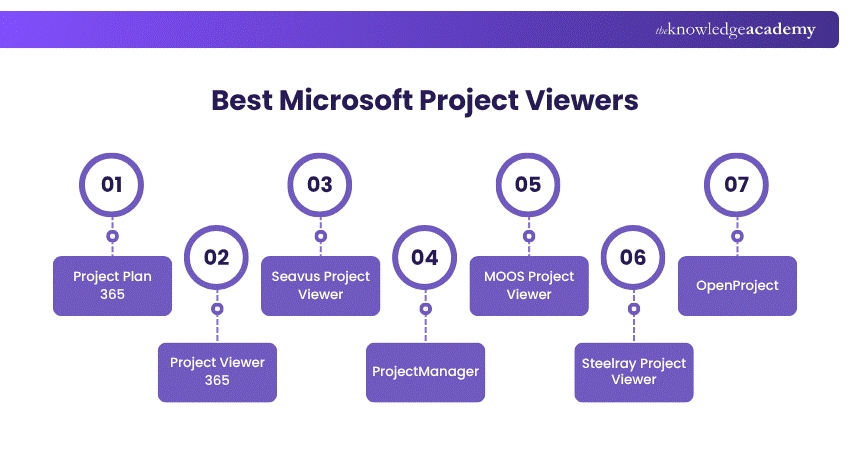
Choosing the right Microsoft Project Viewer depends on your project needs, budget, and collaboration requirements. These tools allow users to open, analyse, and share project files without requiring the full Microsoft Project software. Below are some of the most reliable options available:
1) Project Plan 365
Project Plan 365 offers a user-friendly interface with strong compatibility for .mpp files. It supports Gantt charts, task tracking, and resource management, making it a suitable choice for both individuals and teams needing full project visibility.
2) Project Viewer 365
Project Viewer 365 is designed specifically for viewing Microsoft Project files without editing capabilities. It provides a familiar interface similar to Microsoft Project, allowing users to easily navigate schedules, tasks, and timelines.
3) Seavus Project Viewer
Seavus Project Viewer is a widely used solution known for its seamless integration with Microsoft Project. It enables users to view detailed project plans, generate reports, and collaborate effectively across teams.
4) ProjectManager
ProjectManager is a cloud-based tool that goes beyond viewing by offering real-time collaboration, task management, and reporting features. It is ideal for teams that require both viewing and active project management capabilities.
5) MOOS Project Viewer
MOOS Project Viewer is a cost-effective option that allows users to open and review Microsoft Project files easily. It is particularly suitable for individuals looking for a simple and free viewing solution.
6) Steelray Project Viewer
Steelray Project Viewer is known for its high performance and speed when handling large project files. It supports advanced filtering and reporting, making it suitable for enterprise-level project environments.
7) OpenProject
OpenProject is an open-source project management tool that supports project viewing along with collaboration features. It is a flexible option for organisations looking for customisation and transparency in project tracking.
Enhance your productivity and master essential tools with our Microsoft Office 365 Training – Join today!
What are the Benefits of Using MS Project Viewer?
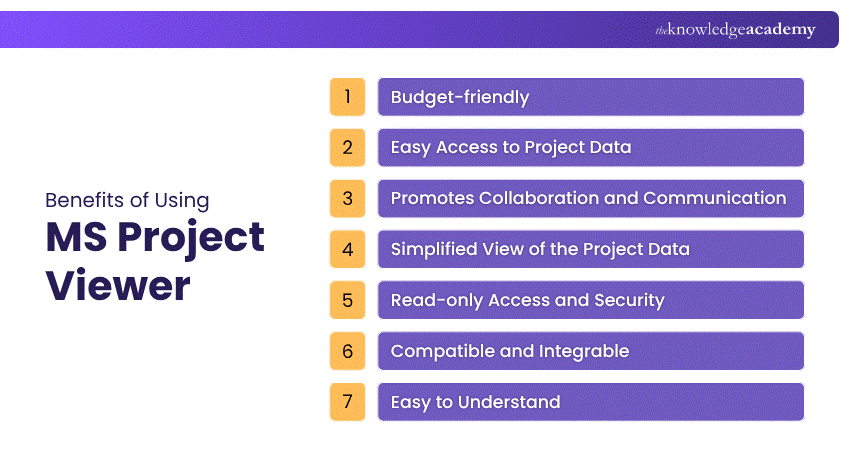
Even before using a tool or software, users want to know about its key benefits. They want to know whether the tool perfectly fits their needs or not. MS Project Viewer also has several benefits. But what are they? Let’s find out:
1) Budget-friendly
As discussed earlier, the Project Viewer is more affordable than the entire MS Project application. This is particularly helpful for users who do not require extensive Project Management features to view and review project plans. Therefore, the tool saves them from spending on full software.
2) Easy Access to Project Data
Since Project Viewer allows users to open, view and edit MPP files, they can easily access project details, timeline tasks, resources and dependencies. Therefore, Stakeholders, team members, and clients can stay informed about the project’s progress. This ensures no one is waiting for manual updates or conversions.
3) Promotes Collaboration and Communication
Viewing and editing files on Project Viewer also encourages Project Managers, stakeholders and other team members to communicate effectively with each other. It helps eliminate misunderstandings regarding project timelines, tasks, and milestones, ensuring that everybody works towards the same goal.
4) Simplified View of the Project Data
Users can easily visualise project data using Project Viewer’s various view options, such as Gantt charts, resource sheets, and network diagrams. They can particularly identify critical paths, dependencies, and resource allocations.
5) Read-only Access and Security
Some versions of MS Project Viewer also have read-only access to project plans. This helps maintain the project’s security and eliminates the risk of accidental modifications to the plan. Further, it retains the integrity of the original project plan while allowing users to access the data securely.
6) Compatible and Integrable
Microsoft Viewer is compatible with various versions of the Microsoft Project. This assists the users in opening and viewing MPP files regardless of the software version used to create them. Additionally, it offers portability and flexibility in sharing project plans across multiple computers and users.
7) Easy to Understand
MS Project Viewer has a simplified interface. It means that the users can easily familiarise themselves with this software. They can navigate and understand the various features of Project Viewer without extensive training or Project Management expertise. Therefore, the users can quickly grasp project information and insights into the project’s plan.
Create professional diagrams and visualise complex ideas effectively with our Microsoft Visio Training - Register today!
Is There a Free Project Viewer?
Yes, there are several free Microsoft Project viewers that let you open and view MPP files without needing a paid MS Project license. Here are some of the best free Microsoft Project Viewer options:
1) Project Viewer 365
1) Platform: macOS, Windows, iOS, Android, Web
2) Features: View MPP files, Gantt charts, task/resource views
3) Editing requires a paid plan
2) RationalPlan Project Viewer
1) Platform: macOS, Windows, Linux
2) Features: View project files created in MS Project or RationalPlan
3) Completely free for viewing
3) GanttProject
1) Platform: macOS, Windows, Linux
2) Features: Open-source tool for creating and viewing Gantt charts
3) Doesn’t open MPP files directly, but good for basic project visualisation
4) ProjectLibre
1) Platform: macOS, Windows, Linux
2) Features: Open-source alternative to MS Project
3) Can open MPP files with some formatting limitations
Can You View MS Project Files Without MS Project?
Yes, you can view Microsoft Project files without having Microsoft Project installed. Here are some steps of how you can do it:
1) Use a Microsoft Project Viewer: Microsoft Project Viewers are special tools made to open MPP files without needing the full Microsoft Project software.
2) Project Web Access: If your company uses Project Web App, you can ask your manager to upload the project to the web app or give you permission to view it.
3) Use a Free Trial of Microsoft Project: You can use a free 30-day trial of Microsoft Project to temporarily open and view MPP files with full features.
4) Use Excel or Visio for Visual Reports: The project creator can export visual reports to Excel or Visio, making project data easy to view and understand.
5) View the Project in SharePoint: If your team uses SharePoint, your team can upload the file there to view and even update tasks right on the SharePoint site.
6) Copy the Timeline View: The Timeline view in MS Project gives a simple graphic of the project schedule. You can copy this into an email or Office file for a quick snapshot.
Conclusion
Microsoft Project Viewers provide a practical and cost-effective way to access and review project files without requiring the full software. They enable teams to view schedules, track progress, and collaborate efficiently across projects. By choosing the right viewer, organisations can improve visibility and streamline project communication. Ultimately, these tools simplify project management while enhancing accessibility and productivity.
Plan, manage, and deliver projects successfully with practical skills with our Microsoft Project Course - Join now!
Frequently Asked Questions
Is ProjectViewer 365 the Same as MS Project?

No, ProjectViewer 365 is not the same as Microsoft Project. It is a viewer that lets you open and view MPP files without needing the full MS Project software. It supports basic project access but lacks advanced project planning and management features.
Is it Possible to Open an MPP File in Excel?
Yes, you can open MPP files in Excel, but only after exporting the data from Microsoft Project or using a third-party tool. Excel does not support MPP files natively, so the file must first be converted to a compatible format like CSV or XML.

The Knowledge Academy


Global Training Provider
The Knowledge Academy is a world-leading provider of professional training courses, offering globally recognised qualifications across a wide range of subjects. With expert trainers, up-to-date course material, and flexible learning options, we aim to empower professionals and organisations to achieve their goals through continuous learning.


 If you wish to make any changes to your course, please


