


 Top Rated Course

We may not have the course you’re looking for. If you enquire or give us a call on +49 8000101090 and speak to our training experts, we may still be able to help with your training requirements.
Power BI Filters: Optimising Your Data Visualisation
The Knowledge Academy 07 April 2026Power BI filters refine data in reports and visuals at visual, page, or report levels, using basic/advanced filtering and slicers to enhance insights. They make dashboards more interactive, allowing users to focus on what truly matters. By narrowing large datasets, filters improve clarity and support faster, data-driven decisions.

Training Outcomes Within Your Budget!
We ensure quality, budget-alignment, and timely delivery by our expert instructors.
Table of Contents

Power BI gives businesses the power to turn raw data into meaningful, interactive visuals. But to uncover truly focused insights, filters play an essential role in shaping what users see. They help cut through the noise and highlight the information that matters most.
Whether you're analysing trends, comparing categories, or creating personalised dashboards, Power BI filters make your reports smarter and more intuitive. In this blog, we’ll explore how filters work, the types available, and how to use them effectively for better decision-making.
Table of Contents
1) What is a Power BI Filter?
2) Business Benefits of Using Power BI
3) Different Types of Filters in Power BI
4) How to Apply Basic Filters in Power BI?
5) Modes of Filters: Basic and Advanced
6) Power BI Slicer vs Filter
7) Conclusion
What is a Power BI Filter?
A Power BI Filter represents a condition that narrows the data displayed in your reports and only shows what is relevant to your analysis. Filters, instead of showing everything simultaneously, function like a sieve, enabling you to concentrate on the most important time periods, categories, or metrics.
Reports without filters can become overwhelming and filled with irrelevant details in no time. Through the use of filters, you will be able to ask more specific questions, for instance, examining performance by region or product, and the insights uncovered will be very clear and precise, to a greater extent than before.

Business Benefits of Using Power BI
Power BI provides numerous benefits that simplify, upscale, and democratise data analysis for any size of business, and among them are:
1) User-Friendly Interface: An easy-to-use design full of simple drag-and-drop features and natural language queries, so the creation of reports becomes possible for any skill level user.
2) Seamless Integration with the Microsoft Ecosystem: Data connection, sharing, and all other Microsoft tools' features, like Excel, Azure, and SharePoint, become very collaborative as the integration is very smooth.
3) Advanced Data Visualisations: The user receives access to a wealth of charts, maps, and graphs that can be tailored to his or her needs, hence aiding the communication of data through visualisations.
4) Real-Time Data Access: The newest data will always be available on the dashboards, consequently reinforcing quick and educated decision-making and allowing for proactive planning.
5) Robust Security Measures: Heavy-duty security features prevent access to delicate data and offer compliance with rules set by the industry while improving the overall data governance.
6) Highly Scalable: The solution is built to expand with the company, managing the entire data collection and complex analyses without tolling on performance.
7) Cost-Effective Solution: Has varied pricing options for all types of businesses, including a no-cost Power BI Desktop version. Subscriptions that are not pricey unlock the advanced features and the collaboration options.
8) Strong Collaborative Capabilities: Facilitates instant sharing of reports by the Power BI Service, connects with Microsoft Teams, and allows for shared workspaces, all of which contribute to smooth team collaboration.
9) Powerful AI Features: To assist with recognising trends, making precise forecasts, and so on, it is equipped with Quick Insights, natural language Q&A, and Azure Machine Learning integration.
10) Customisable Dashboards: Facilitates the making of dashboards that are organisation-specific and tailored for their different departments, thus making it easier for every user.
Different Types of Filters in Power BI
Power BI offers various Filters for different data scenarios and analysis needs. These include basic, advanced time intelligence and top N Filters. Here's a comprehensive list:
1) Basic Filters
Basic Filters are the foundation of the BI Filtering feature and include categorical and numerical options. They can be classified into two sub-categories:
a) Categorical Filter: A categorical Filter allows you to include or exclude specific categories or values in your data. For example, you can choose a sales dataset to display data only for a particular product category, such as "electronics" or "clothing". This option helps you focus on specific subsets of data based on categorical attributes.
b) Numerical Filter: A numerical Filter lets you select data based on numeric ranges or conditions. For instance, you can clarify an inventory dataset to show only products with prices greater than £50 or choose customer data to display those with ages between 25 and 40. It provides flexibility in analysing data based on numerical attributes.
Develop the necessary skills for Data Analysis with Business Intelligence Reporting Training today!
2) Advanced Filters
Advanced Filters provide more advanced capabilities for filtering data within specific visuals, pages, or even the entire report. It offers flexibility and customisation options beyond basic categorical and numerical Power BI Filters.
a) Visual-level filter: A Visual-level option allows you to apply filters to specific visuals within a report. For example, suppose you have a bar chart representing sales by region. In that case, you can apply this option to display data only for a particular region, such as "North America". This option helps you focus on specific data within a particular visualisation.
b) Page-level Filter: A Page-level option applies at the page level, impacting all visuals on a specific page. For instance, you can apply a Page-level Filter to show data for a specific time, such as "Q2 2022". This option helps you ensure consistency in data displayed across multiple visuals on a single page.
c) Report-level Filter: A Report-level option applies Filters consistently across all pages and visuals within a report. It allows you to separate data at a broader scope, such as filtering to display data for a specific product line, like "Electronics". This option ensures uniformity and coherence in Data Analysis throughout the entire report.
3) Time Intelligence Filters
Time intelligence filters are specifically designed to analyse time-based data. These Power BI Filters provide functions and calculations that enable you to compare data across different time periods, such as year-to-date, quarter-to-date, or rolling averages. It helps you uncover trends, patterns, and seasonality in your data.
a) Year-to Date Filter: A year-to-date option enables you to analyse data specifically for the current year, disregarding data from previous years. This option is particularly useful for tracking performance or comparing year-over-year metrics within a given time frame.
b) Rolling Average Filter: A rolling average option allows you to calculate and visualise the average of a measure over a rolling time window. For example, you can apply a 7-day Rolling Average Filter to smooth out fluctuations and analyse trends in daily sales data.
4) Top N Filters
a) Top N Filter: A Top N Filter allows you to focus on the top values within a specific measure. For instance, you can apply a Top 10 filter to display the Top 10 highest-selling products based on sales revenue. This option helps identify the dataset's most significant or influential data points.
b) Bottom N Filter: A Bottom N Filter is the counterpart of the top N option. It allows you to focus on the bottom values within a measure. For example, you can apply a Bottom 5 Filter to identify the five products with the lowest sales volume. This option helps identify outliers or underperforming data points.
5) Relative Data Filters
Relative Data Filters are time-series Data Filters that allow you to Filter data for past ‘N’ days, weeks even months. It is one of the most effective Data Filters.
6) Slicer
Slicer may not be considered a traditional Filter; however, its canvas visuals allow you to Filter page visuals. The interactive design offers a report with greater control over the data.
Explore Data Visualisations in Power BI with our Microsoft Power BI Course- Join today!
How to Apply Basic Filters in Power BI?
Applying Filters in the Power BI software is a straightforward process that allows you to refine and narrow down your data view. Here are the detailed steps to apply different Power BI Filters.
By implementing certain Filters, you can efficiently refine your datasets and extract meaningful insights. Here are the detailed steps to apply basic Filters in the Power BI software.
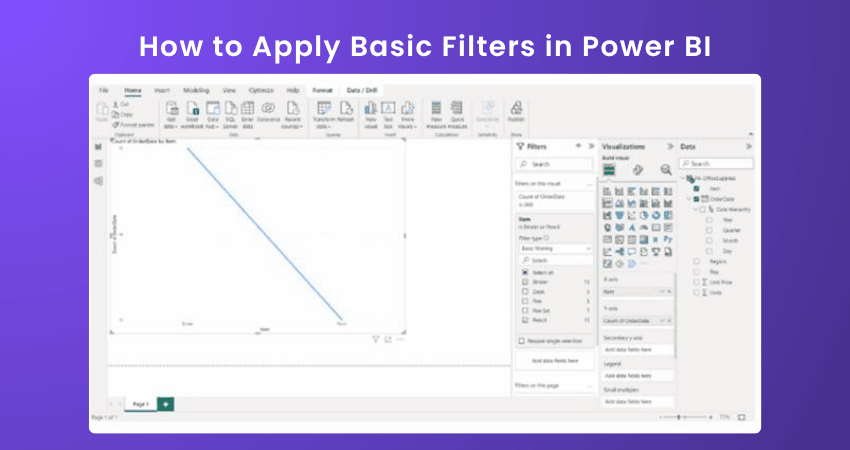
The steps to apply the categorical Filter are as follows:
1) Identify the visual or dataset where you want to apply the Power BI Filter.
2) Locate the "Filters" pane in the BI tool.
3) Select the visual or dataset to activate it.
4) In the "Filters" pane, choose the categorical field you want to filter, such as "Product Category."
5) Select the specific category values you want to include or exclude from the data view.
6) BI will dynamically update the data view, showing only the data that matches the selected category values.
The steps to apply the numerical Filter are as follows:
1) Identify the visual or dataset where you want to apply the Power BI Filter.
2) Locate the "Filters" pane in the BI tool.
3) Select the visual or dataset to activate it.
4) In the "Filters" pane, choose the numerical field you want to filter, such as "Sales Amount."
5) Specify the numeric range or conditions for the filter, such as greater than £100.
6) BI will dynamically update the data view, showing only the data that meets the specified numerical criteria.
Create powerful reports and deliver insights with our Pentaho BI Training- Register Today!
1) Applying Advanced Filters
Here are the detailed steps to apply advanced Filters in the Power BI software. Let’s explore each of them in detail:
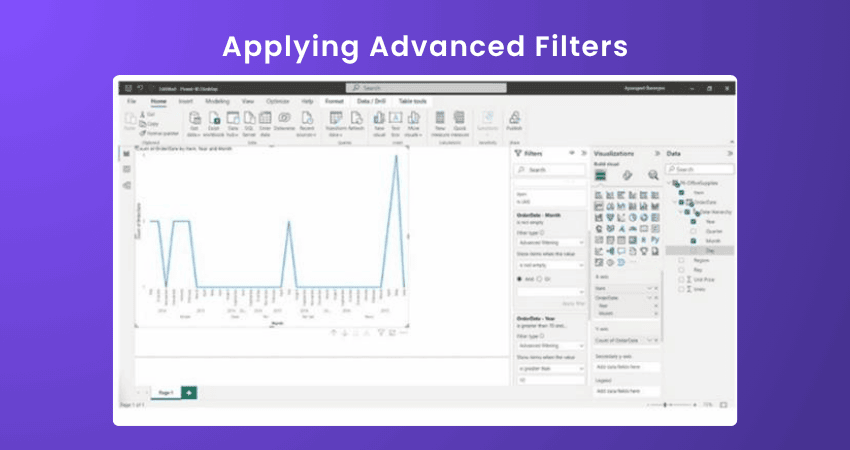
The steps to apply the Visual-Level Filter are as follows:
1) Identify the specific visual where you want to apply the Power BI Filter.
2) Within the visual, look for the filter icon or filter-related options.
3) Click on the Filter icon or access the Filter options.
4) Specify the filter criteria for the visual, such as selecting a specific region.
5) The visual will dynamically update, displaying data that matches the applied filter criteria.
The steps to apply the Page-Level Filter are as follows:
1) Identify the page in your report where you want to apply the Power BI Filter.
2) Locate the "Filters" pane in Power BI.
3) Select the entire page by clicking on a blank area within the page.
4) In the "Filters" pane, choose the desired fields and specify the filter criteria for each field.
5) Power BI will update all visuals on the page, showing data that matches the applied Filter criteria.
The steps to apply the Report-Level Filter are as follows:
1) Identify the entire report where you want to apply the Power BI Filter.
2) Locate the "Filters" pane in Power BI.
3) Select the entire report by clicking on a blank area within the report.
4) In the "Filters" pane, choose the desired fields and specify the Filter criteria for each field.
5) Power BI will update all visuals and pages in the report, displaying data that matches the applied Filter criteria.
2) Applying Time Intelligence Filters
Here are the detailed steps to apply Time Intelligence Filters in the Power BI Software. The following points can better help you grasp the procedure:
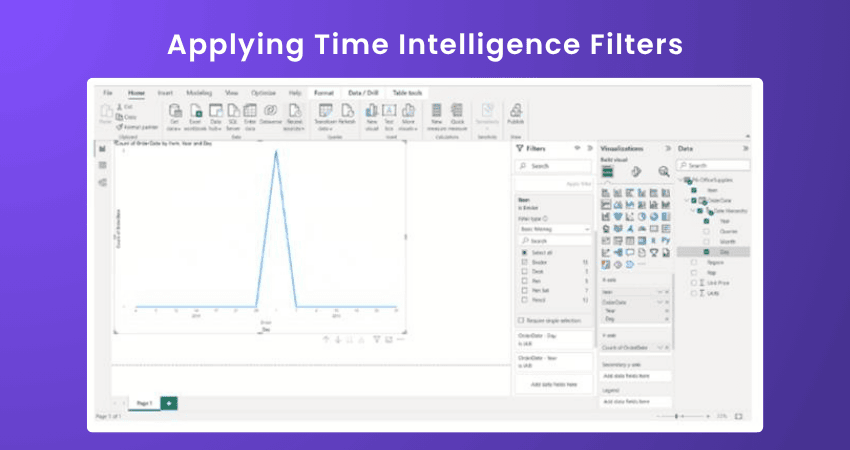
The steps to apply the Year-to-Data Filter are as follows:
1) Identify the visual or dataset with time-based data.
2) Locate the "Filters" pane in the BI tool.
3) Select the visual or dataset to activate it.
4) In the "Filters" pane, choose the time-based field, such as "Date" or "Year."
5) Select the "Year-to-Date" option or specify the desired period.
6) BI will dynamically update the data view, showing data only for the selected Year-to-Date period.
The steps to apply the Rolling Average Filter are as follows:
1) Identify the visual or dataset with time-based data.
2) Locate the "Filters" pane in the BI tool.
3) Select the visual or dataset to activate it.
4) In the "Filters" pane, choose the time-based field, such as "Date" or "Month."
5) Select the "Rolling Average" option or specify the desired time window.
6) BI will dynamically calculate the Rolling Average and update the data view accordingly.
3) Top N Filters
The implementation of Top N filters in Power BI necessitates following certain essential procedures. Here are the detailed steps to apply top N filters in the Power BI software.
The steps to apply the Top N filter are as follows:
1) Identify the visual or dataset where you want to apply the Power BI Filter.
2) Locate the "Filters" pane in BI.
3) Select the visual or dataset to activate it.
4) In the "Filters" pane, choose the field on which you want to apply the top N filter, such as "Sales Amount."
5) Specify the top values you want to display, such as the top 10.
6) BI will dynamically update the data view, showing only the top N values based on the specified measure.
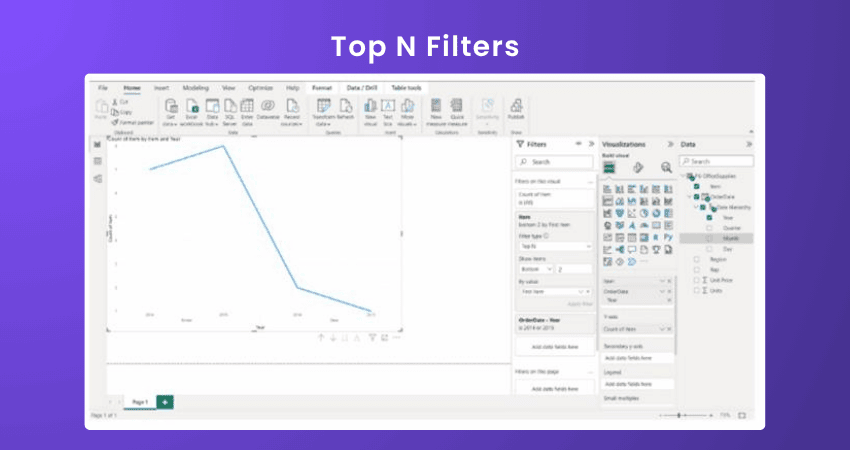
The steps to apply the Bottom N Filter are as follows:
1) Identify the visual or dataset where you want to apply the Power BI Filter.
2) Locate the "Filters" pane in BI.
3) Select the visual or dataset to activate it.
4) In the "Filters" pane, choose the field on which you want to apply the Bottom N Filter, such as "Sales Amount."
5) Specify the number of bottom values you want to display, such as the bottom five.
6) BI will dynamically update the data view, showing only the Bottom N values based on the specified measure.
Modes of Filters: Basic and Advanced
There are two filtering modes in Power BI. Let’s explore them in detail:
a) Basic Filtering: It offers you an expandable and searchable list. To find a value, all you need to do is type a word or identifier into the search field. In exchange, the search terms you typed cause an instantaneous update of the list of accessible values.
b) Advanced Filtering: This mode lets you choose more precisely what you wish to filter out. Advanced filtering options also differ depending on the type of columns used.
Power BI Slicer vs Filter
While Slicer and Filter share minimal similarities in terms of data segmentation and filtering, there are significant variations between them. Let’s explore those differences in detail:

Conclusion
Power BI filters are not just a reporting feature; they are the secret to revealing and improving clarity, efficiency, and precision in your data storytelling. By enabling you to keep your attention on the most important things, they change huge data sets into significant insights that lead to better decisions. It’s the right moment to enhance your analytical skills and make every report significant.
Be expert in resolving data quality issues with our Business Intelligence Analyst Course today!
Frequently Asked Questions
How do you Write a Query for Power BI Filters?

To write a query for Power BI filters, use the DAX Data Analysis Expressions (DAX) language. For example, use the FILTER function to apply conditions:
CALCULATE(SUM(Sales[Amount]), FILTER(Sales, Sales[Date] >= TODAY() - 30)).
This filters data for the last 30 days in a report.
What are the Best Practices for Using Power BI Filters?
The top recommendations for Power BI Filters involve implementing Filters at the correct level (report, page, or visual), utilising Slicers for interactive exploration, utilising relative Date Filters for time-based analysis, and keeping Filter complexity to a minimum to boost performance and enhance user experience (UX).
What are the Other Resources and Offers Provided by The Knowledge Academy?
The Knowledge Academy takes global learning to new heights, offering over 3,000+ online courses across 490+ locations in 190+ countries. This expansive reach ensures accessibility and convenience for learners worldwide.
Alongside our diverse Online Course Catalogue, encompassing 17 major categories, we go the extra mile by providing a plethora of free educational Online Resources like Blogs, eBooks, Interview Questions and Videos. Tailoring learning experiences further, professionals can unlock greater value through a wide range of special discounts, seasonal deals, and Exclusive Offers.
What is The Knowledge Pass, and How Does it Work?
The Knowledge Academy’s Knowledge Pass, a prepaid voucher, adds another layer of flexibility, allowing course bookings over a 12-month period. Join us on a journey where education knows no bounds.
What are the Related Courses and Blogs Provided by The Knowledge Academy?
The Knowledge Academy offers various Business Intelligence Reporting Courses, including the Microsoft Power BI Course, Tableau Desktop Training, and DAX Training. These courses cater to different skill levels, providing comprehensive insights into Power BI Best Practices.
Our Office Application Blogs cover a range of topics related to Power BI, offering valuable resources, best practices, and industry insights. Whether you are a beginner or looking to advance your Power BI skills, The Knowledge Academy's diverse courses and informative blogs have got you covered.

The Knowledge Academy


Global Training Provider
The Knowledge Academy is a world-leading provider of professional training courses, offering globally recognised qualifications across a wide range of subjects. With expert trainers, up-to-date course material, and flexible learning options, we aim to empower professionals and organisations to achieve their goals through continuous learning.

Upcoming Office Applications Resources Batches & Dates
Date
 Microsoft Power BI Course
Microsoft Power BI Course
Wed 8th Jul 2026
Microsoft Power BI Course
Wed 5th Aug 2026
Microsoft Power BI Course
Thu 3rd Sep 2026
Microsoft Power BI Course
Wed 7th Oct 2026
Microsoft Power BI Course
Wed 4th Nov 2026
Microsoft Power BI Course
Wed 9th Dec 2026

 If you wish to make any changes to your course, please


