


 Top Rated Course

We may not have the course you’re looking for. If you enquire or give us a call on +49 8000101090 and speak to our training experts, we may still be able to help with your training requirements.
How to Embed Google Calendar in Notion: A Complete Guide
The Knowledge Academy 16 July 2026In this blog, we’ll explore How to Embed Google Calendar in Notion. We’ll cover both the Embedding Google Calendar via URL and the use of third-party methods like Indify, outlining the benefits and drawbacks of each method. By the end, a clear understanding of how to smoothly merge your calendar into Notion will increase your productivity.

Training Outcomes Within Your Budget!
We ensure quality, budget-alignment, and timely delivery by our expert instructors.
Table of Contents

Managing tasks and schedules across multiple platforms can get overwhelming, but integrating Google Calendar with Notion, or exploring Notion Alternatives, offers a seamless solution. Whether you're a student tracking deadlines, a project manager organising timelines, or simply someone trying to stay on top of daily events, embedding your calendar into Notion can streamline your workflow.
This powerful combination allows you to view and manage your events directly within your Notion workspace, minimising the need to switch between apps.
In this blog, we’ll walk you through the step-by-step process of embedding Google Calendar into Notion. From setting up public access for your calendar to embedding it correctly, we’ve got you covered. Whether you’re new to Notion or looking to optimise your setup, this tutorial will help you make the most of these two productivity tools working together. For those wondering about the difference between Coda and Notion, this guide highlights how Notion’s capabilities stack up in comparison. Let's dive in!
Table of Contents
1) Method 1: Embedding a Google Calendar in Notion via URL
2) Drawbacks of This Method 1
3) Method 2: Embed Google Calendar to Notion using Indify
4) Drawbacks of This Method 2
5) Conclusion
Method 1: Embedding a Google Calendar in Notion via URL
Embedding a Google Calendar in Notion via URL, these steps need to be followed:
1) Set Your Google Calendar to Public
These steps will help to set your Google Calendar to public:

1) Step 1: In step one, open the Google Calendar in the browser or the application on the desktop.
2) Step 2: In the second step, press on the three dots on the left side of the panel and open the Google Calendar that you want to Embed.
3) Step 3: In the third step, click on the three vertical dots and open the setting and sharing option.
4) Step 4: In step four, scroll down the settings and click on the access permission for events.
5) Step 5: Now in the fifth step, click on the check box that says make available to public. After check of box a warning will pop up which will inform you that you are making your calendar public which means anyone with the link can access the calendar. Confirm this warning pop up.
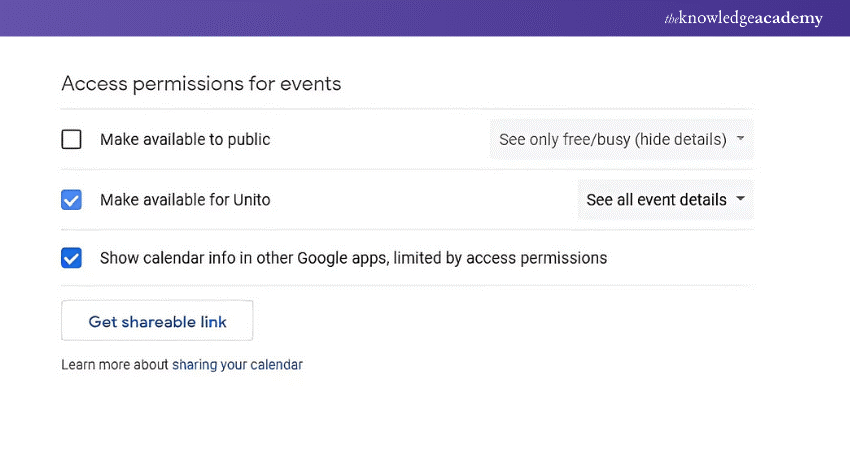
2) Copy the Public URL of Your Google Calendar
There are two steps that need to be followed for copying the Public URL of your Google Calendar:

1) Step 1: Stay in the Google Calendar and open the calendar settings. Scroll down and search for the integrated calendar section.
2) Step 2: In this section of integrated calendar, there will be a field labeled Public URL to this calendar. Just copy that URL from that section.
3) Embed the Google Calendar into a Notion Page
These steps need to be followed in order to embed the Google Calendar into the Notion page:
1) Step 1: In step one, open the Notion section and navigate to the page where you want to embed your Google Calendar.
2) Step 2: Click where to place the Google Calendar and then type the command (/embed). After this, select the Embed option from the dropdown menu.
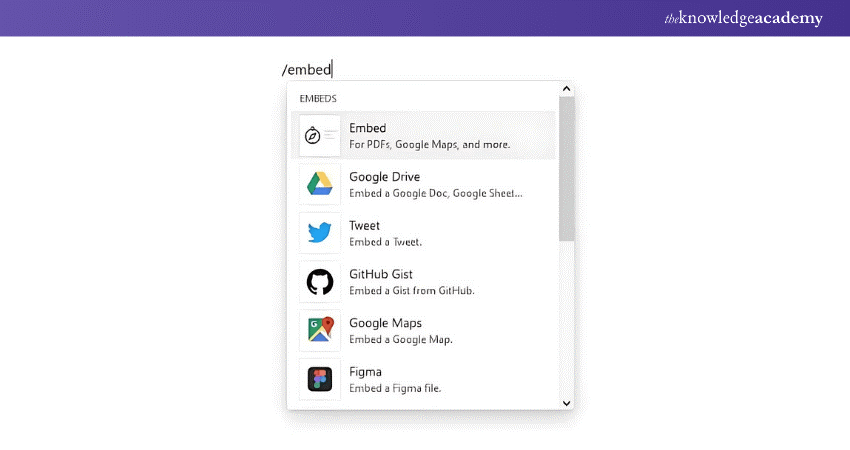
The Google Calendar is now embedded and is visible within the notion page.

Drawbacks of the Method 1
Embedding a Google Calendar in Notion via the URL method has certain drawbacks:
1) Privacy Concerns: When you make your Calendar public it means anyone with the link can access your calendar. This way might not be correct if the Google Calendar contains sensitive and private information.
2) Limited Customisations: This method does not provide the same level of customisations as the other methods. According to your specific needs you might not be able to adjust or change the appearance or the functionality.
3) Static View: The Embedded Google Calendar might not directly update in real time and there is a need to refresh the Notion page every time you want to see the changes.
4) No Interactions: The users who want to add events or change their view cannot directly interact with Notion. They would need to open Google Calendar to operate all the functions.
5) Dependent on Google Calendar: Is there is any issue or change in policies or down time of Google Calendar, it will directly affect the visibility and functionality of Embedded Calendar in Notion.
Method 2: Embed Google Calendar to Notion using Indify
Steps for Embedding Google Calendar to Notion using Indify are:
1) Sign Up for an Account
For Embedding the Google Calendar to Notion using Indify you need an account for that the steps are:
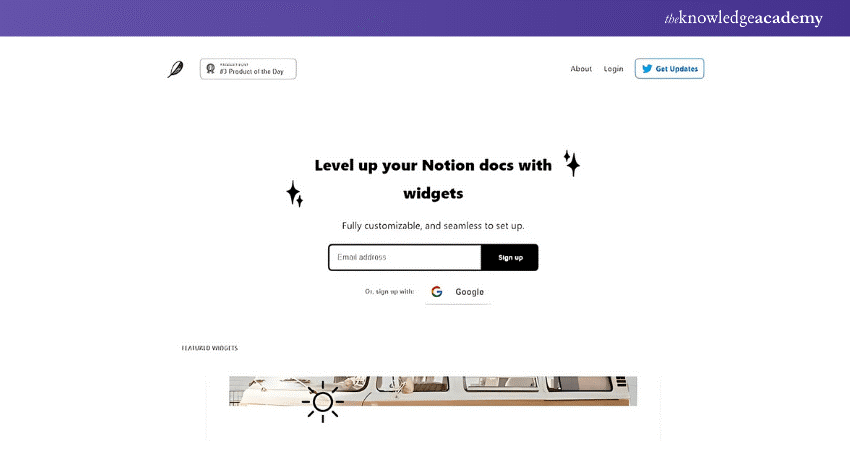
1) Step 1: Search for Indify on the browser, click and open the Indify website.
2) Step 2: Sign Up on Indify with your Google Account in order to embed the Google Calendar.
2) Select the "Google Calendar" Widget
For selecting Google Calendar widget, these steps are included:
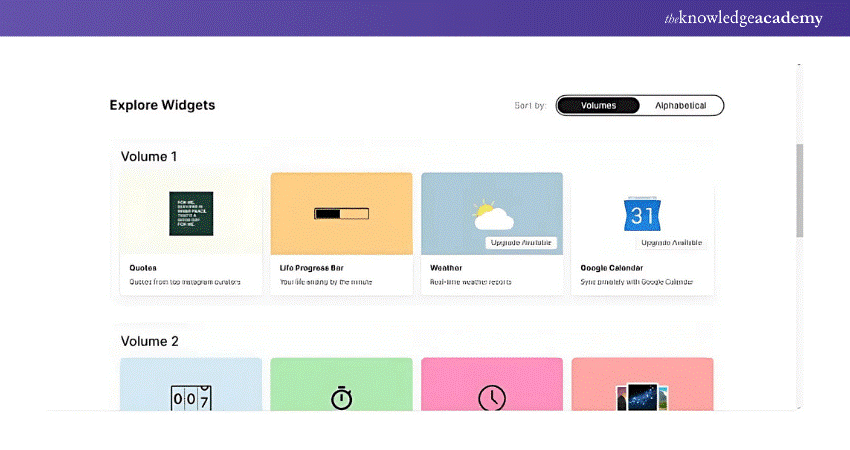
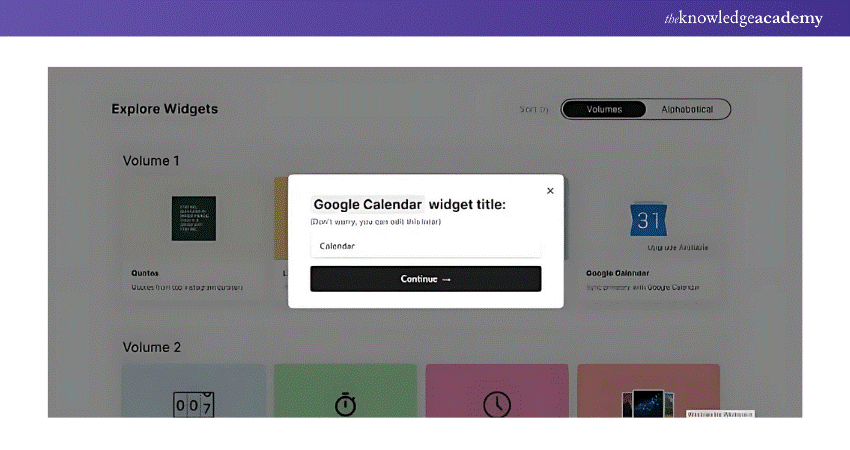
1) Step 1: After logging in the Indify, click on the add new widget option.
2) Step 2: In step two, from the list of widgets, select the Google Calendar.
3) Step 3: In step three, a naming column will appear for giving title to the widget which can be changed afterwards if needed.
3) Login to Your Google Account
Login to your Google Account:

1) Step 1: In first step, there is a side bar on left hand side, click on sign in with Google under settings there is log in to a Google account.
2) Step 2: Authenticate your Google account after login, in the pop-up window and after that let the page reload.
4) Choose the Calendar You Want to Embed
Choosing the calendar that you want to embed:
1) Step 1: Click on the left-hand side bar and the list of Google Calendars will appear.
2) Step 2: Select and click on the calendar you want to display in widget and there is an option of choosing multiple calendars if needed.
Sign Up now for our Monday Training Course for-time tracking and workload management
5) Personalise the Calendar's Appearance
Personalise the Appearance of the Calendar includes:
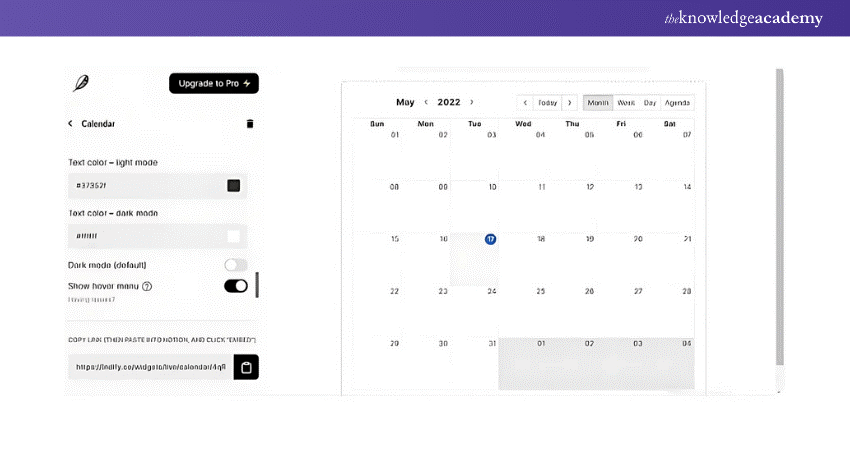
1) Step 1: After selecting the calendar for displaying in the widget, again click on the left-hand side bar and click on the calendar.
2) Step 2: Choose the default view for the calendar, such as month, week, and days.
3) Step 3: in the third step, according to connivence customise the additional settings such as start day of the week, 24-hour or 12-hour format and other appearance options.
6) Copy the Embed Code
After finishing the customisation and selecting setting for the widget, scroll down to the bottom of the side bar in Indify and copy the embedded link of Google Calendar.

7) Insert the Calendar into Notion
Inserting the calendar into Notion:
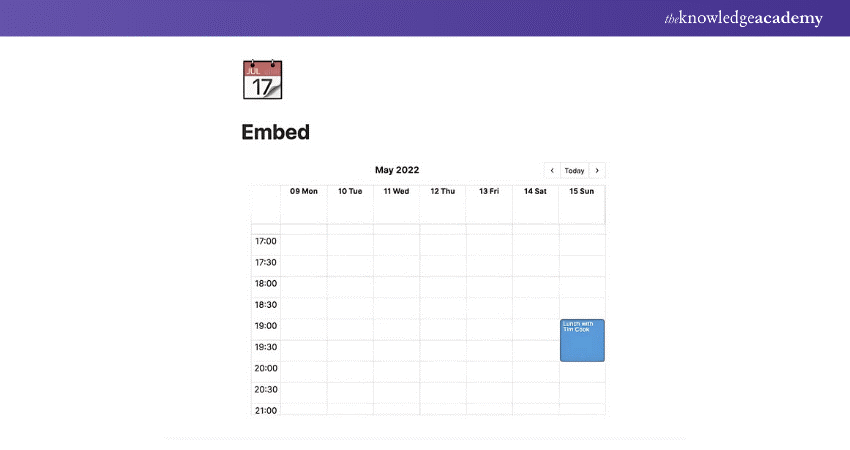
1) Step 1: In step one open the Notion section and navigate to the page where you want to embed your Google Calendar.
2) Step 2: Click where to place the Google Calendar and then type the command (/embed). After this select the Embed option from the dropdown menu.
3) Step 3: Paste the link that you have copied from Indify and wait for the page to reload again.
The selected Google Calendar is now Embedded and visible within your Notion page.
Gain practical experience through real-world case studies and interactive exercises with our Project Risk Management Course!
Drawbacks of The Method 2
Embed Google Calendar to Notion using Indify has several drawbacks:
1) Privacy Concerns: Although Indify provides a more private option than making the Google Calendar public but there is still a need to grant access to Google account which may raise privacy concerns for some of the users.
2) Dependent on Third Party Services: Indify is the third-party service which gives access to Google Notion Calendar but if it experiences any problem or issue it will affect the functionality of the embedded calendar.
3) Aesthetic Limitations: The Indify offers many customisation options, but the aesthetics of Embedded Calendar might not match the layout of Notion page.
4) Potential Performance Issue: Embedding the widgets from third party services can sometimes slow down the loading time of Notion page, especially when multiple widgets are embedded.
Conclusion
Using Google Calendar as a Project Management Tool by embedding it in Notion can significantly boost your productivity by combining your schedule and tasks in one place. Whether you choose to use the Google Calendar in Notion via URL method or opt for a third-party service like Indify, each method offers its own set of benefits and drawbacks.
Want to create and customise workspaces? Get register with our Notion Training!
Frequently Asked Questions
How do you Make your Google Calendar Public?

Open Google Calendar in a browser, click the three dots next to the calendar you want to embed, and select "Settings and sharing." Scroll down to "Access permissions for events" and check the box for "Make available to the public."
What is the Difference Between Google Calendar and Notion?
Notion Calendar is a robust calendar built directly into your Notion workspace. It lets you connect events with projects, notes, and databases for ultimate organisation. On the other hand, Google Calendar is a time-management and scheduling calendar service developed by Google.

The Knowledge Academy


Global Training Provider
The Knowledge Academy is a world-leading provider of professional training courses, offering globally recognised qualifications across a wide range of subjects. With expert trainers, up-to-date course material, and flexible learning options, we aim to empower professionals and organisations to achieve their goals through continuous learning.


 If you wish to make any changes to your course, please


