


 Top Rated Course

We may not have the course you’re looking for. If you enquire or give us a call on +44 1344 203999 and speak to our training experts, we may still be able to help with your training requirements.
What is Microsoft Teams: Uses, Plans, and Features
The Knowledge Academy 25 March 2026Microsoft Teams is a Microsoft 365 platform for teamwork, blending chat, video meetings, and app integration into one hub for communication and collaboration. Whether teams are working from the office or remotely, it keeps them connected, organised, and productive, with clear communication and seamless workflows.

Training Outcomes Within Your Budget!
We ensure quality, budget-alignment, and timely delivery by our expert instructors.
Table of Contents

Work today is approached differently from a few years ago. Teams are spread across offices, homes, and even different time zones, yet they need to communicate clearly and get work done. This is where understanding What is Microsoft Teams becomes crucial. It has become a go-to platform for chats, meetings, file sharing, and collaboration to keep teams connected.
If you have struggled with scattered emails, missed messages, or complex tools for simple tasks, learning What is Microsoft Teams can make a real difference. It brings conversations, documents, and teamwork into a centralised place for a smoother working experience. In this blog, you will learn about Microsoft Teams, how to get started, its key benefits, and more!
Table of Contents
1) What is Microsoft Teams?
2) Benefits of Microsoft Teams
3) Getting Started with Microsoft Teams
4) Essential Features and Functionality of Microsoft Teams
5) Advanced Features and Tips for Microsoft Teams
6) Microsoft Teams Pricing
7) Troubleshooting Microsoft Teams
8) Can I Use Teams On My Phone?
9) Did Skype Become Teams?
10) Conclusion
What is Microsoft Teams?
Microsoft Teams is a collaboration platform within Microsoft Office 365 that brings communication, teamwork, and productivity tools in one place. From a single window, users can chat, make calls, schedule meetings, and work on files without switching between multiple apps.
At its core, Microsoft Teams serves as a centralised hub for teamwork. Teams can integrate third-party apps, such as Asana or Canva, allowing organisations to tailor the platform to their specific workflows. With enterprise-grade security, compliance controls, Entra ID integration, and deep Microsoft 365 productivity features, it supports secure collaboration across departments and locations.
Benefits of Microsoft Teams
Below are some key Benefits of Microsoft Teams:
1) Teams integrates seamlessly with Office 365, allowing users to co-author documents in real-time, share files, and collaborate efficiently without switching between apps.
2) It provides different communication tools, including instant messaging, audio and video calls, and threaded conversations, making it easier to stay connected with colleagues.
3) Teams simplify meeting management by providing features like scheduling, screen sharing, and recording, ensuring that all meeting-related information is easily accessible.
4) By centralising conversations and file sharing within Teams, users can significantly reduce the volume of emails, making communication more organised and less cluttered.
5) With mobile and desktop apps, Teams ensures that users can stay connected and productive from any location, whether they’re in the office or on the go.
Exploring a Microsoft Teams alternative? Discover innovative solutions for seamless team collaboration and enhanced productivity. Explore alternatives today!
Getting Started With Microsoft Teams
By following this Microsoft Teams Guide, for a better understanding of What is Microsoft Teams and its features and functionalities, you can quickly get started with this powerful collaboration platform. Let’s take you through some of its crucial steps:
1) Creating a Microsoft Teams Account
To get started, you'll need to create a Microsoft Teams account. On having a Microsoft 365 subscription, you can use it to sign in using your existing credentials. Alternatively, you can sign up for a free Microsoft Teams account. Once signed in, you can access Teams via the web application, desktop application, or mobile app.
2) Setting up Teams and Channels
“Teams” in the Microsoft Teams platform are groups of people collaborating on specific projects or initiatives. You can create channels within each team to organise discussions and files based on topics or workstreams.
As an example, you can have a "Marketing Team" with channels for "Social Media," "Content Creation," and "Campaigns." Setting up teams and channels helps structure your collaboration space and keeps conversations focused. To create a team or channel on the platform, follow the below-mentioned steps:
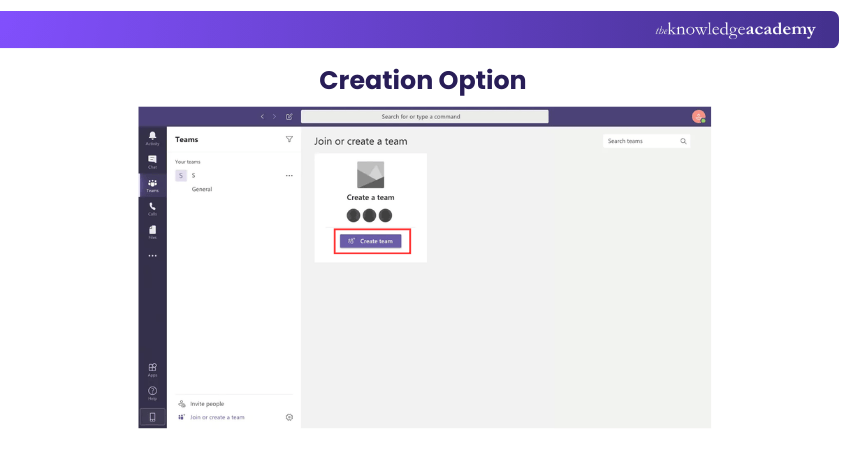
b) Choose "Create a team" and select the team type.
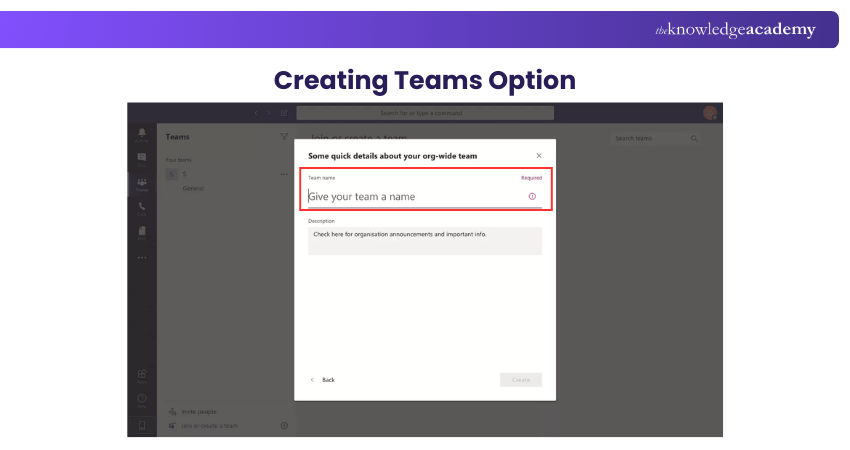
c) Enter a name and description. Then, click "Create."
d) Click "Add members" to invite colleagues.
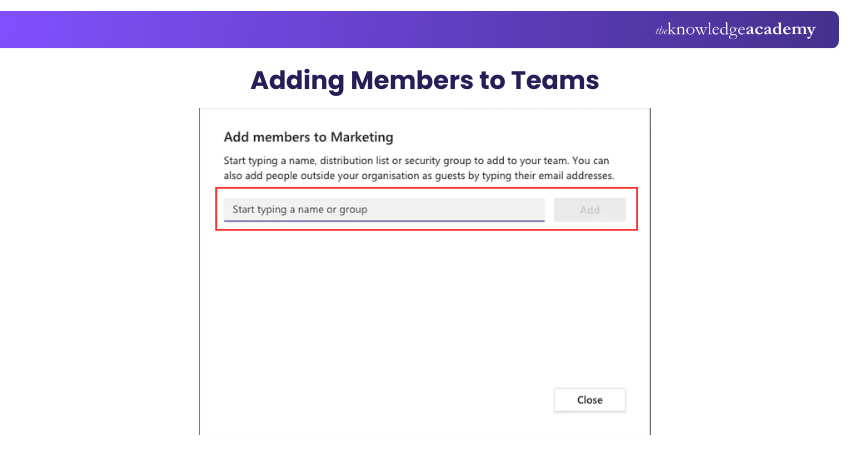
e) Enter their email addresses.
f) Click the ellipsis (three dots) next to the team name.
g) Select "Add channel" and give it a name.
h) Choose standard or private access, then click "Add."
3) Inviting Team Members
After creating teams and channels, you can invite team members to join. You can invite colleagues within your organisation using their email addresses or add external guests who may not have a Microsoft Teams account. Inviting a team requires the following steps:
a) Open Microsoft Teams.
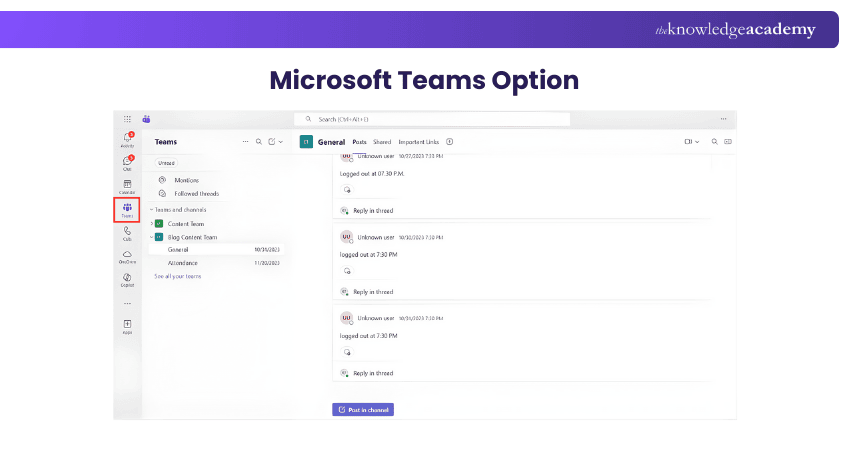
b) Once you're in Teams, you'll see the left sidebar with various options like "Chat," "Teams," "Calendar," etc.
c) Click on the "Teams" option in the left sidebar. This will show you a list of all the teams you are a part of.
d) Choose the team to which you want to add a new member.
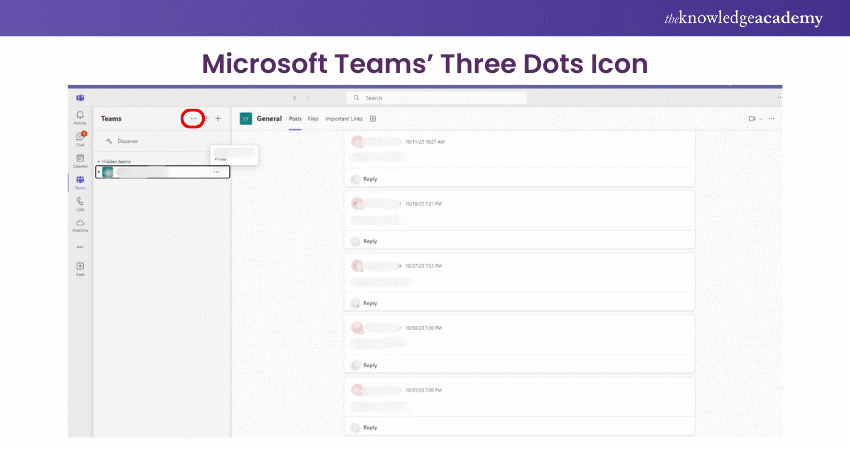
e) Look for the "..." (three dots) icon at the top right corner of the team's window.
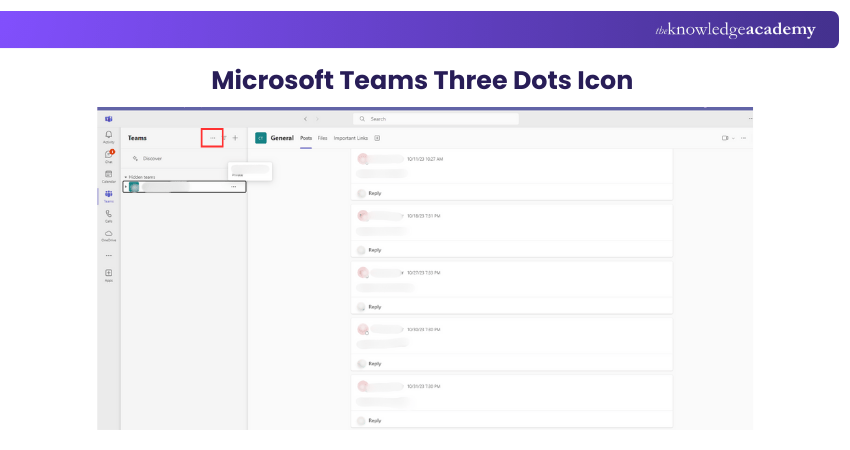
f) From the dropdown menu, choose "Add members.
f) From the dropdown menu, choose "Add members.
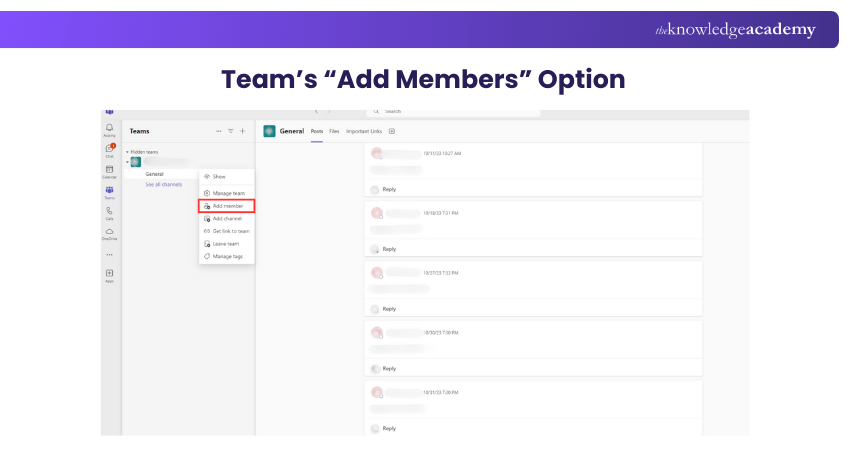
g) A window will open up where you can invite members to the team. You have two options: Invite via email or invite from your organisation. Enter the email address of the person you want to add, along with an optional message, and then click "Add." You can also search for members within your organisation by typing their name.
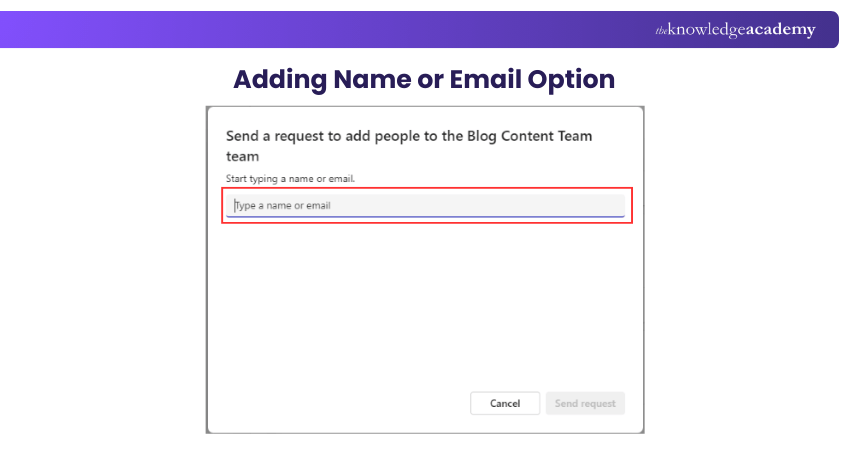
h) If you want to assign a specific role to the member, such as "Member" or "Owner," you can do that in the same window before adding them.
i) Now, click the "Add" button to send the invitation.
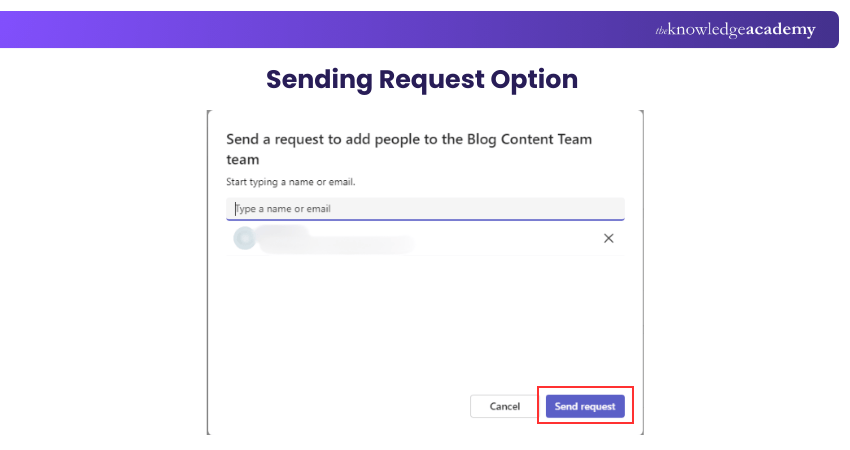
j) The person you invited will receive an email notification inviting them to join the team. Once they accept the invitation, they will become a team member.
Communicating Through Chat and Messaging
The chat and messaging feature in Microsoft Teams enables real-time communication among team members. You can initiate one-on-one or group chats, send text messages, and share files and documents within the chat window.
You can also use “@mentions” to notify specific team members and ensure their attention. Moreover, chat history is saved, allowing you to refer to previous conversations and find important information easily.
Scheduling and Joining Meetings
This platform simplifies the process of scheduling and joining meetings. Meetings can be one-on-one or include multiple participants. You can join meetings from the Teams app, calendar invites, or directly from the chat window. You can schedule meetings directly within Teams as follows:
a) Open Microsoft Teams
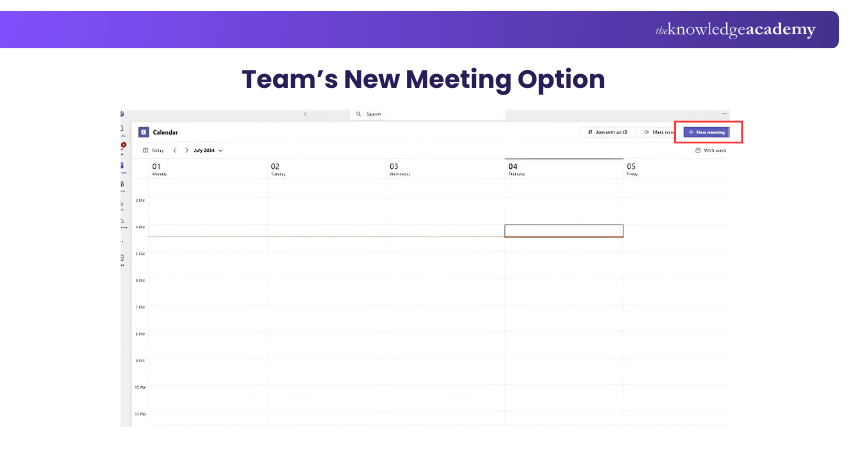
b) Click on "Calendar" in the left sidebar
c) Click "New Meeting" (+ icon)
d) Fill in meeting details and add participants
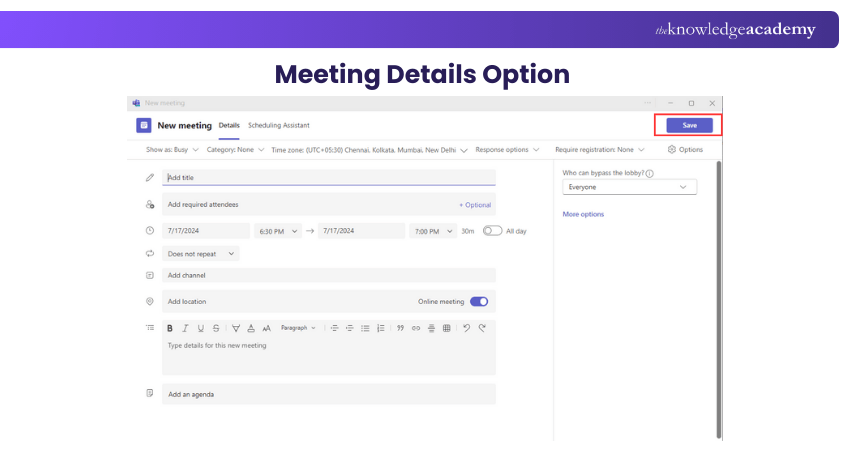
e) Click "Send" to schedule the meeting
Moreover, participants can join a meeting using the following steps:
a) Go to Teams Calendar
b) Click on the meeting you need to join
c) Click "Join" to enter the meeting
d) Control audio, video, and other settings as needed
e) Click "Leave" to exit the meeting
Collaborating on Files and Documents
Microsoft Teams integrates seamlessly with Microsoft 365 apps like Word, Excel, and PowerPoint, enabling team members to collaborate on files and documents within Teams itself. You can make, edit, and co-author documents in real time, allowing everyone to work on the latest version. The files are stored securely in OneDrive or SharePoint, making them easy to access and share with team members.
Exploring Additional Features
Microsoft Teams offers various additional features to enhance collaboration and productivity. These include integrating third-party apps, such as project management tools, customer relationship management systems, etc. Teams also provide features like polls, surveys, and apps for employee engagement and productivity tracking. Exploring these features can help tailor Microsoft Teams to your team's needs and enhance your overall collaboration experience.
Training and Support
As you start using Microsoft Teams, it's important to familiarise yourself with the various resources available for training and support. Microsoft provides comprehensive documentation, video tutorials, and a dedicated support centre for Teams users. In addition, online communities and forums allow you to connect with more users, share experiences, and seek guidance on best practices.
Join our Microsoft Office 365 Training and learn how to effectively use tools like Word, Excel, Teams, and more.
Essential Features and Functionality of Microsoft Teams
Here are some essential features of Microsoft Teams which make it an excellent choice for your personal use as well as your organisation. These features can bring great ease to your working process, revolutionising the communication process between you and your team members. So, let’s explore them in detail:
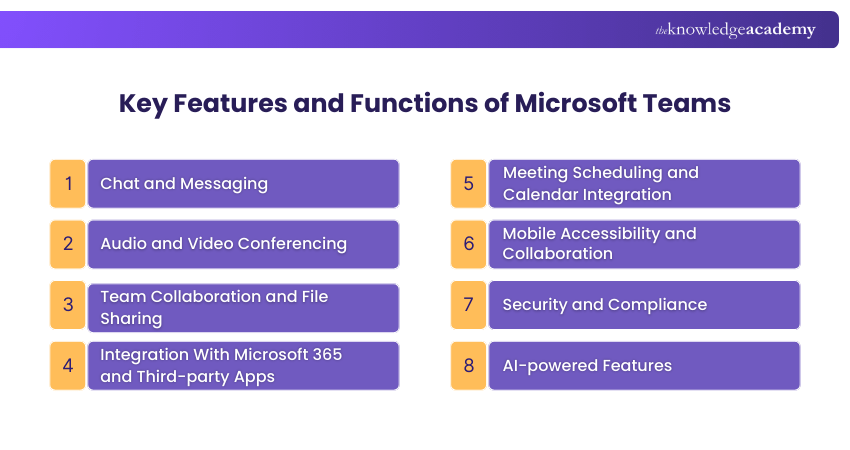
1) Chat and Messaging
Microsoft Teams provides a comprehensive chat and messaging system that allows team members to communicate effectively in real time. Users can initiate one-on-one or group chats, send text messages, and share files and images within the chat window.
Teams support rich formatting options, such as bold, italic, and bullet points, enabling users to emphasise important information. The “@mentions” feature allows direct messaging to specific team members. This ensures their attention. Furthermore, searching and filtering chat history makes it easy to find and reference previous conversations.
2) Audio and Video Conferencing
Microsoft Teams' robust audio and video conferencing capabilities are one of its popular features. Users can initiate or join virtual meetings effortlessly. This enables face-to-face discussions and seamless collaboration. Teams support both one-on-one and group meetings, accommodating teams of all sizes.
During meetings, participants can share their screens, present slides, and collaborate on documents in real time. Integrating Microsoft 365 apps allows smooth transitions from chat to video conferencing. As a result, it brings convenience in switching between different modes of communication.
Experiencing Microsoft Teams issues? Unlock quick fixes and get back to smooth collaboration. Resolve your challenges effortlessly!
3) Team Collaboration and File Sharing
MS Teams act as a centralised hub for team collaboration and file sharing. Users can create and edit documents within Teams, leveraging the power of Microsoft 365 apps like Word, Excel, and PowerPoint.This enables team collaboration in real time and makes work efficient without switching between different tools.
Further, co-authoring capabilities enable multiple team members to collaborate on the same document simultaneously, eliminating version control issues. Teams provide a seamless experience for sharing files and folders. This allows users to upload, organise, and easily access documents. Additionally, integration with OneDrive for Business ensures secure storage and easy retrieval of shared files.
4) Integration With Microsoft 365 and Third-party Apps
Teams can easily integrate with other Microsoft apps and services, enhancing their capabilities and adaptability. Users can access and collaborate on SharePoint, OneDrive, or Outlook files directly within Teams. For those seeking to strengthen their expertise, reviewing Microsoft Outlook Interview Questions can provide valuable insights into how to effectively use Outlook within the Teams environment.
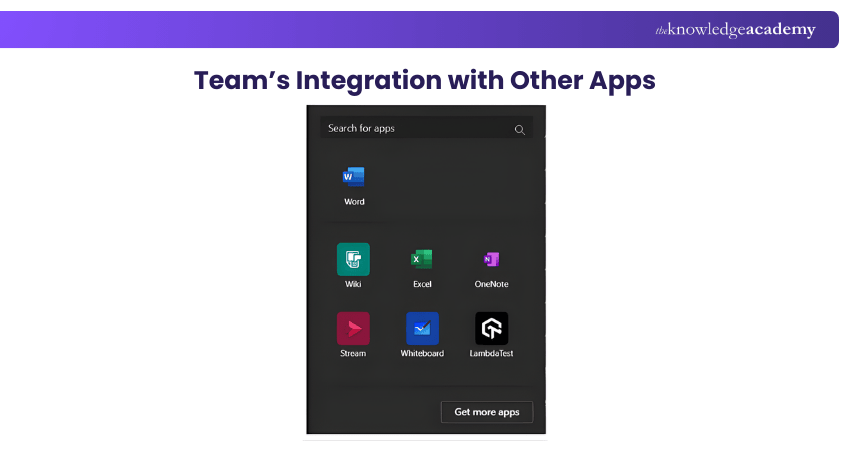
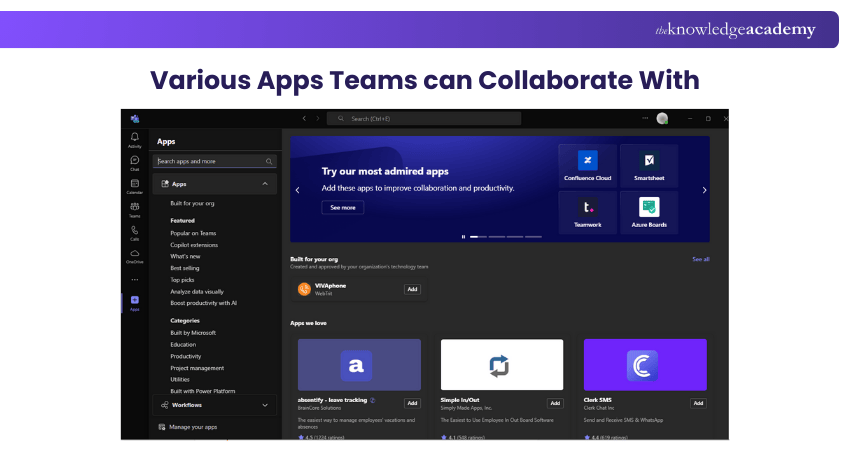
Integrating Microsoft Power Apps and Power Automate enables users to automate workflows and streamline processes. Teams also offer a wide range of third-party app integrations, such as Trello, Asana, and Salesforce. This allows users to bring their favourite tools and services into one centralised location.
5) Meeting Scheduling and Calendar Integration
Microsoft Teams simplifies meeting scheduling and management through its built-in calendar feature. Teams seamlessly integrate with Outlook, enabling users to view and schedule meetings directly from the Teams interface.
Further, users can create recurring meetings, set reminders, and invite attendees, all within the Teams app. The calendar provides a clear overview of the schedule and upcoming meetings. This ensures that users stay organised and never miss an important discussion.
6) Mobile Accessibility and Collaboration
To cater to the modern workforce, this platform offers comprehensive mobile apps for iOS and Android, ensuring users stay connected and productive. The mobile app includes all the essential features of Teams. This allows users to chat, join meetings, access files, and collaborate seamlessly from their smartphones or tablets. Whether travelling, working remotely, or away from the desk, the mobile app empowers users to stay engaged and productive with their team.
7) Security and Compliance
Security and compliance are critical in any collaboration platform, and Microsoft Teams prioritises these concerns. Teams employ robust security measures, including multi-factor authentication, data encryption, and advanced threat protection, to ensure the confidentiality and integrity of user data.
Compliance attributes such as eDiscovery and legal hold help organisations meet regulatory requirements. Teams also support guest access, enabling users to collaborate securely with external partners and clients while controlling shared resources.
8) AI-powered Features
Leveraging the power of Artificial Intelligence, Microsoft Teams offers AI-powered features that enhance collaboration and productivity. Real-time translation allows team members communicate effectively across different languages, making meetings inclusive and accessible for global teams.
Microsoft Teams also uses AI to improve meeting experiences through features such as background noise suppression, intelligent camera framing, and meeting summaries. It highlights key discussion points, action items, and decisions to help users catch up quickly if they miss a meeting, keeping everyone focused and in alignment.
Transform your collaboration skills with our Microsoft SharePoint Training – register now and revolutionise the way you work with your team.
Advanced Features and Tips for Microsoft Teams
Advanced features in MS Teams can be roughly divided into Team management and Security compliances in Microsoft. Here are some advanced features of Microsoft teams which can make your work significantly easier:
Channel and Team Management
Here are some features of Microsoft Teams which can aid you in Team Management.
1) Creating and Managing Private Channels: Aside from standard channels, Teams allows you to create private channels for sensitive discussions or specific projects. Private channels provide a more focused space for collaboration while maintaining privacy and access control.
2) Archiving and Deleting Teams: You can archive or delete teams to keep your workspace organised as teams evolve or projects end. Archiving preserves the content and conversations for future reference, while deletion permanently removes the team and its associated data.
3) Utilising Moderation and Guest Access: Teams provide moderation features to control the flow of conversations within channels. You can assign moderators who can approve or deny messages before they appear. Guest access allows you to invite external users to collaborate securely. This extends collaboration beyond internal team members.
Security and Compliance in Microsoft Teams
Here are some features of Microsoft Teams which helps you comply with security standards:
1) Managing User Permissions and Roles: Teams provides different user roles with multiple levels of permissions. By assigning appropriate roles to team members, you can ensure that only authorised users can perform certain actions.
2) Enabling Multi-factor Authentication: To enhance security, Teams supports multi-factor authentication. It adds an extra layer of protection. It mandates users to provide additional verification, such as a fingerprint or one-time password, in addition to their login credentials.
3) Complying With Data Protection Regulations: Teams also adhere to industry-leading security and compliance standards. It includes features like data loss prevention (DLP) policies, message encryption, and retention policies. These features help organisations meet their regulatory requirements, such as General Data Protection Regulation (GDPR) or Health Insurance Portability and Accountability Act (HIPAA).
Customisation and Extensibility
Here are some features of Microsoft Teams which help you customise your experience:
1) Creating and Deploying Custom Apps: You can build apps using Microsoft Power Apps or Microsoft Teams Developer Platform. This helps extend the functionality of Teams to automate workflows, gather data, or integrate with other systems.
2) Customising Team Layouts and Tabs: You can pin important channels or tabs to the top and rearrange the order of tabs. You can even personalise the team's theme to reflect your branding or preferences.
3) Utilising Bots and Chatbots in Teams: Bots in Teams enable automation and streamline processes by performing tasks and providing information within the chat interface. Using the Microsoft Bot Framework, you can use pre-built bots or create custom bots. This helps in enhancing productivity and delivering interactive experiences.
Best Practices for Effective Microsoft Teams Usage
Here are some good practices you can follow to make the best out of Teams:
1) Establishing Communication and Collaboration Guidelines: Setting clear guidelines and expectations for using Teams ensures consistent and effective collaboration. Establish norms around channel usage, naming conventions, and etiquettes to promote efficient teamwork.
2) Managing Notifications and Maintaining Focus: Teams allows you to customise notification settings to avoid information overload. Adjusting notification preferences helps you stay focused by receiving alerts for essential messages and updates. This also helps in reducing unnecessary distractions.
3) Promoting Inclusivity and Engagement in Teams: Encourage all team members to participate in discussions actively and share their ideas. Utilise features like polls, praise, and emojis to foster a positive and inclusive environment. Consider scheduling regular team meetings or virtual social events to build rapport and strengthen team bonds.
Join our Microsoft Word Course today and unlock the potential of this crucial tool and create professional documents with ease!
Microsoft Teams Pricing
Microsoft offers several pricing plans for Microsoft Teams based on different needs, ranging from free and small business options to enterprise-level plans and full Microsoft 365 suites. Let’s explore the key options to better understand Microsoft Teams pricing.
1) Free and Standalone Plans
a) Microsoft Teams (Free): Free to use and mainly designed for basic chat, meetings, file sharing, and team collaboration.
b) Microsoft Team Essentials: £3.10 per month with an affordable standalone plan for small and medium-sized businesses that need professional meetings, chat, and collaboration without the full Microsoft 365 suite.
c) Microsoft Teams Premium: £7.70 per month with an add-on plan that enhances the core Teams experience with advanced AI-powered meeting features, personalised meeting templates, custom branding, and enhanced security.
2) Small and Medium Business Plans
a) Microsoft 365 Business Basic: £4.60 per month which includes Teams, Outlook, 1 TB of OneDrive storage, SharePoint, and web and mobile versions of Office apps.
b) Microsoft 365 Business Standard: £9.60 per month, which includes everything Business Basic plus desktop versions of Office apps and more collaboration tools.
3) Enterprise Plans
a) Microsoft Teams Enterprise: £6.60 per month is a standalone enterprise Teams plan with professional collaboration and meeting features for larger organisations.
b) Microsoft 365 E3: £31 per month which includes Teams plans and a comprehensive suite of productivity, management, and security tools.
c) Microsoft 365 E5: £49 per month is the most advanced plan with additional security, compliance, analytics, and productivity features built into the full Microsoft 365 suite.
Design professional layouts and publications with Microsoft Publisher Training – Join today!
Troubleshooting Microsoft Teams
Even with a user-friendly platform like Microsoft Teams, occasional issues may arise. Let’s explore some common troubleshooting tips and frequently asked questions to help you navigate through What is Microsoft Teams challenges:
1) Poor Audio or Video Quality During Meetings
Poor audio or video quality in Microsoft Teams meetings is usually caused by incorrect device selection, limited bandwidth, or background system load. Teams rely on real-time network performance, so unstable internet connections can affect call quality.
Key Pointers:
a) Check Settings > Devices and confirm the correct microphone, speaker, and camera.
Bb) Run a test call before joining important meetings.
c) Use a stable wired or strong Wi-Fi connection.
d) Close bandwidth-heavy applications running in the background.
e) Update the Teams app to the latest version.
2) Cannot Join or Start a Meeting
If you cannot join or start a Teams meeting, it is often due to sign-in issues, account mismatches, or meeting access restrictions set by the organiser. Microsoft notes that users may be placed in the meeting lobby if access permissions are limited.
Key Pointers:
a) Ensure you are signed in with the same account that received the meeting invite.
b) Try joining through the Teams app instead of the browser.
c) Check whether you are waiting in the meeting lobby for approval.
d) If you are the organiser, confirm that the meeting is set as a Teams meeting.
e) Verify that guest or anonymous access is allowed if external users are joining.
3) Files or Documents not Syncing or Opening
Files shared in Microsoft Teams are stored in OneDrive or SharePoint, and sync issues can occur if the app has not refreshed properly. This may cause files to appear outdated, fail to open, or not reflect recent changes made by others.
Key Pointers:
a) Restart the Teams app to force a fresh sync.
b) Look for and use the Refresh option if prompted.
c) Check your internet connection.
d) Open the file directly in OneDrive or SharePoint as a workaround
e) Ensure you have the correct permissions to view or edit the file.
4) Issues With Notifications
Notification problems can occur due to disabled in-app settings, system-level restrictions, or conflicting “Do Not Disturb” preferences. If notifications are not configured correctly, users may miss important chats, calls, or meeting alerts.
Key Pointers:
a) Go to Settings > Notifications and review alert preferences
b) Ensure @mentions, calls, and message alerts are enabled
c) Check system notification permissions on your desktop or mobile device
d) Disable Do Not Disturb mode if active
e) Restart Teams after making notification changes.
5) Unable to add External Users or Guests
If you cannot add external users or guests, this is usually due to organisational security policies. Microsoft Teams requires guest access and external access to be enabled by an administrator. If these settings are restricted, invitations to users outside the organisation will fail.
Key Pointers:
a) Confirm that Guest access is enabled in Teams admin settings.
b) Ensure external domains are not blocked by organisational policy.
c) Verify that the guest is using a valid email address.
d) Ask your IT administrator to review external access policies.
e) Check whether the guest’s organisation also has external Teams access.
Can I Use Teams On My Phone?
Yes, you can use Microsoft Teams Free on your phone. The mobile app lets you chat, join meetings, make calls, share files, and stay connected. On Android phones and tablets, Microsoft Teams Free works with devices running the last four major Android OS versions.
On iPhones, iPads, and iPods, it supports devices using the last two major iOS versions. Keeping the OS updated ensures better stability, security, and compatibility.
Did Skype Become Teams?
No, Skype did not directly become Teams, but Microsoft officially retired Skype and transitioned users to Microsoft Teams Free. As of May 5th, 2025, Skype has been discontinued for both free and paid users, excluding Skype for Business. Users can sign in to Microsoft Teams Free using their Skype credentials, with chats and contacts automatically transferred.
Conclusion
Understanding What is Microsoft Teams is about utilising the platform to effectively improve communication, collaboration, and productivity. From everyday chats and meetings to file sharing and teamwork across locations and departments, Microsoft Teams plays a key role. Thus, with the right setup and best practices in place, it becomes a reliable, centralised workplace that supports efficient and connected working.
Strengthen your everyday workplace skills and work more efficiently with Microsoft Office Training – Register now!
Frequently Asked Questions
How do I Use Microsoft Teams to Join a Meeting?

To join a meeting, open the Microsoft Teams app, navigate to the 'Calendar' tab, and click on the meeting you want to join. Select 'Join' and adjust your audio and video settings before entering the meeting.
How do I Use Microsoft Teams Checklist?
Create a checklist in MS Teams by navigating to the 'Tasks' tab, selecting 'New Task,' and entering your tasks. You can assign activities to team members, set due dates, and track progress within the app to ensure efficient task management.
What are the Other Resources and Offers Provided by The Knowledge Academy?
The Knowledge Academy takes global learning to new heights, offering over 3,000+ online courses across 490+ locations in 190+ countries. This expansive reach ensures accessibility and convenience for learners worldwide.
Alongside our diverse Online Course Catalogue, encompassing 17 major categories, we go the extra mile by providing a plethora of free educational Online Resources like Blogs, eBooks, Interview Questions and Videos. Tailoring learning experiences further, professionals can unlock greater value through a wide range of special discounts, seasonal deals, and Exclusive Offers.
What is The Knowledge Pass, and How Does it Work?
The Knowledge Academy’s Knowledge Pass, a prepaid voucher, adds another layer of flexibility, allowing course bookings over a 12-month period. Join us on a journey where education knows no bounds.
What are the Related Courses and Blogs Provided by The Knowledge Academy?
The Knowledge Academy offers various Microsoft Office Trainings, including the Microsoft Word Course, Training, Microsoft Word Course, and Microsoft Office 365 Training. These courses cater to different skill levels, providing comprehensive insights Best Microsoft Office Books.
Our Office Application Blogs cover a range of topics related to Microsoft Teams, offering valuable resources, best practices, and industry insights. Whether you are a beginner or looking to advance your Office Application skills, The Knowledge Academy's diverse courses and informative blogs have got you covered.

The Knowledge Academy


Global Training Provider
The Knowledge Academy is a world-leading provider of professional training courses, offering globally recognised qualifications across a wide range of subjects. With expert trainers, up-to-date course material, and flexible learning options, we aim to empower professionals and organisations to achieve their goals through continuous learning.

Upcoming Office Applications Resources Batches & Dates
Date
 Microsoft Teams Training
Microsoft Teams Training
Fri 24th Jul 2026
Microsoft Teams Training
Fri 9th Oct 2026

 If you wish to make any changes to your course, please


