


 Top Rated Course

We may not have the course you’re looking for. If you enquire or give us a call on +44 1344 203 999 and speak to our training experts, we may still be able to help with your training requirements.
QuickBooks Payroll: Complete Guide to Setup and Usage
Olivia Taylor 07 March 2026QuickBooks Payroll is a cloud-based payroll service helping small businesses to calculate pay, pay employees, and file taxes automatically within QuickBooks. It automates tasks like sales processing, tax filing, payslip generation, and direct deposits, helping to reduce manual errors, save time, and create a reliable payroll system.

Training Outcomes Within Your Budget!
We ensure quality, budget-alignment, and timely delivery by our expert instructors.
Table of Contents
When you are dealing with salaries, taxes, deductions, and deadlines, managing payroll can be stressful. One minor mistake can lead to confusion and compliance issues. That is why many businesses turn to QuickBooks Payroll to simplify the process. It helps to automate calculations, organise employee payments, and reduce manual work.
Learning how this payroll system works can save you hours of effort and stress. From first-time setup to running payroll, handling taxes, and generating reports, it brings everything into one simple workflow. In this blog, you will learn about QuickBooks Payroll, its types, how to get started, benefits, and more!
Table of Contents
1) What is QuickBooks Payroll?
2) Types of QuickBooks Payroll
3) Getting Started With QuickBooks
4) How to Import Data in QuickBooks Payroll?
5) How to Use QuickBooks Payroll?
6) Benefits of QuickBooks Payroll
7) Why Choose QuickBooks Payroll Software?
8) Does QuickBooks Payroll Handle Taxes?
9) How Secure is Payroll Automation?
10) Conclusion
What is QuickBooks Payroll?
QuickBooks Payroll is an internal payroll system in QuickBooks that simplifies the payment of workers, calculation of wages and taxes, and management of governmental filings and reports by automation. The whole payroll process is made easier by taking care of salary computation, deduction of taxes, issuing of payslips, and fulfilling of compliance obligations for all types of businesses.
Types of QuickBooks Payroll
There are four ways businesses can manage payroll, and QuickBooks supports each approach based on company size and needs. Let’s look at the four types of QuickBooks Payroll below:
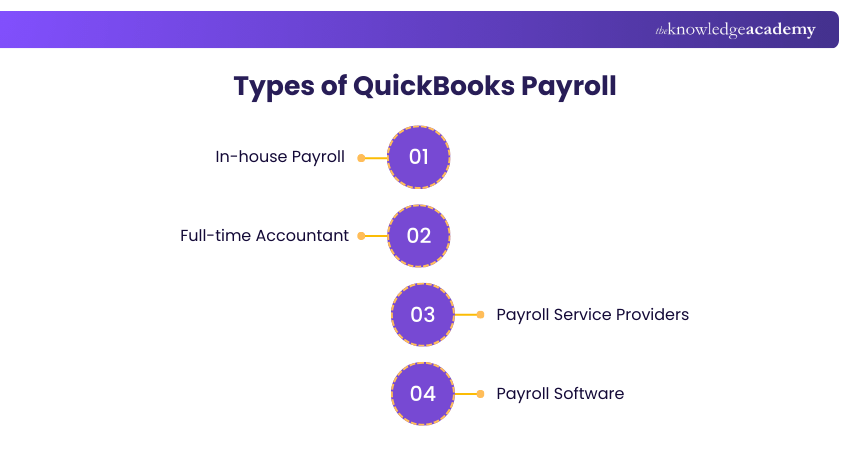
1) In-house Payroll
In this type, payroll is managed by the business owner or an HR staff member during each pay period. They handle salary calculations, deductions, and tax filings. It can be cost-effective for small teams, but as the staff grows, manual work will increase and errors tend to be more likely.
2) Full-time Accountant
Some businesses assign payroll duties to a professional accountant. The accountant manages payroll runs, tax forms, and compliance requirements on behalf of the company. This provides expert oversight and useful financial advice to keep records accurate and updated.
3) Payroll Service Providers
Payroll service companies specialise in handling payroll for other businesses. They manage tasks, such as time tracking, payments, and tax submissions. These providers charge a monthly or per-run fee. Also, QuickBooks Payroll can integrate with payroll providers, making data sharing and reporting simpler.
4) Payroll Software
Payroll Software automates most payroll activities using built-in tools and rules. With QuickBooks Payroll, businesses can automatically calculate pay, taxes, and deductions, generate payslips, and create reports. This reduces manual effort, lowers error risks, and gives a scalable payroll procedure.
Getting Started with QuickBooks
To begin with payroll in quickbooks is simple, even if you are a beginner. The step-by-step process mentioned below helps you setup successfully as well as ensure QuickBooks Payroll runs accurately and in a compliant manner.
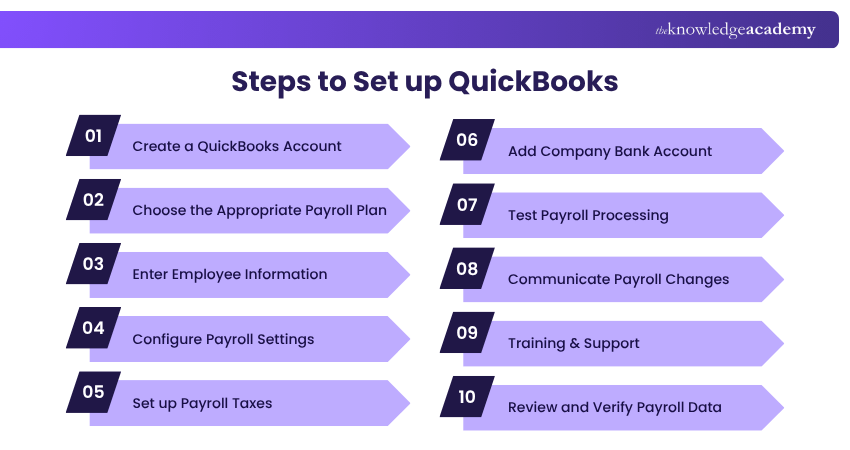
1) Create a QuickBooks Account
Begin by visiting the QuickBooks Payroll website and sign up for an account using your business email address. After registration is completed, verify your details and customise your account to fit your company’s needs. And Budgets. Take the following steps:
a) Visit the QuickBooks Payroll website
b) Click “Sign Up” or “Get Started”
c) Enter your business and contact details
d) Confirm your email and set a password
2) Choose the Appropriate Payroll Plan
QuickBooks Payroll offers multiple plans to suit on your business size and requirements. It is crucial to select a plan that includes the features you need, such as tax filing, direct deposit, or Employee benefits. Take the following steps:
a) Compare available payroll plans
b) Check included features and pricing
c) Select the most suitable plan
d) Upgrade later if your needs grow
3) Add Company Bank Account
Link your business bank account to QuickBooks for paying employees and handling tax payments. This helps streamline transactions and improve financial tracking. Take the following steps:
a) Go to the “Banking” section.
b) Add your company’s bank account details.
c) Verify account ownership through QuickBooks.
d) Enable direct deposits for employees.
4) Enter Employee Information
Maintaining accuracy in employee data ensures smooth QuickBooks Payroll processing. Add employee details such as name, address, salary, tax information, and payment preferences. Take the following steps:
a) Go to the “Employees” section
b) Add personal and contact information
c) Enter pay rates and schedules
d) Upload tax documents if required
5) Set up Payroll Taxes
QuickBooks automatically calculates payroll taxes based on your location and employee data. Enter your tax details to ensure compliance with local and federal tax laws. Take the following steps:
a) Add business tax identification number.
b) Enable automatic tax filing (if available).
c) Verify local, state, and federal tax rates.
d) Keep tax forms updated regularly.
Manage your business finances accurately and take control of your accounts with Wave Accounting Training now!
6) Configure Payroll Settings
Set up preferences like pay schedules, deductions, and benefits. This ensures payroll in QuickBooks Payroll runs consistently and automatically according to your chosen setup. Take the following steps:
a) Choose pay frequency (weekly, biweekly, monthly).
b) Add bonuses or commissions.
c) Configure deductions and allowances.
d) Review default payroll settings.
7) Test Payroll Processing
Run a test payroll to check if everything is configured correctly before launching the first live pay run. This helps identify and correct any issues early. Take the following steps:
a) Create a dummy payroll run.
b) Review employees pay slips for accuracy.
c) Check deductions and tax calculations.
d) Fix any errors before final processing.
8) Multiple Pay Schedules
QuickBooks Payroll allows you to create multiple pay schedules to handle different payment frequencies within one system. Setting these schedules correctly before running payroll helps to prevent delays and calculation errors. Take the following steps:
a) Go to Employees and select the employee you want to assign a schedule to.
b) Open Pay Schedules and click Add schedule.
c) Enter the schedule name and choose the next pay date.
d) Select the pay period days covered and save your changes.
How to Import Data in QuickBooks Payroll?
Moving to QuickBooks Payroll from another payroll provider has become simpler. You can import your previous payroll data using a Full Payment Submission (FPS) file in Extensible Markup Language (XML) format. The import option is available in QuickBooks Online Standard Payroll and is useful during migration.
Let’s look at the key steps to import data into QuickBooks Payroll below:
a) Log in to QuickBooks Online Standard Payroll and open the Employees Page.
b) Click Let’s go when prompted to begin payroll setup.
c) Choose Yes, import my data.
d) Select your previous payroll software and click Next.
e) Click Upload file and select your exported FPS XML file.
f) Click Next to start the import and review any on-screen messages if fixes are needed.
Upgrade your finance skills and turn complex accounting into simple steps with Sage 50 Accounts Training today!
How to Use QuickBooks Payroll?
QuickBooks is one of the leading Accounting Software programmes currently in the market. They are tailored to the different demands of users and fulfil their various Accounting and Payroll needs. Let's look at the steps to use this software effectively:
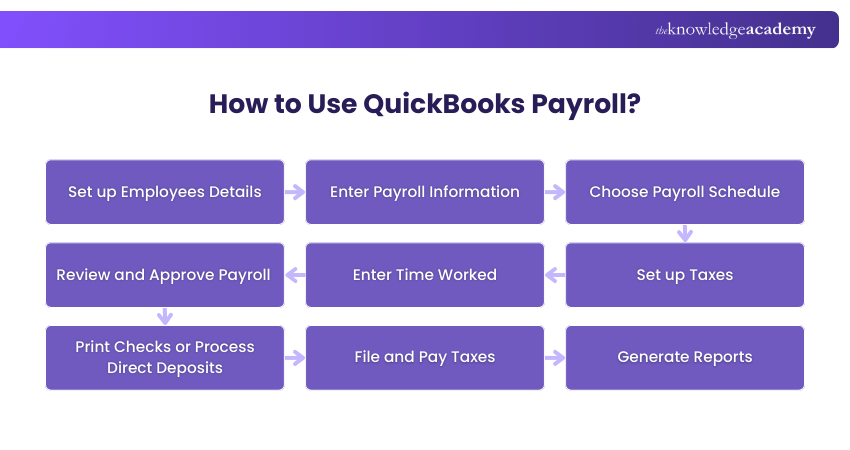
1) Set up Employees Details
The following steps will help you set up the Employees tab in QuickBooks Payroll:
a) Add New Employees: Navigate to the 'Employees' tab, then select 'New Employee.
b) Input Personal Details: Fill in full name, address, Social Security Number, birth date, and hiring date.
c) Enter Tax Information: Use the W-4 form information to set up federal tax withholdings and add state tax details if applicable.
2) Enter Payroll Information
Follow the steps below to enter the Payroll information:
a) Choose Pay Type: Specify whether the employee receives a salary or an hourly wage.
b) Set Pay Rate: Input the specific salary or hourly rate.
c) Add Additional Compensation: Detail any additional compensation, such as bonuses, commissions, etc.
d) Include Deductions: List all pre-tax and post-tax deductions, such as health insurance, retirement contributions, and garnishments.
3) Choose Payroll Schedule
With the following steps, you can easily create a QuickBooks Payroll schedule:
a) Select Frequency: Choose a payment frequency that aligns with your business’s operations, such as weekly or monthly.
b) Set Pay and Time Period Dates: Input the specific pay dates and corresponding time for hours worked.
4) Set up Taxes
The following steps will help you set up taxes:
a) Enter Federal Tax Details: Fill in federal withholding rates and information.
b) Include State and Local Taxes: If required in your area, input state and local tax information.
c) Allow Automated Calculations: Let QuickBooks calculate taxes based on the provided information.
5) Enter Time Worked
Follow the steps below to enter the time worked by the employees:
a) Record Regular Hours: Input the standard hours worked for hourly employees.
b) Include Overtime: Add any overtime hours and corresponding pay rates.
c) Add Vacation or Sick Time: If relevant, include paid time off details.
6) Review and Approve Payroll
The following steps will help you review and approve the Payroll of the employees:
a) Verify information: Carefully review all entries for accuracy.
b) Make Adjustments if Needed: Edit information if you notice any discrepancies.
c) Finalise Payroll: Once satisfied, approve the payroll for processing.
Attain the knowledge of how to analyse financial statements with our Financial Management Training – Join now!
7) Print Checks or Process Direct Deposits
Use the steps below to print checks or process direct deposits:
a) Choose Payment Method: Determine whether employees are paid via printed checks or direct deposit.
b) Set up Direct Deposit (if used): Obtain banking information from employees and input it into QuickBooks.
c) Print Checks (if used): Ensure the printer is loaded with check stock and follow the prompts to print.
d) Process Payments: Complete the process for either method, ensuring accurate delivery to employees.
8) File and Pay Taxes
The following steps will help you file and pay taxes:
a) Review Tax Calculations: Examine all tax calculations for accuracy.
b) Submit Filings: Use QuickBooks to file federal, state, and local payroll taxes as needed.
c) Schedule Tax Payments: Set up payments for due tax amounts to avoid late penalties.
9) Generate Reports
Follow the steps below to generate the reports:
a) Select Report Type: Choose from various report types for Financial Analysis or compliance.
b) Customise Reports: Adjust the content to include specific details relevant to your needs.
c) Export Data: Save reports in different formats, such as PDF or Excel, for easy sharing and storage.
Gain hands on accounting expertise with Xero Training and streamline financial management efficiently – Join today!
Benefits of QuickBooks Payroll
QuickBooks Payroll offers a wide range of benefits that simplify Payroll Management and improve business efficiency. Here are some of those benefits:
1) Save Time and Effort: Automates payroll processing, reminds you of payday, and simplifies job costing.
2) Manage Employee Information: Organises and maintains accurate employee records for easy reporting and compliance.
3) Easy Payroll Tax Management: Simplifies tax calculations, filings, and payments with automated features and multi-level support.
4) Direct Deposit & Faster Payments: Enables quick salary transfers directly to employee bank accounts, improving convenience and efficiency.
5) Assign Payrolls to Jobs: Allocates salaries to tasks, generates job cost reports, and enables direct deposits.
6) Error Reduction: Minimises payroll mistakes with automated calculations and built-in compliance checks.
Why Choose QuickBooks Payroll Software?
Small businesses get help from QuickBooks Payroll Software in managing payroll very efficiently through automating the payments, tax calculations, and compliance tasks. It minimises manual work while keeping all the benefits of accuracy, trustworthiness, and smooth flow of accounting processes. Let's look at the QuickBooks Payroll Software for the following main reasons:
a) Automated Payroll Processing: Automatically computes wages, deductions, and taxes, thus saving time as well as decreasing errors.
b) Tax Compliance Support: Takes care of tax filings and payments, which provides an assurance of constant compliance with regulations.
c) Direct Payments: Allows direct deposits and timely employee payments with very little effort.
d) Integrated Reporting: Generates easy-to-understand payroll reports that are perfectly in sync with the accounting tools of QuickBooks.
Enhance your Accounting expertise with our Tally Training – Join immediately!
Does QuickBooks Payroll Handle Taxes?
Yes, QuickBooks manages payroll taxes efficiently by automatically calculating the correct tax deductions from employee wages. It ensures accuracy and compliance with federal and state regulations, reducing manual errors.
It offers three levels of payroll tax assistance:
1) Basic: Helps you through tax preparation.
2) Enhanced: Automatically fills out state and federal tax forms.
3) Full-service Payroll: Handles everything, including tax calculations, filings, and direct payments to tax authorities.
With built-in real-time tax updates, QuickBooks minimises the chances of missed deadlines or incorrect filings, making Payroll Tax Management faster, easier, and stress-free for businesses.
How Secure is Payroll Automation?
A payroll system such as QuickBooks Payroll implements stringent security procedures to secure confidential employee and financial data. It employs encryption and access control measures to prevent data from being exposed and to mitigate unauthorized access.
Conclusion
Running payroll does not have to stay complicated and time-consuming. With the right setup and process, you can manage employee payments, taxes, and reports confidently. QuickBooks Payroll brings automation, accuracy, and flexibility to reduce errors and save valuable time during each pay cycle. When executed correctly, it becomes a reliable support system for seamless business growth.
Learn to streamline your financial processes with our Accounting Software Training – Be a part of it soon!
Frequently Asked Questions
How Does a Payroll System Help Employees?

A payroll system benefits the workforce by making sure that their payments are done accurately and timely without any mistakes or holdups. It also prepares understandable payslips and makes access to pay information easier, thus boosting the workers' confidence in their payment.
How Secure is Payroll Data in QuickBooks?
The data is fairly secure. QuickBooks Payroll keeps them secure with Encryption, role-based access and compliance with data protection laws. It ensures a safe Cloud storage and regular updates. Amidst all this, users must maintain strong passwords and access controls for the highest data protection.
What are the Other Resources and Offers Provided by The Knowledge Academy?
The Knowledge Academy takes global learning to new heights, offering over 3,000+ online courses across 490+ locations in 190+ countries. This expansive reach ensures accessibility and convenience for learners worldwide.
Alongside our diverse Online Course Catalogue, encompassing 17 major categories, we go the extra mile by providing a plethora of free educational Online Resources like Blogs, eBooks, Interview Questions and Videos. Tailoring learning experiences further, professionals can unlock greater value through a wide range of special discounts, seasonal deals, and Exclusive Offers.
What is The Knowledge Pass, and How Does it Work?
The Knowledge Academy’s Knowledge Pass, a prepaid voucher, adds another layer of flexibility, allowing course bookings over a 12-month period. Join us on a journey where education knows no bounds.
What are the Related Courses and Blogs Provided by The Knowledge Academy?
The Knowledge Academy offers various Accounting Software Courses, including the Sage 50 Accounts Training, QuickBooks Training, and Tally Training. These courses cater to different skill levels, providing comprehensive insights into Accrued Expenses.
Our Accounting and Finance Blogs cover a range of topics related to QuickBooks Payroll, offering valuable resources, best practices, and industry insights. Whether you are a beginner or looking to advance your Accounting and Finance skills, The Knowledge Academy's diverse courses and informative blogs have got you covered.

Olivia Taylor


Chartered Accountant and Financial Training Specialist
Olivia Taylor is a qualified chartered accountant with over a decade of experience in financial management, auditing and corporate reporting. Having worked with leading firms in both the public and private sectors, Olivia brings clarity to complex financial topics. Her writing focuses on helping professionals build confidence in key areas of accounting, compliance and financial planning.
View Detail
Upcoming Accounting and Finance Resources Batches & Dates
Date
 QuickBooks Training
QuickBooks Training
Fri 27th Mar 2026
QuickBooks Training
Fri 8th May 2026
QuickBooks Training
Fri 26th Jun 2026
QuickBooks Training
Fri 18th Sep 2026
QuickBooks Training
Fri 4th Dec 2026

 If you wish to make any changes to your course, please


