


 Top Rated Course

We may not have the course you’re looking for. If you enquire or give us a call on +1800812339 and speak to our training experts, we may still be able to help with your training requirements.
Power BI Row-Level Security Explained for Beginners
The Knowledge Academy 27 April 2026Row Level Security Power BI allows Organisations to control data access by showing each user only the information relevant to them. It enhances data protection, ensures compliance, and improves reporting accuracy. Explore how RLS works, why it matters, and how businesses can implement it effectively for secure, role-based insights.

Training Outcomes Within Your Budget!
We ensure quality, budget-alignment, and timely delivery by our expert instructors.
Table of Contents
Related Courses
- Quick Powerful Graphics with Power View, PowerPivot, Power Query, Power Map and Power BI M55164
- Microsoft Power BI for End Users 55400AC
- Retired : Designing and Implementing Enterprise-Scale Analytics Solutions Using Microsoft Azure and Microsoft Power BI DP500
- Microsoft Power BI Data Analyst PL300
- Microsoft BI Training
Row-Level Security (RLS) in Power BI plays a crucial role in ensuring that the right people see the right data, nothing more, nothing less. As organisations increasingly rely on data-driven decision-making, securing sensitive information becomes essential for maintaining compliance and trust.
Power BI’s RLS feature allows businesses to control data access at a user level, helping teams share reports confidently without exposing restricted information. In this blog, you’ll learn how RLS works, why it matters, and how to implement it effectively to strengthen your data governance strategy.
Table of Contents
1) What is Power BI Row-Level Security?
2) Features of Power BI Row-Level Security
3) Types of Power BI Row-Level Security
4) Use Cases of Power BI RLS
5) Defining Security Roles in Power BI
6) Limitations of Power BI RLS
7) Conclusion
What is Power BI Row-Level Security?
Power BI Row Level Security (RLS) is a feature that helps manage data access and ensures that users only see the information they are allowed to see in a report or dataset. RLS does not provide access to whole tables but applies filters at the row level, thus implementing the horizontal security rules designed for certain user groups or roles.
In RLS implementation, developers create a filtering logic that controls what information is visible to each individual user. This practice protects sensitive data like payroll, financials, or regional sales and allows only the people with permissions to access the information.
Features of Power BI Row-Level Security
Row Level Security (RLS) in Power BI is a valuable feature that allows you to control data access at a granular level. By implementing RLS, organisations can comply with regulations, protect sensitive information, and provide personalised data insights. Let's explore some key features of Power BI Row Level Security in more detail:
a) It lets you limit access to specific rows of data, ensuring only authorised people can see them. You can create custom filters to control which data each person can access.
b) RLS aligns with different roles or groups in your organisation, so individuals see only the data relevant to their responsibilities.

a) It maintains data confidentiality, keeping sensitive information protected.
b) RLS helps you comply with regulations by controlling data access.
c) It simplifies management by centralising security rules and enhances data security by preventing unauthorised access or manipulation.
d) It minimises the risk of data breaches and unauthorised data manipulation.
Types of Power BI Row-Level Security
A Power BI report or dataset can support two types of Row-Level Security (RLS): Static RLS and Dynamic RLS.
1) Static RLS
With Power BI Static Row-Level Security (RLS), data access is controlled by the use of manually defined, fixed rules. A developer directly applies these filters to the PBIX file, and they will be there unless altered manually. This method guarantees that users only access the corresponding rows of the data for their roles, therefore providing a secure and uniform access model.
Use Static RLS in the following cases:
1) You want to restrict data for a certain user group that consumes the same level of information (e.g., by region, team or office)
2) Your report has a very limited number of users and security groups
3) Your security logic is simple, top-level, and not changing frequently
4) Users are not often added or removed
Pros:
1) Simple and fast implementation
2) Very little IT involvement is needed
Cons:
1) If there are changes to be made, it becomes unmanageable
2) It cannot be reused and relies entirely on manual adjustments
2) Dynamic RLS
Dynamic Row Level Security is a feature that enables data to be viewed or accessed according to the user's attributes and the relationships that are defined in the data model. The access is controlled through dynamic logic instead of fixed rules, which are automatically updated whenever there is a change of user roles, departments, or other conditions.
Use Dynamic RLS if:
1) Different users within a group (e.g. territory-based visibility) require different levels of data access
2) Your report involves a large number of users or multiple security groups
3) Security conditions are often changing, and increasing or decreasing users or modifying their roles are included among the changes
4) Your report requires RLS logic that is complex and in alignment with the organisational structures
5) Frequent user addition or removal occurs
Pros:
1) It is reusable, it is scalable, and it reduces maintenance in the long run
2) It readily adapts to user and security group changes
Cons:
1) Takes time to implement and requires advanced data modelling
2) Often requires more IT or technical support
Explore data visualisation in Power BI with Microsoft BI Training- Join today!
Use Cases of Power BI RLS
When dealing with sensitive information in your dataset, it is essential to implement RLS in Power BI. This is particularly important for data involving company finances, customer information, or patient records. Now, let's delve into several typical scenarios where organisations use RLS.
1) Business Line-based RLS: Here, the company aims to grant users access to information specific to a particular business line, product, service, or unit. This helps streamline data access and ensures that users can focus on the data that directly impacts their area of expertise or responsibility.
2) Location-based RLS: This scenario arises when a company wants to restrict a user's access to data within a specific area or location. For example, a user may only be allowed to view information related to a particular city, state, or country. This ensures that data is accessed only by authorised personnel in designated regions.
3) Employee-based RLS: In this case, the company wants to limit employees' access to data relevant to their job responsibilities. For instance, a store manager should only have visibility into information related to their specific store's business operations. This ensures that employees can focus on their assigned tasks without being overwhelmed by irrelevant data.
4) Other RLS Scenarios: Besides the use cases mentioned above, RLS can also be implemented based on different criteria. This includes restrictions based on time, such as limiting access to data for specific months or years. Furthermore, RLS can be applied to customer data, allowing users to view information related to customers or groups of customers. These additional RLS configurations provide further control and enable the customisation of data access based on specific requirements.
Defining Security Roles in Power BI
Power BI Desktop allows you to create security roles and apply row-level filters directly within your report. These definitions can be configured using either the standard dropdown interface or the DAX editor. Once the report is published to the Power BI service, the associated role definitions are published with it.
Step 1:Load your complete data model into Power BI Desktop, this includes all necessary tables and relationships that form your dataset.
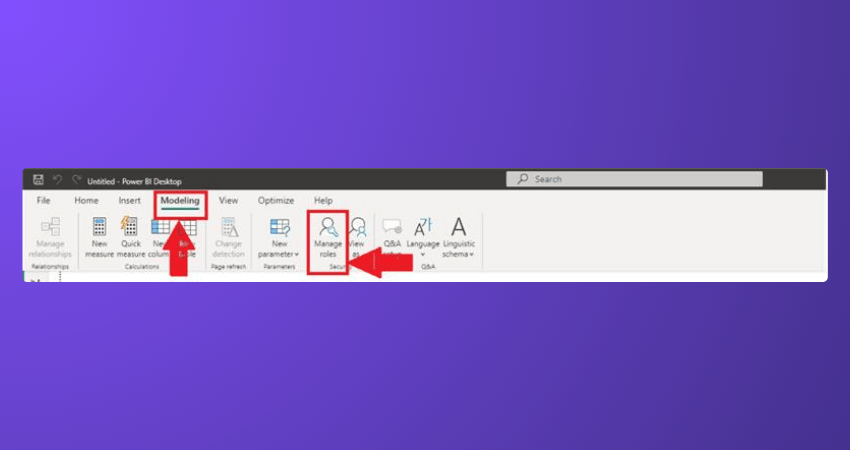
Step 2: Go to the Modelling tab and select Manage Roles to open the security role configuration window.
Step 3: In the Manage Roles window, choose Create (or New) to add a new security role.
Note: Role names cannot contain commas.
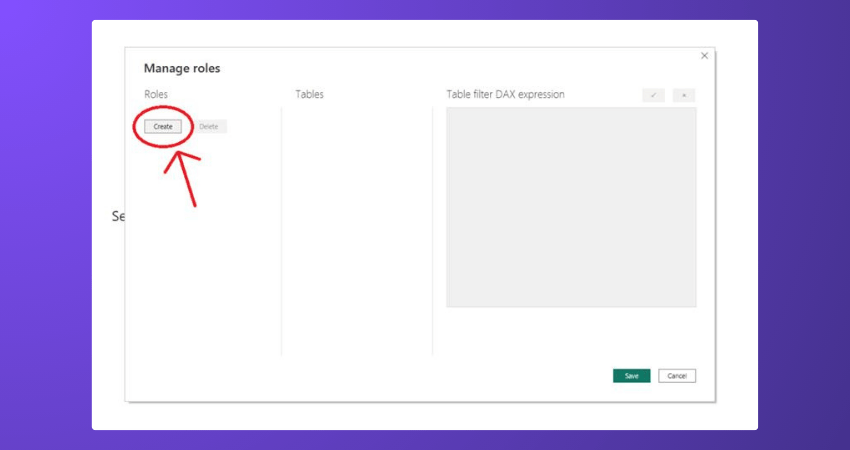
Step 4: Enter a name for your role. Then, select the table where you want to apply row-level filtering.
Step 5: In the filter section, define your rule. You can use the default editor to build simple filters that evaluate to true/false, or you can switch to the DAX editor for more advanced expressions. Use the validation checkmark to confirm the expression.
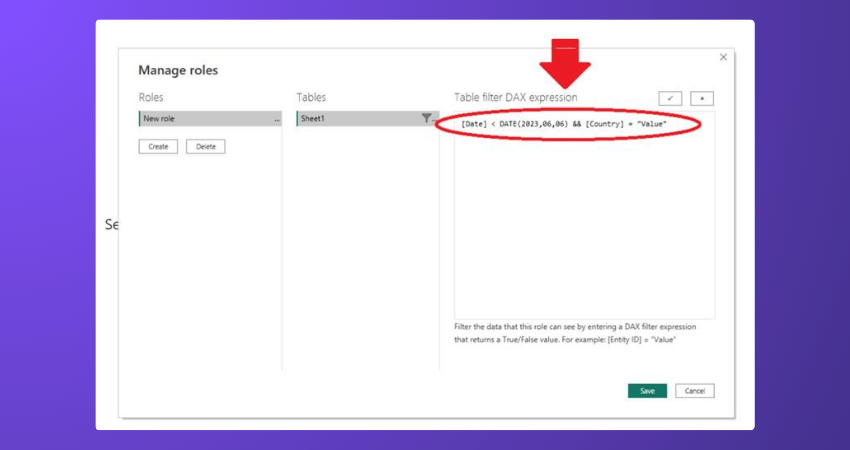
Step 6: Save your role configuration.
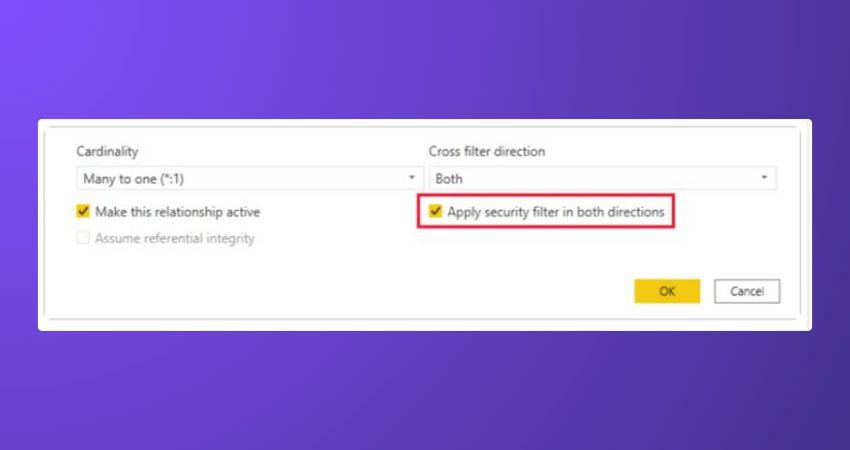
Step 7: By default, Power BI applies row-level security using single-direction filters. If you need dynamic RLS, such as filters driven by USERNAME () or USERPRINCIPALNAME (), ensure your model relationships support, it. You can also enable bi-directional cross-filtering by selecting “Apply security filter in both directions” on a relationship, allowing more precise and user-specific data access control.
Limitations of Power BI RLS
There are some limitations in Power BI RLS that you should be aware of:
a) RLS in Power BI allows you to apply fixed filters based on predefined rules. It doesn't support dynamic filtering that can change based on user inputs or conditions within the report.
b) RLS controls data visibility at the row level, but it doesn't provide control over which visualisations users can see. Users with access to the data can still see all visualisations within the report.
c) RLS works within a single dataset, so you can define security roles and apply filters for that dataset only. It doesn't extend across multiple datasets or workspaces, requiring separate configuration for each dataset.
d) RLS may not work as expected with custom connectors that connect to external data sources. It's important to test RLS behaviour with custom connectors to ensure proper data access restrictions.
e) Some features like "Analyse in Excel" or "Export to CSV" may not comply with RLS rules, potentially exposing restricted data. Consider the compatibility of these features when implementing RLS.
Discover the important skills for Data Analysis with Business Intelligence Reporting Course- Join Today!
Conclusion
Row Level Security Power BI is an excellent method to safeguard sensitive data and, at the same time, give personalised insights to every user. The organisations can implement either Static or Dynamic RLS to limit data access to only those individuals who need it at that moment. If done right, it will enhance data governance and improve decision-making precision. Start applying RLS today to make your Power BI reports smarter, safer, and more effective.
Advance Your Career with Expert-Led Pentaho BI Training- Sign up now!
Frequently Asked Questions
How to Enable Row Level Security in Power BI Service?

To activate RLS in Power BI Service, first set up roles and DAX filters in Power BI Desktop and then publish the report. In the Power BI Service, navigate to Datasets → Security, choose the role, and allocate users or groups. After allocation, RLS will filter the data according to the rules stated.
What is the Difference Between RLS And RBAC In Power BI?
RLS (Row-Level Security) limits a user's visibility of data in a dataset by applying row filters. RBAC (Role-Based Access Control) determines the user's ability to perform certain actions, such as viewing, editing, or sharing reports. In a nutshell, RLS regulates data visibility, whereas RBAC governs the permission levels.
What are the Other Resources and Offers Provided by The Knowledge Academy?
The Knowledge Academy takes global learning to new heights, offering over 3,000+ online courses across 490+ locations in 190+ countries. This expansive reach ensures accessibility and convenience for learners worldwide.
Alongside our diverse Online Course Catalogue, encompassing 17 major categories, we go the extra mile by providing a plethora of free educational Online Resources like Blogs, eBooks, Interview Questions and Videos. Tailoring learning experiences further, professionals can unlock greater value through a wide range of special discounts, seasonal deals, and Exclusive Offers.
What Is a Knowledge Pass, and How Does it Work?
The Knowledge Academy’s Knowledge Pass, a prepaid voucher, adds another layer of flexibility, allowing course bookings over a 12-month period. Join us on a journey where education knows no bounds.
What are Related Business Intelligence Reporting Courses and Blogs Provided by The Knowledge Academy?
The Knowledge Academy offers various Business Intelligence Reporting Courses, including the Business Intelligence Analyst Course, Business Objects Reporting Training, and DAX Training. These courses cater to different skill levels, providing comprehensive insights into SSRS vs Power BI.
Our Office Applications Blogs cover a range of topics related to Row Level Security Power BI, offering valuable resources, best practices, and industry insights. Whether you are a beginner or looking to advance your BI skills, The Knowledge Academy's diverse courses and informative blogs have got you covered.

The Knowledge Academy


Global Training Provider
The Knowledge Academy is a world-leading provider of professional training courses, offering globally recognised qualifications across a wide range of subjects. With expert trainers, up-to-date course material, and flexible learning options, we aim to empower professionals and organisations to achieve their goals through continuous learning.

Upcoming Office Applications Resources Batches & Dates
Date
 Microsoft Power BI Training
Microsoft Power BI Training
Fri 24th Jul 2026
Microsoft Power BI Training
Fri 20th Nov 2026

 If you wish to make any changes to your course, please


