




We may not have the course you’re looking for. If you enquire or give us a call on 01344203999 and speak to our training experts, we may still be able to help with your training requirements.
What is Microsoft Access Runtime?
ByNilotpal SarmahLast updated on: 12 October 2026
Microsoft Access Runtime is a free solution that allows users to run compatible Access database applications without installing the full version of Microsoft Access. This blog explores its key features, benefits, versions, system requirements and installation steps, helping you understand how it supports everyday database operations.

What You'll Discover
1. How Runtime differs from the full version of Microsoft Access2. When businesses should consider using Runtime3. What to check before deploying database applications4. Common limitations that can affect database usage5. Practical considerations for maintaining reliable database operations
Not everyone who drives a car needs to know how to build its engine, right? The same idea applies to Database Management. Your employees shouldn't need development tools just to complete everyday database tasks.
Microsoft Access Runtime follows this principle by allowing users to operate compatible database applications without accessing the full development environment. It's a simpler way to put existing database solutions to work.
What is Microsoft Access Runtime?
Microsoft Access Runtime is a free runtime environment that allows users to run compatible Access database applications without requiring the full version of Microsoft Access. Runtime lets users interact with the functionality provided by an Access application, such as forms, reports, queries and navigation controls, while design-related features are removed or disabled.
Runtime mode does not provide the standard design interface for creating or modifying database objects such as tables, forms, reports, and queries. The primary advantage of access runtime is its cost-effectiveness. Businesses can distribute access applications to team members who only need to interact with a database, not design or modify it.

Benefits of Microsoft Access Runtime
Microsoft Access Runtime offers several practical benefits for developers and end-users who need to run Access applications without the full Access environment. Below are some key advantages that showcase its utility:
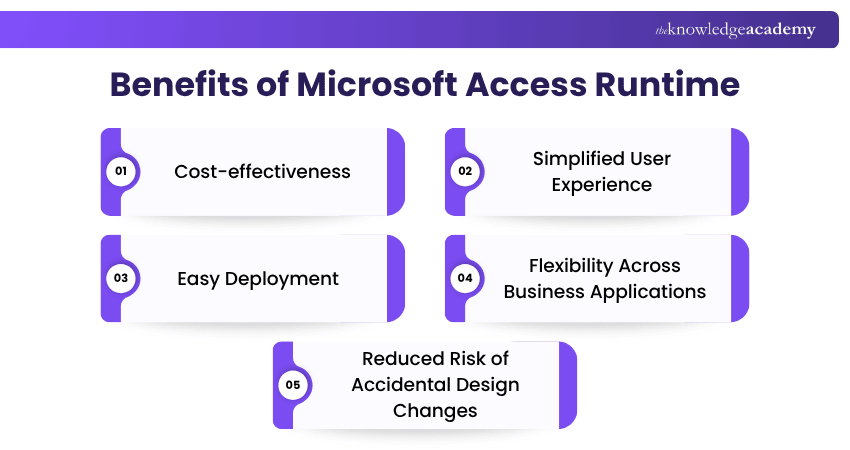
Cost-effectiveness
Microsoft Access Runtime is free to download and distribute, making it an economical choice for businesses and organisations. Rather than purchasing multiple licenses for the full version of Microsoft Access, companies can deploy runtime to those who only need to interact with the database. This can reduce the need to license the full Access application for users who only need to run an existing database solution.
Simplified User Experience
For non-technical users or those new to Database Management, Microsoft Access Runtime provides a simplified experience by limiting access to advanced development features. Runtime removes or disables design-related interface elements and limits access to features such as the Navigation Pane and certain special keys, helping users focus on the functions exposed by the application.
Easy Deployment
Microsoft Access Runtime simplifies database application deployment by allowing developers to distribute Access applications to users without requiring the full version of Microsoft Access. Organisations can install Runtime alongside their database applications, reducing additional software licensing requirements. This supports more efficient deployment, provided compatibility with existing Microsoft Office installations is considered.
Pro Tip: Plan for Application Updates
Maintain a version number for every database application release. When changes are made, distribute the updated front-end file systematically to prevent employees from working with different application versions.
Flexibility Across Business Applications
Microsoft Access Runtime supports a variety of database applications across different business functions. Organisations can use it to run customised applications for inventory management, customer records, employee information, and administrative tasks. Developers can tailor these applications to specific operational requirements, allowing users to access relevant functions without the full version of Microsoft Access.
Reduced Risk of Accidental Design Changes
Microsoft Access Runtime helps reduce accidental changes to database applications by restricting access to design and development features. Users can perform designated tasks, such as entering data and generating reports, without accessing Design View or Layout View. However, these restrictions do not provide complete database security, so organisations must implement additional safeguards to protect sensitive information and control unauthorised access.
Learn all about Database fundamentals, by signing up for the Database Training now!
Versions of Microsoft Access Runtime
Here are the various versions of Microsoft Access Runtime, described as follows:
1) Legacy Standalone Access Runtime Releases
Legacy standalone Access Runtime releases, including versions associated with Access 2007, 2010, 2013, 2016 and 2019, were used to distribute Access applications without requiring the full Access product.
Older standalone Runtime releases have reached end of support, including Access 2016 Runtime. Organisations should verify the lifecycle of the Office/Access version they use and migrate to supported deployments where necessary.
2) Microsoft 365 Access Runtime
Microsoft 365 Access Runtime is Microsoft's current free solution for running Access database applications without installing the full software. It enables users to perform assigned database tasks while keeping design and development features unavailable through the standard Runtime interface.
Available in 32-bit and 64-bit editions, it also provides database connectivity capabilities for compatible applications. Organisations should select the appropriate installation option based on their existing Microsoft Office setup to minimise compatibility issues.
Master Microsoft Office 365 skills by joining our comprehensive Microsoft Office 365 Training and elevating your productivity today.
Steps to Run Microsoft Access Runtime on Your System
The process to run Microsoft Access Runtime comprises the system requirements to take note of and the installation procedure which ensures a smooth operation of the service, described as follows. Here are the system requirements necessary for you to run Microsoft Access Runtime on your system:
a) Operating System: Current Microsoft 365 system requirements list Windows 11 as the supported Windows desktop operating system. Organisations should also confirm compatibility with their specific Office deployment and update channel.
b) Processor: A processor running at 1.6 GHz or faster, with at least two cores, is required under Microsoft's current system specifications.
c) RAM: Systems running 32-bit Office require at least 2 GB of RAM, while 64-bit Office requires a minimum of 4 GB for normal operation.
d) Hard Disk Space: At least 4 GB of free storage space is recommended for installation. Additional space may be necessary for database files, updates, and other application components.
e) Graphics: Graphics hardware acceleration requires support for DirectX 9 or later. A display resolution of at least 1280 × 768 is also specified in Microsoft's system requirements.
f) Additional Requirements: An internet connection or network access is generally needed for installation and certain online functions. Users should also check compatibility with existing Microsoft Office installations and choose the appropriate 32-bit or 64-bit Runtime edition.
How to Install Microsoft Access Runtime?
Here are the steps to be followed so that you can run Microsoft Access Runtime on your system:
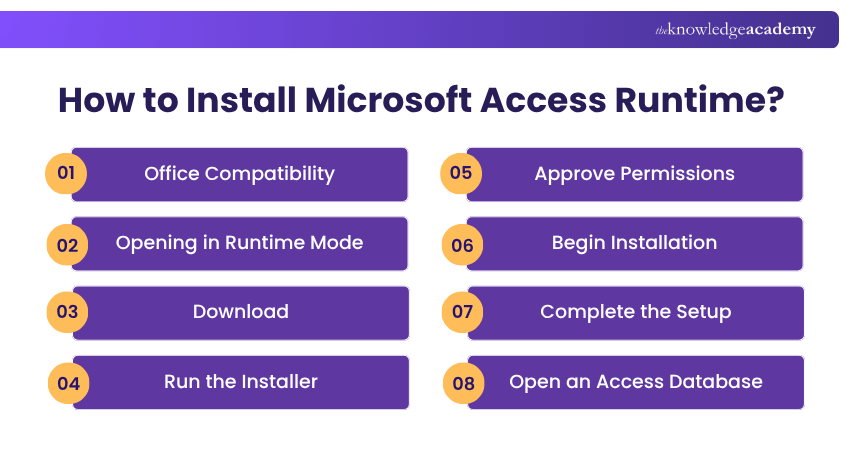
a) Office Compatibility: Before installation, check whether Office is already installed and whether it uses Click-to-Run or Windows Installer. Where a Click-to-Run Office installation exists, Access Runtime will align with that installation. Microsoft does not support installing Microsoft 365 Access Runtime alongside Windows Installer-based Office products.
b) Opening in Runtime Mode: Double-clicking a database file does not always ensure it opens in Runtime mode. If the full version of Access is installed, you can open a database specifically in Runtime mode by using the /runtime command-line switch or by changing the file extension from .accdb to .accdr.
c) Download: Visit Microsoft's official website and open the Microsoft 365 Access Runtime download page. Select your preferred language and the appropriate 32-bit or 64-bit edition. If another Click-to-Run Office product is already installed, the Runtime deployment must be compatible with that installation.
d) Run the Installer: Open the downloaded setup file or launch it directly through your browser to begin the installation process.
e) Approve Permissions: If Windows displays a User Account Control prompt, select "Yes" to permit the installer to make changes to your device.
f) Begin Installation: The installation process starts automatically after the necessary permissions are granted. Follow any additional instructions displayed on your screen.
g) Complete the Setup: Allow the installation process to finish and close the setup window when prompted.
h) Open an Access Database: Locate a compatible Access database application and open it using Access Runtime. You can launch supported database files through File Explorer or an application shortcut.
Pro Tip: Test Before Distribution
Before sharing an Access application, test its forms, reports, macros and error messages in Runtime mode. Features that work in the full version may behave differently when development tools are unavailable.

Nilotpal Sarmah is a Senior Content Writer with 11+ years of overall experience spanning engineering, operations and content development. His technical knowledge and extensive writing experience enable him to simplify specialised topics across IT and Tech, Business Skills, Project Management, Health and Safety, and ISO and Compliance.
View Detail

 If you wish to make any changes to your course, please


