







We may not have the course you’re looking for. If you enquire or give us a call on +353 12338944 and speak to our training experts, we may still be able to help with your training requirements.
How to Edit Youtube Videos: Simple Step by Step Guide
ByRichard HarrisLast updated on: 10 September 2026
Learn How to Edit YouTube Videos with our step-by-step guide for beginners. Uncover tools, smart techniques, and professional tips to make high-quality content. You will acquire the ability to make a difference in your videos, from adding effects to enhance sound and visuals. Turn your raw footage into stunning videos with ease!
The process of editing YouTube videos is more than just cutting and joining clips. It is where creativity really takes place. If you are an inexperienced person trying your first vlog or a professional artist adjusting your content, learning How to Edit YouTube Videos is going to be of great help. It's the secret that can turn your regular footage into interesting stories that draw your audience in and make them stay till the end.
Throughout this blog, we are going to guide you step-by-step through the entire video editing process, from the most basic cuts and transitions to pro tips for editing YouTube videos.
Why Video Editing is Crucial for YouTube?
The standard of editing is not only measured by the visual aesthetics of the footage, but rather it is one of the most important factors driving the reach of the YouTube video. By cutting out the unnecessary parts, making smooth transitions, and timing the content just right, you increase viewer retention, which is the most crucial factor for the YouTube algorithm, to be one of your strongest signals.
Editing can become more than just a tool for extending playtime, but also a means of strengthening the identity and storytelling power of your brand. If your videos are polished and professional, you are likely to get a higher chance of being noticed in a competitive market. Still confused about how I can edit a YouTube Video? Read on to know the steps to edit YouTube videos.
Editing YouTube Videos on Desktop
Editing a YouTube video is a creative process which includes various elements like adding text, trimming clips, adding filters, and more. Mastering the art of Editing Videos for YouTube might take some time for beginners. However, the following steps will take you through the whole process and help you Edit Videos efficiently, ensuring that your content is polished and engaging before you decide to Delete YouTube Channel or make any changes to your video library.
1) Sign in to YouTube Studio
To get started with Editing Videos on YouTube, first, you need to sign in to YouTube Studios. You can easily sign in using your Google account. Here’s how:
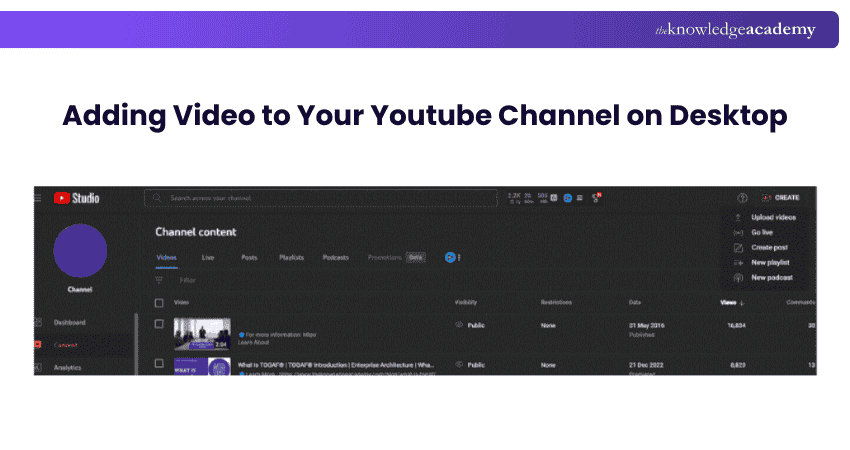
2) Select Videos to Upload
Once you are logged in to YouTube Studio, click on the ‘Content’ tab from the sidebar on the left of your screen. In the Content tab, click on the ‘Select Files’ tab in the centre of your screen. YouTube supports multiple formats like 3GPP, AVI, MOV, MPEG4, MP4, etc. However, YouTube's suggested formats are MP4 and MPEG4. Additionally, make sure your YouTube banner size is optimized to ensure it fits correctly and looks professional across different devices and screen sizes.
Add Video Details and Elements
After uploading selected videos, you need to fill in the details in four steps:
a) Details
b) Video Elements
c) Checks
d) Visibility
In these sections, you will be asked to fill in the following information:
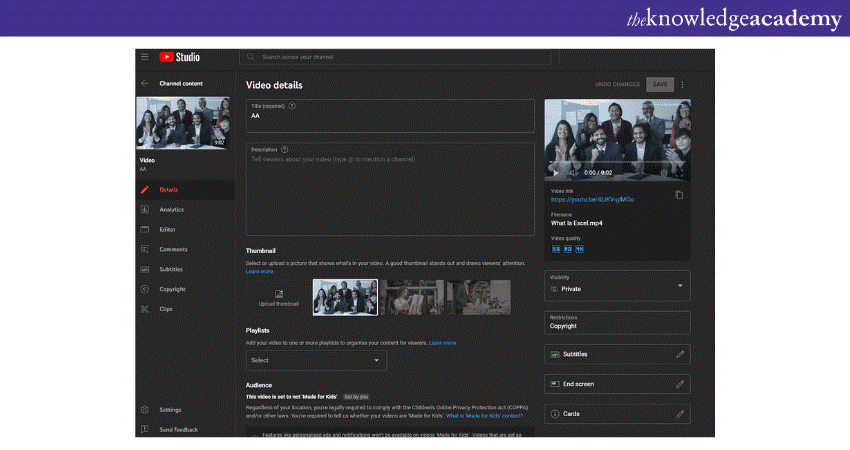
a) Video title and YouTube Description
b) Video thumbnail and the playlist you want to add the video to
c) The language and subtitles (if required)
d) Audience type
In the Visibility section, you can select the visibility of the video. There are three Visibility options: Public, Private, and Unlisted. After selecting the Visibility, click on the ‘Save’ button to complete the uploading process.
Transform your creativity into stunning visuals—Join our Logo Design Course today!
3) Select the Video to Begin Editing
Once your video is uploaded, go back to the ‘Content’ tab and click on the video thumbnail you want to edit. After selecting the video thumbnail, make sure the YouTube Thumbnail Size is optimal, and then click on the ‘Editor’ tab on the sidebar on the left side of the screen.
4) Trimming Your Videos
In the Editor tab, to trim your videos, click on the ‘Trim’ button, and you will be able to see a timeline panel. Drag the bar at both ends of the timeline to remove the part you do not want to get published. Click on ‘Preview’ to view the changes made in the videos after trimming. Click on the ‘Save’ button situated on the top right corner of the desktop screen to save the changes.
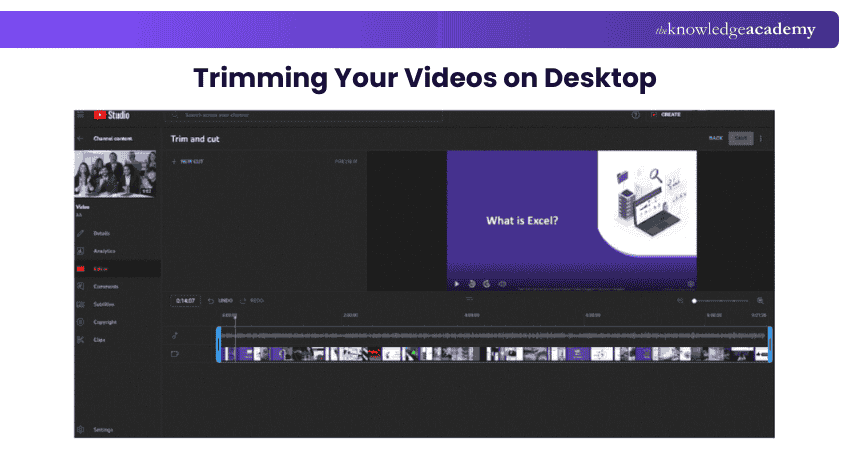
You can also trim the middle section of your videos by dragging the blue bar from the corner to the part you want to trim. Once you have placed the bar on the part you want to edit, click on trim and click on the ‘Split’ option.
After clicking the ‘Split’ option, drag the blue bar to the point you want to remove from your video and click ‘Save’ to save the changes.
5) Adjusting Audio Levels and Adding Music
To add music and other sound effects to your video, click on the ‘Audio’ tab. On clicking the Audio tab, you will see a dialogue box with ‘Free music’ and ‘Starred’ options. Click on the ‘Add’ option by hovering on the audio clip.
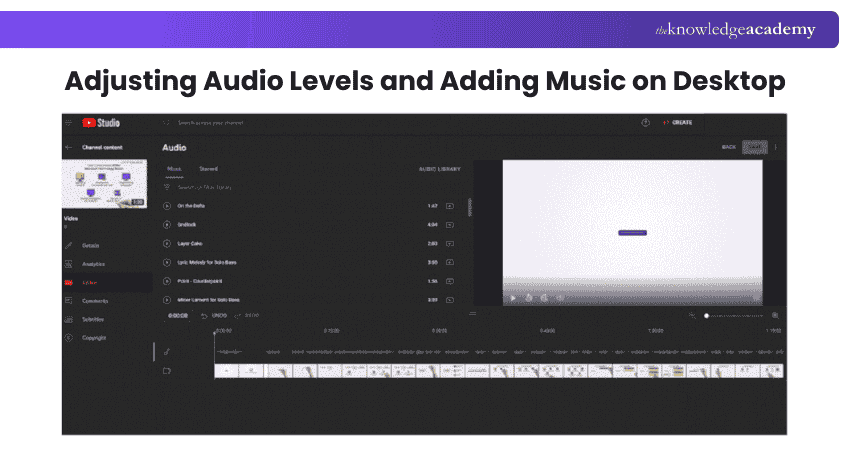
Once the clip is added, you can see the track timeline over the video timeline. Here, you can adjust and trim the music using the adjust bars on the timeline.
6) Blur Your Videos
You can blur your videos by clicking on the Blur option in the Editor tab. Upon clicking on the Blur section, you will see options like ‘Face blur’ or ‘Custom blur’. The ‘Face blur’ option automatically detects faces in the video and blurs them.
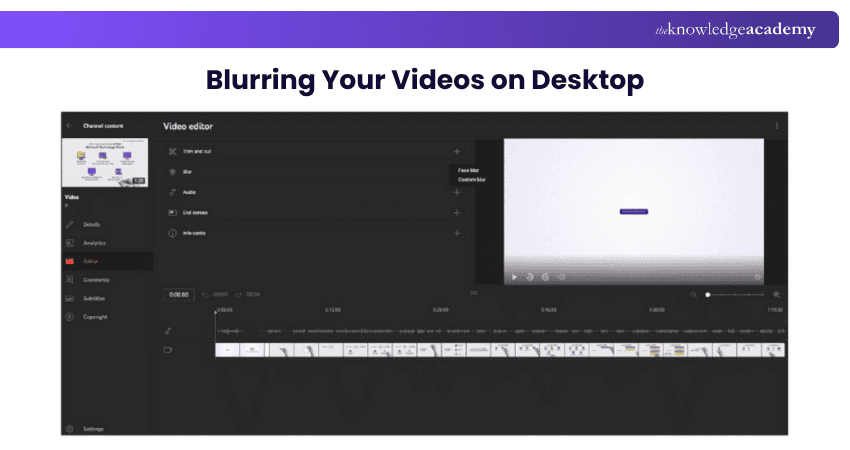
By clicking on the ‘Custom blur’ option, you can adjust the timing and size of the blur. The two options for custom blur are ‘Rectangle blur’ and ‘Oval blur’. After the changes are done, click on the ‘Save’ button to apply changes.
Adding end Screen
Adding an end screen to your videos will provide the option for viewers to watch other videos on your channel. You can also add a playlist of videos or subscribe to your channel on the end screen.
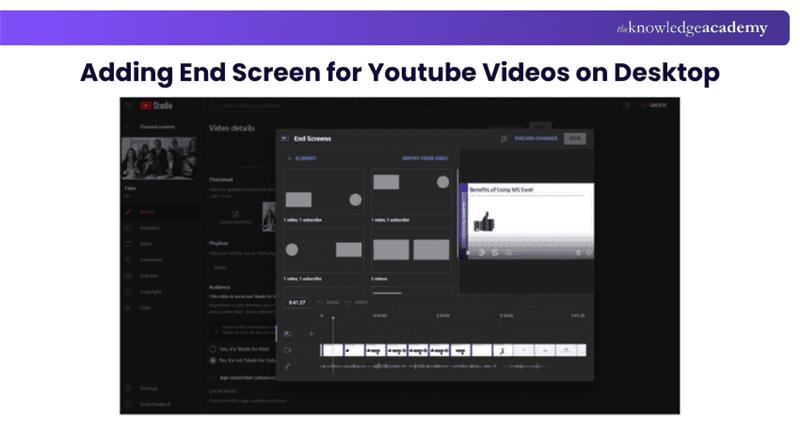
Click on the ‘End screen’ tab in the ‘Editor’ tool. Upon clicking, you will see options like Apply template, Video, Playlist, Subscribe, etc. Click on the element you want to add to your end screen.
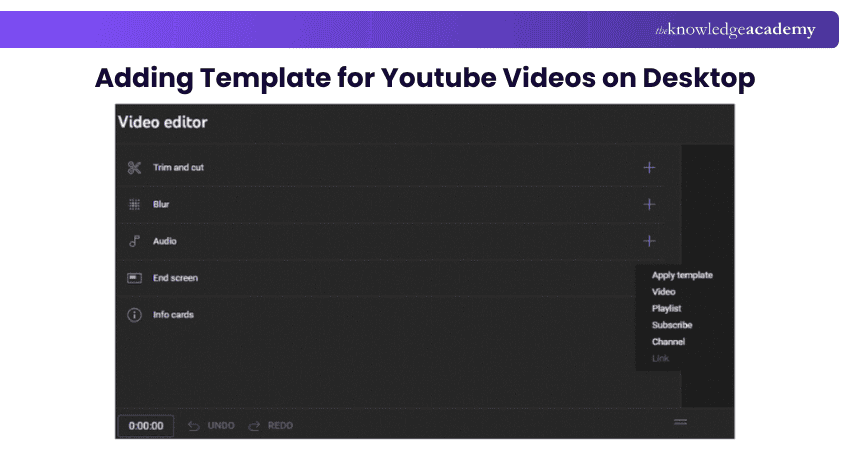
You can also apply the previous templates from previous videos by clicking on the ‘Apply Template’ option. Lastly, click on the ‘Save’ button to save the changes.
Editing YouTube Videos on Mobile Devices
While on desktop, YouTube includes options like trim, audio, end screen and others, on mobile devices, these options are not available. However, some of the options and how to use those features are as follows:
1) Select the Video
To edit YouTube videos from mobile, click on the ‘Library’ option situated on the bottom right of your mobile screen.
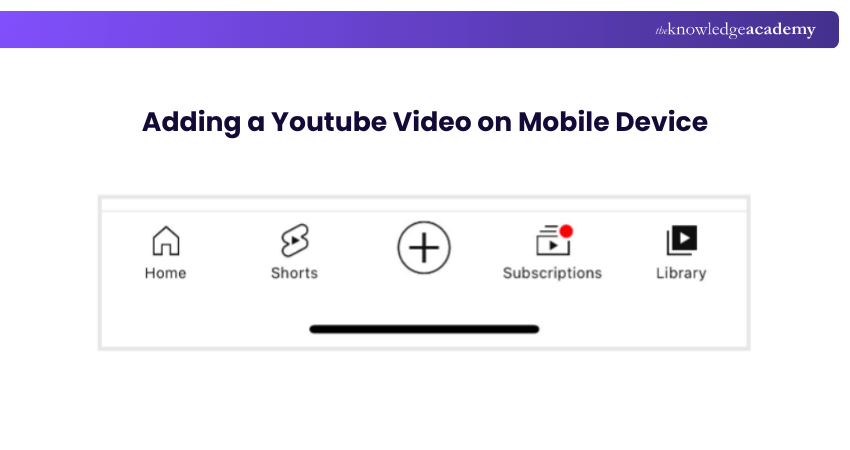
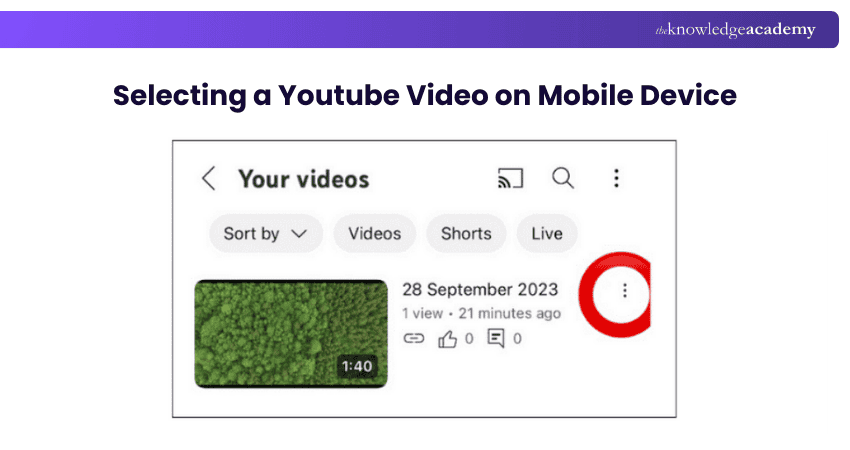
In the Library tab, click on the dots in front of the video you want to edit. Here’s how:
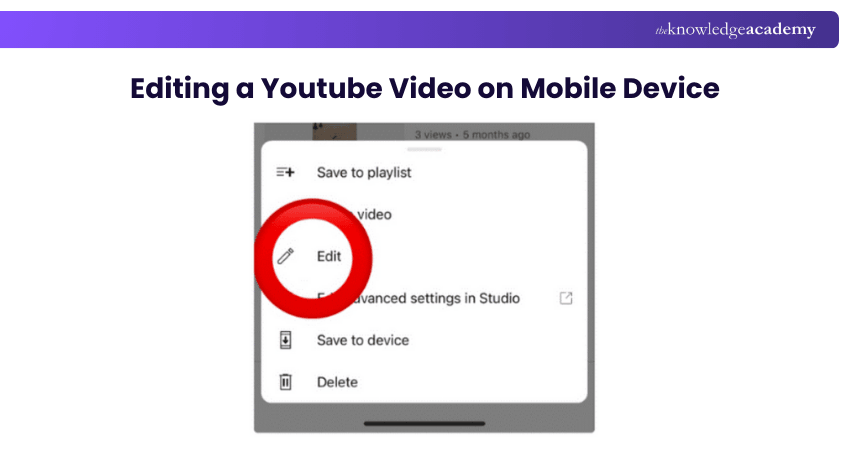
Select the ‘Edit’ option from the list to begin editing the selected video – as shown in the image:
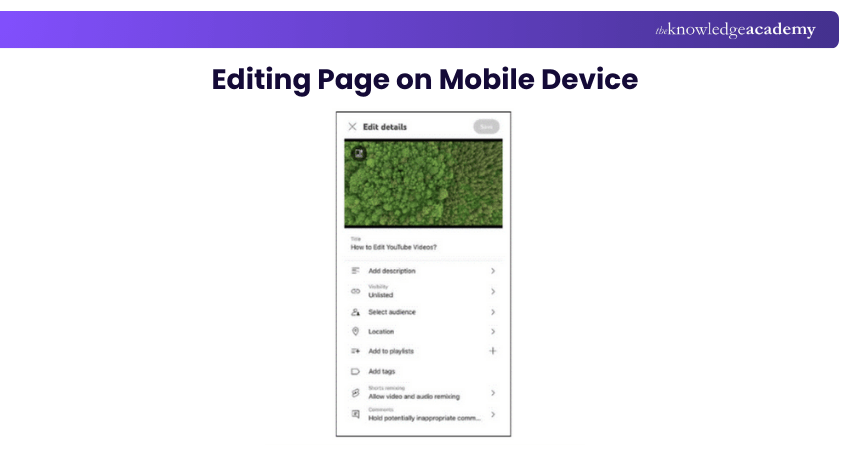
2) Edit Page on Mobile Devices
On the edit page, you will see various sections to add details such as Title, Description, Visibility, Location and more. Fill in the details by clicking on each section. In the ‘Tags’ option, you can tag relevant topics to your videos, which will help your videos to reach more viewers. Here's how you can do
Produce professional-quality videos with our Video Production Training Course- Join Now!
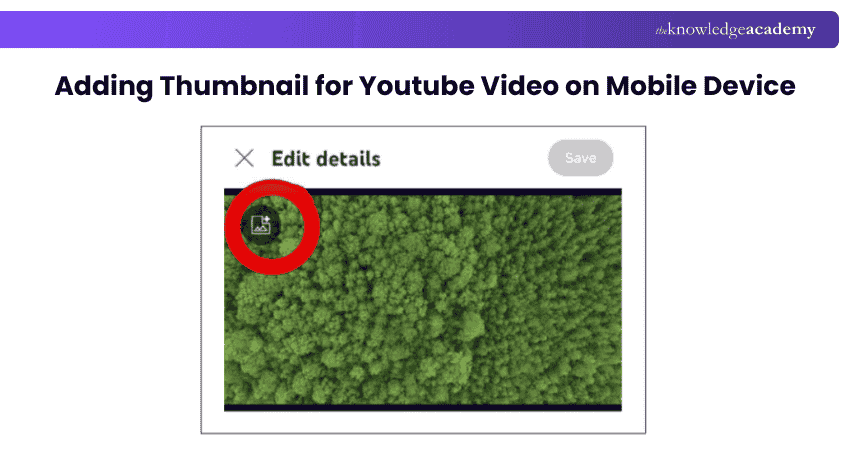
3) Adding Thumbnail
You can add a thumbnail to your video by clicking on the ‘Image-like’ icon on the top left corner of the video – as shown in the following image:
4) Set Visibility and Audience
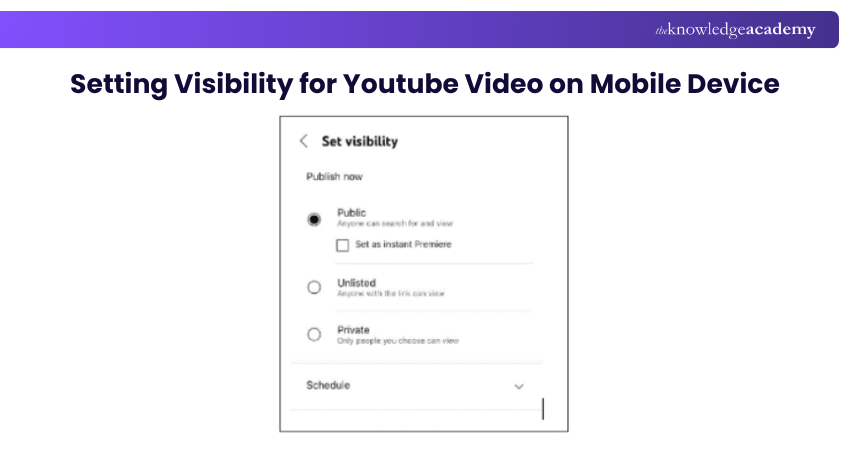
Click on the ‘Visibility’ button and select one of the Visibility options. In the Visibility section, you will find three options: Public, Private, and Unlisted.
In the ‘Audience’ tab, you need to answer if the video is ‘Made for Kids’ or not. Select any one option based on your video.
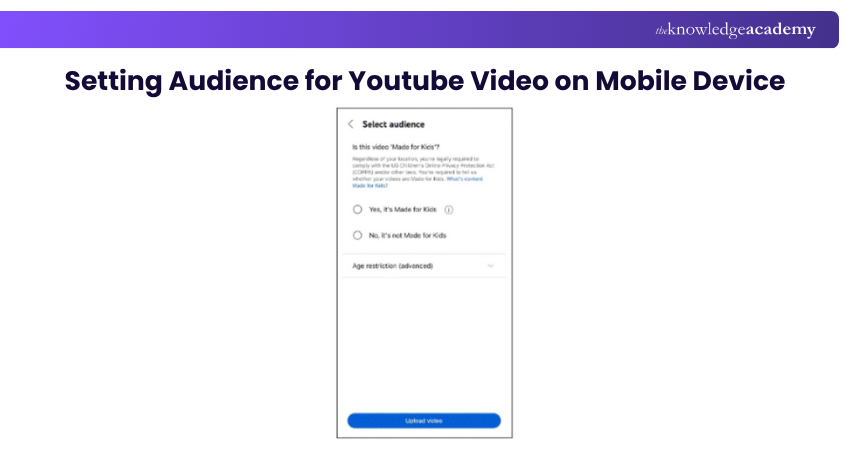
You can also add specific age restrictions in the advanced setting, as shown in the image. Once you are done filling in all the details, click on the ‘Upload Video’ button to successfully upload and publish the video.
The best way to Edit YouTube Videos on mobile devices is by using the in-build editor or using a compatible app to edit videos before uploading them onto your YouTube channel. Some of the most trusted YouTube Video Editing apps on mobile are CapCut, VSCO, InShot, and Kinemaster.
Learn to create professional-grade graphics with our CorelDRAW Training- Join Today!
Pro Tips to Edit YouTube Videos
Since now you have learned How to Edit Youtube Videos, follow these key editing tips to create professional, engaging content that keeps viewers hooked.
1) Plan Before Editing: Organise all clips, audio, and visuals to save time and stay consistent.
2) Trim Unnecessary Parts: Keep your video concise by cutting pauses and repetitive sections.
3) Use Smooth Transitions: Add clean cuts and creative effects for a polished flow.
4) Enhance with Music and Sound: Sync background tracks and adjust volume for balance.
5) Add Text and Graphics: Use on-screen titles or captions to highlight key points.
6) Colour Grade Your Video: Adjust brightness, contrast, and tones for a professional look.
Common Mistakes to Avoid When Editing YouTube Videos
Here are some frequent pitfalls to watch out for when editing your videos for YouTube:
1) Not aligning your editing decisions with how the YouTube algorithm works.
2) Allowing audio levels to vary wildly, making some parts too loud or too soft.
3) Using unlicensed music or assets risks copyright strikes or takedowns.
4) Performing colour grading based solely on your own monitor without checking how it looks on other devices.
5) Exporting your video with incorrect specs leads to poor quality playback on YouTube.
Design and inspire the world with our Animation and Design Training- Sign Up Now!

Richard Harris is a highly experienced full-stack developer with deep expertise in both frontend and backend technologies. Over his 12-year career, he has built scalable web applications for startups, enterprises and government organisations. Richard’s writing combines technical depth with clear explanations, ideal for developers looking to grow in modern frameworks and tools.


 If you wish to make any changes to your course, please


