




We may not have the course you’re looking for. If you enquire or give us a call on + 1-866 272 8822 and speak to our training experts, we may still be able to help with your training requirements.
How to Fix Character AI Chat Error: Step-by-Step Solutions
ByVishnu SankarLast updated on: 18 September 2026
Encountering any sort of chat error in the time of need is infuriating. Whether you're chatting with a virtual persona or in a serious narrative, these issues can frustrate your digital dialogue. In this blog, we explore common problems users face and provide practical solutions to fix Character AI chat errors, ensuring a smooth experience.
What You Should Know
1) Character AI chat errors can stem from server, network, browser, cache, extension or account-related issues.2) Start with basic fixes such as refreshing, restarting the browser and checking your connection.3) Clear cached data and temporarily disable extensions when browser-related issues are suspected.4) Keep your browser and operating system updated to reduce compatibility problems.5) If the problem persists, try another browser or contact Character AI support with details of the error.
Wondered how it would feel if there were a sudden hindrance while you are interacting with your favourite Character AI? All is going well, and suddenly, a dreaded "Chat Error: Please Try Again" message appears. Annoying, indeed. You need not worry, though. We've got you covered with a comprehensive blog to troubleshoot and fix these pesky Character AI Chat Error. Read on to ensure your chats flow smoothly!
Introduction to Character AI Chat
Character AI has revolutionised the way we interact with Artificial Intelligence (AI), bringing a touch of personality and narrative to our digital conversations. However, like any sophisticated technology, it’s not immune to occasional hiccups. Users may encounter the frustrating "Chat Error: Please Try Again" message, disrupting the flow of their engaging dialogues. Fear not! Learn these practical, step-by-step solutions to fix these errors and get your conversations back on track!
Ways to Fix Character AI Chat and Network Error
Listed below are various ways to fix Character AI chat and network error:
1) Restart Character AI
Often, the simplest solutions are the most effective. Restarting Character AI can clear minor glitches, refresh the connection, and sometimes help to Bypass Character AI Filter for a smoother experience. Close the application or browser window, wait a few seconds, and then reopen it. This quick reboot can often resolve temporary issues causing the error.
2) Clear the Cache in Your Browser
Over time, your browser accumulates a cache of data which can sometimes interfere with the smooth operation of web applications. Clearing the cache can eliminate corrupted files or conflicts causing the Character AI error. Here’s how to do it:
a) For Chrome: Click on the three dots in the upper right corner, select "More tools," and then "Clear browsing data." Choose "All time" as the time range, check "Cached images and files," and click "Clear data."
b) For Firefox: Click the three lines in the upper right corner, go to "Options," then "Privacy & Security," and under "Cookies and Site Data," click "Clear Data."
c) For Safari: Go to the Safari menu, select "Preferences," then "Privacy," and click "Manage Website Data." Finally, click "Remove All."
Gain theoretical knowledge regarding the different Machine Learning with our Machine Learning Course – join now!
3) Try Another Network
Sometimes, network-related issues can cause connection problems with Character AI. Try switching between Wi-Fi and mobile data or using another trusted network to check whether the problem is specific to your current connection.
Trainer's Insight
Troubleshoot one variable at a time. Changing several browser or network settings together can make it difficult to determine what actually solved the problem.
4) Disable Browser Extensions
Browser extensions can sometimes conflict with web applications, causing errors like the Character AI chat issue. Disable extensions one by one to identify if any of them are causing the problem:
a) For Chrome: Go to "Settings," then "Extensions," and toggle off each extension.
b) For Firefox: Click the menu button, select “Extensions and Themes”, then “Extensions”, and disable each extension one at a time.
c) For Safari: Go to ‘Settings’, then ‘Extensions’, and temporarily disable each extension.
5) Check for Account Issues
If you suspect the problem is related to your account, check whether you can sign in normally. For persistent login, access or account restriction issues, contact Character AI’s customer support for clarification.
6) Update Your Browser
Outdated browsers can result in compatibility issues with modern web applications like Character AI. Make sure your browser is up-to-date to avoid such problems:
1) For Chrome: Click on the three dots, go to "Help," and then "About Google Chrome." It will automatically check for updates.
2) For Firefox: Click the three lines, go to "Help," then "About Firefox," and it will check for updates.
3) For Safari: Updates are typically included with macOS updates, so ensure your Operating System (OS) is current.
7) Contact Customer Support
If the above steps don’t resolve the issue, reaching out to Character AI’s customer support is a good next step. Provide them with detailed information about the error, including any troubleshooting steps you’ve already taken. They may offer specific advice or solutions tailored to your problem.
Pro Tip
Record the error before troubleshooting. Take a screenshot of the error message before making changes. It can be useful if you eventually need to contact support.
8) Try Again After a Moment
Sometimes, the simplest fix is to wait. Temporary server issues or high traffic can cause connection problems. Wait a few minutes and try to reconnect. These intermittent issues often resolve themselves without requiring further intervention.
Broaden your Business Analysis skill set and improve business productivity with our Artificial Intelligence (AI) For Business Analysts Course – Register today
9) Switch to Another Browser
If you’re encountering persistent issues with one browser, switching to another can help. Different browsers handle web applications differently, and trying Character AI on a different one (such as switching from Chrome to Firefox) can help determine whether the issue is browser-specific.
10) Troubleshoot Character AI
Character AI provides an official help center with troubleshooting guidance for common platform, account and app issues. Check these resources for known problems and recommended solutions.
11) Check Your Internet Connection
Ensure your internet connection is stable. Unstable or weak internet connections can cause network errors with Character AI. Restart your router, check your Wi-Fi signal strength or switch over to a wired connection for better stability.
Quick Troubleshooting Checklist
Before contacting support, check whether you have:
Refreshed or restarted Character AI Checked your internet connection Restarted your browser Cleared cached browser data Temporarily disabled extensions Updated your browser Tried another browser Waited and tried again later Recorded the exact error message Noted which troubleshooting steps you have already tried
Reasons for Character AI “Chat Error: Please Try Again”
Understanding the possible causes of the ‘Chat Error: Please Try Again’ message can help you troubleshoot the problem. Here are some common issues worth checking:
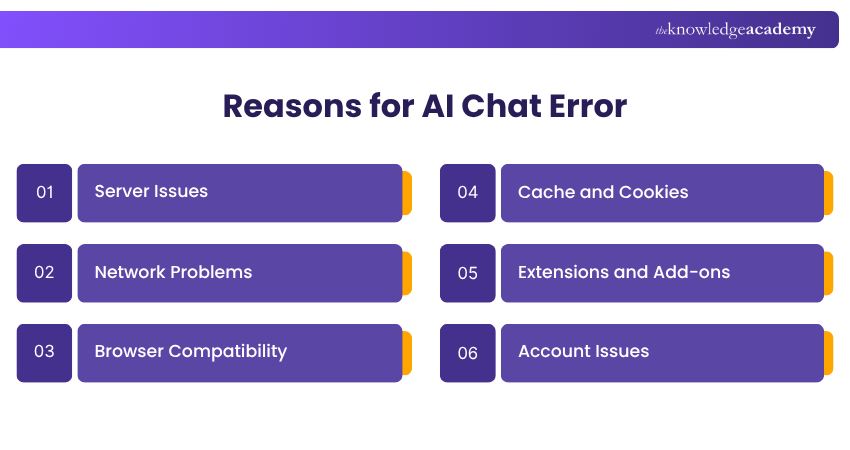
1) Server Issues: Character AI may experience temporary service disruptions or server-side issues that can affect chat availability.
2) Network Problems: Your internet connection might be unstable or experiencing interruptions.
3) Browser Compatibility: An outdated or incompatible browser can cause problems with web applications.
4) Cache and Cookies: Corrupted cache or cookies can interfere with Character AI’s functionality.
5) Extensions and Add-ons: Conflicting browser extensions or add-ons might disrupt Character AI’s operations.
6) Account Issues: Login, access or account-related problems may prevent Character AI from working normally.
Acquire knowledge on the concept of artificial intelligence with our Artificial Intelligence Tools Courses – Join now!

Vishnu Sankar is a Senior Content Writer with 5+ years of experience across content development, software development, web development and system administration. His technical background and professional training support his expertise in IT and Tech, while his extensive research and writing experience covers Project Management and Health and Safety.
View Detail

 If you wish to make any changes to your course, please


