


 Top Rated Course

We may not have the course you’re looking for. If you enquire or give us a call on +44 20 4538 6376 and speak to our training experts, we may still be able to help with your training requirements.
How to Clear Cache and Cookies in Your Browser?
The Knowledge Academy 09 April 2026Clear Cache and Cookies by accessing browser settings, selecting “Clear browsing data,” choosing cookies and cached files, and removing stored data. This helps fix loading issues and improves browser performance. It can also resolve login errors and ensure websites display updated content correctly and efficiently.

Training Outcomes Within Your Budget!
We ensure quality, budget-alignment, and timely delivery by our expert instructors.
Table of Contents

Ever wondered why your browser suddenly feels slow or certain websites just won’t load properly? The culprit is often hidden in stored data like cache and cookies. Learning How to Clear Cache and Cookies can instantly refresh your browsing experience, fix loading issues, and even improve your online privacy without needing any technical expertise.
The good news is that understanding How to Clear Cache and Cookies is simple and takes just a few clicks. Whether you’re using Chrome, Edge, Safari, or Firefox, this guide will walk you through easy steps to clean up your browser and keep it running smoothly every day.
Table of Contents
1) What are Cookies?
2) What is a Cache?
3) When to Clear Cache and Cookies?
4) How to Clear Cache and Cookies in Any Browser?
5) What's the Difference Between Cache and Browser History?
6) Benefits of Clearing Cache and Deleting Cookies on Your Device
7) Conclusion
What are Cookies?
Cookies are small files that web pages store on your computer or phone when you visit them. They help you remember things like your name, password, or what you viewed earlier, making your next visit quicker and easier. When you return to the site, your browser sends the cookie back. This helps the website show the right content and save time.
Some people worry about privacy, but Cookies usually stay on your device for a short time. They’re generally safe if you avoid unsafe websites and use antivirus software. If your browser feels slow, clearing Cookies can help. You may need to log in again, but your internet will run faster.

What is a Cache?
A Cache is where your browser saves parts of websites, like pictures, videos, and page design. This helps websites load faster when you visit them again. It is different from Cookies. Cookies remember your settings, like your login or language choice. The Cache saves parts of the page itself.
The first time you visit a website, it may take time to load. But after that, your browser uses the saved data, so it loads quickly. If the Cache gets full, your browser can become slow. Clearing it once in a while helps free up space and keeps your browser working fast.
When to Clear Cache and Cookies?
A clean browser not only aids in maintaining performance but also privacy and security. Following the recommended best practices, the clearing of cache and cookies is crucial at the following key times:
a) When You Are Shopping Online: Clear cookies before purchases to reduce security and privacy risks.
b) When You Are About to Log Out: Delete cookies after logging out to remove session data.
c) When You Have Trouble Opening Websites: Clearing cookies can fix loading or display issues.
d) When You Are Switching to Other Devices: Clear cookies before using another device to avoid data carryover.
e) When You Want to Speed Up Your PC: While it will not boost system speed, it can improve browser performance and privacy.
Gain comprehensive knowledge of OneNote features and functionalities with our OneNote Training – Register now!
How to Clear Cache and Cookies in Any Browser?
Clearing cache and cookies is simple and available in most browsers under Settings or Privacy. While steps vary by device, the sections below outline the steps to Clear Cache and Cookies to help improve performance:
Clear Cache and Cookies in Chrome
Follow these simple steps to learn How to Clear Cache and Cookies in Chrome and manage your browser data.
1) Open Google Chrome on your device.
2) Click the three dots in the topmost-right corner of the browser window.
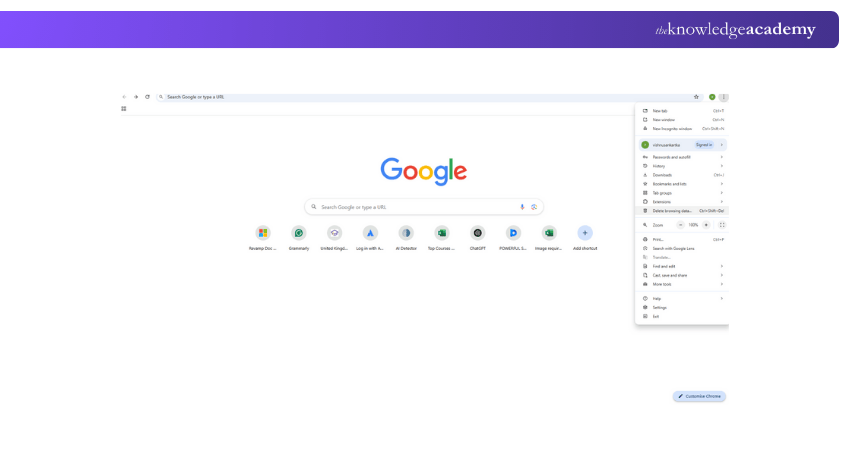
3) Go to Settings from the dropdown menu.
4) Scroll down and tap on Privacy and Security.
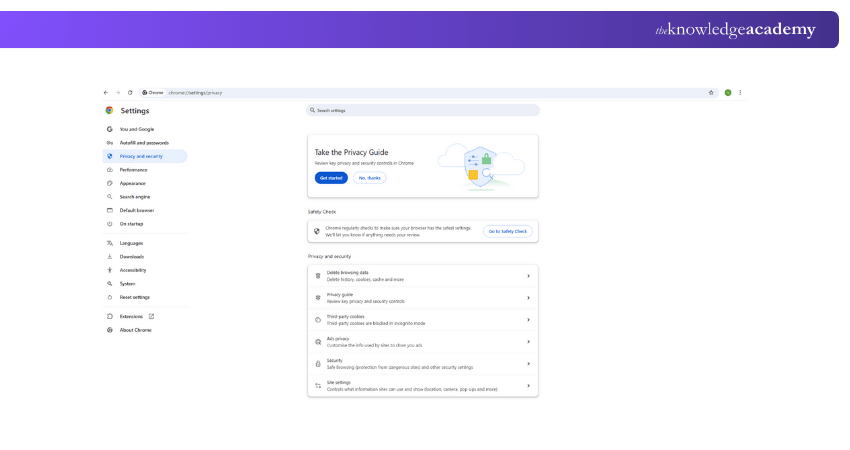
5) Select Clear browsing data.
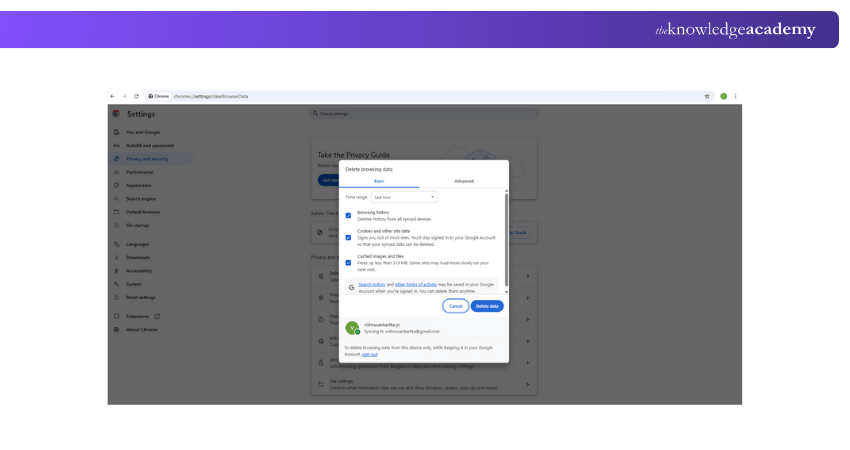
6) Choose a time range (e.g., last hour, last 7 days, all time).
7) Tick the boxes for Cookies and other site data and Cached images and files.
8) Click Clear data to confirm.
Android:
To learn How to Clear Cookies and Cache in Chrome, follow these steps:
1) Open the Chrome application on your phone.

2) Tap the three dots in the top-right corner.

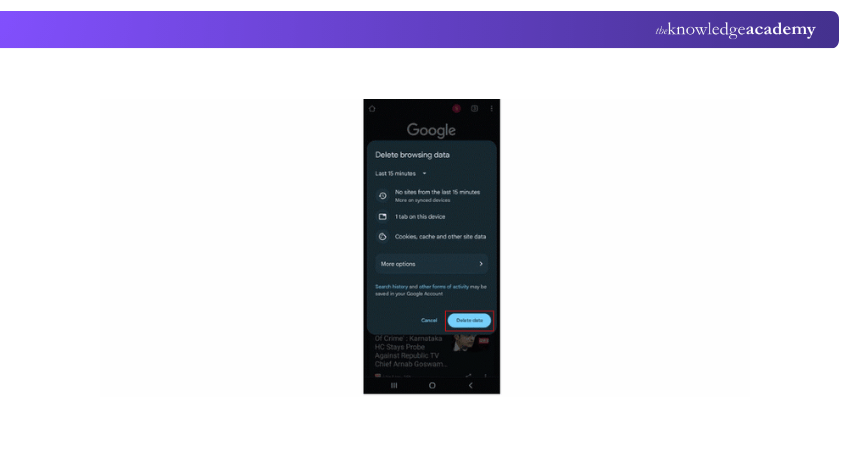
3) Select clear browsing data from the menu.

4) Choose a time range (like Last hour or All time).
5) Tap Clear Data to remove the Cache and Cookies.
iOS Device:
To clear Cookies on Google chrome using your iPhone or iPad:
1) Open the Chrome app and tap the three dots in the bottom-right corner.
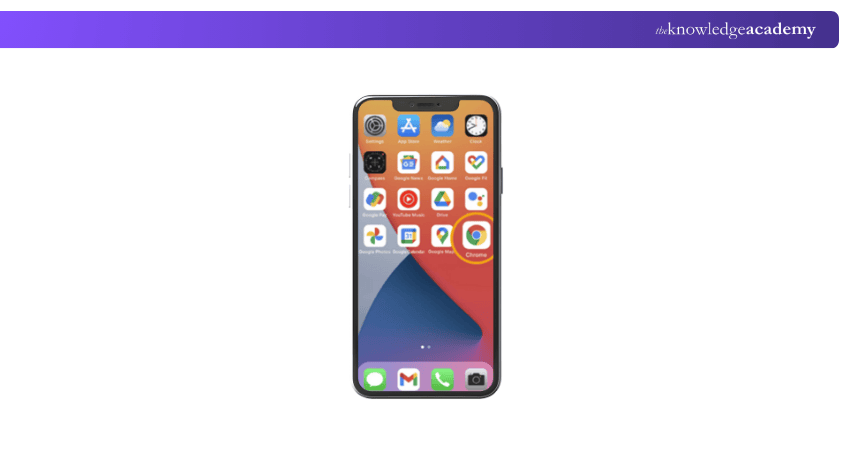
2) Tap Clear Browsing Data from the menu.
3) Select the time range, then choose Cookies, Site Data, and any other items you want to remove.
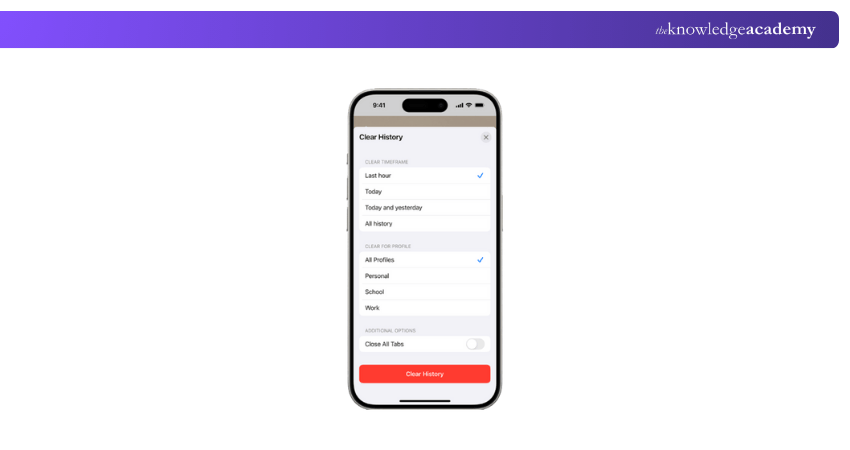
4) Tap Clear Cache and Browsing Data to confirm
Learn to create dynamic and interactive data visualisations with ease with our Google Data Studio Training – Join now!
Clear Cache and Cookies in Mozilla Firefox
To clear Cookies and Caches in Mozilla Firefox, follow these steps to learn how to clear browser Cache and Cookies easily:
1) Open Firefox on your device.
2) Click the menu button in the top-right corner.

3) Select Settings or Options.
4) Click on Privacy & Security from the side menu.
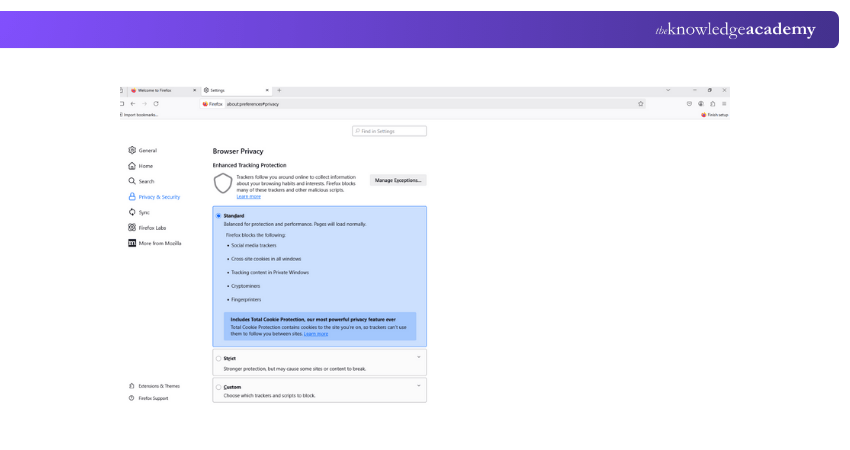
5) Scroll to the Cookies and Site Data section.
6) Click Clear Data.
7) Tick both Cookies and Site Data and Cached Web Content.
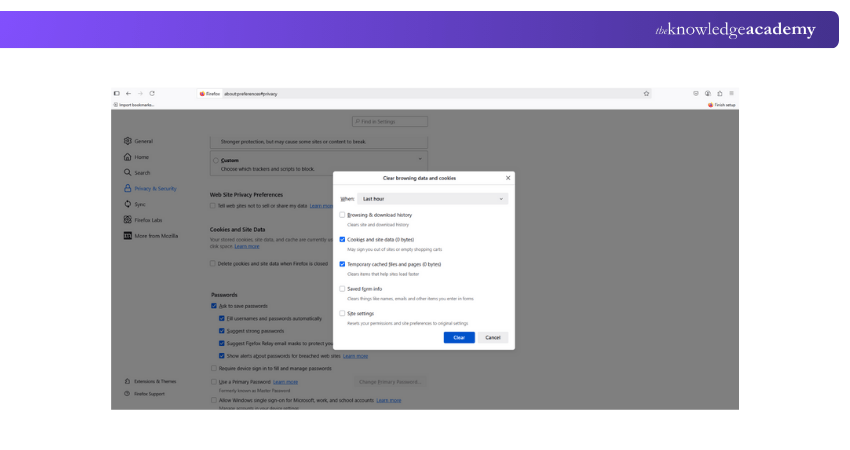
8) Click Clear to remove the data.
Understand cloud-based collaboration and data security protocols with our Google G Suite Training – Join today!
How to Clear Cache and Cookies in Safari for macOS?
1) Click on "Safari" in the top menu.
2) Click on "Settings."
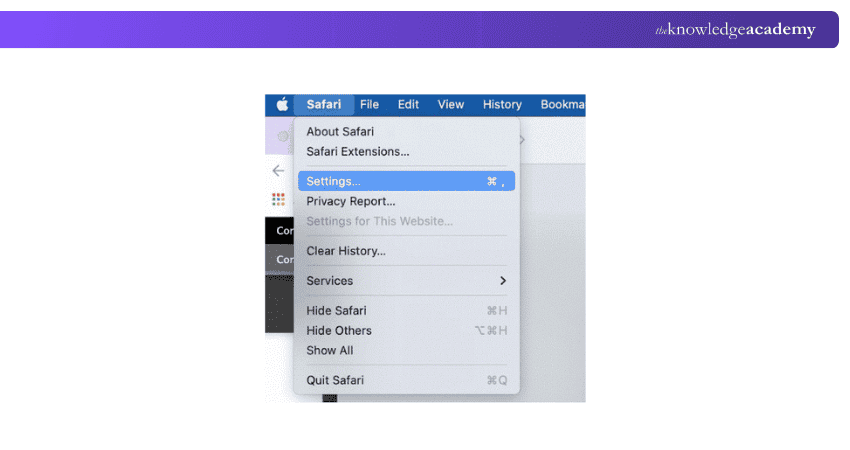
3) Click on the "Privacy" tab.
4) Select "Manage Website Data…"

5) Click "Remove All."
6) Click "Remove Now."

7) Go to the "Safari" menu in the top menu.
8) Click on "Quit" to close Safari and save your changes.
Clear Cache and Cookies in Safari for iOS
To clear Cookies and Cache in Safari on your iPhone or iPad, follow these simple steps:
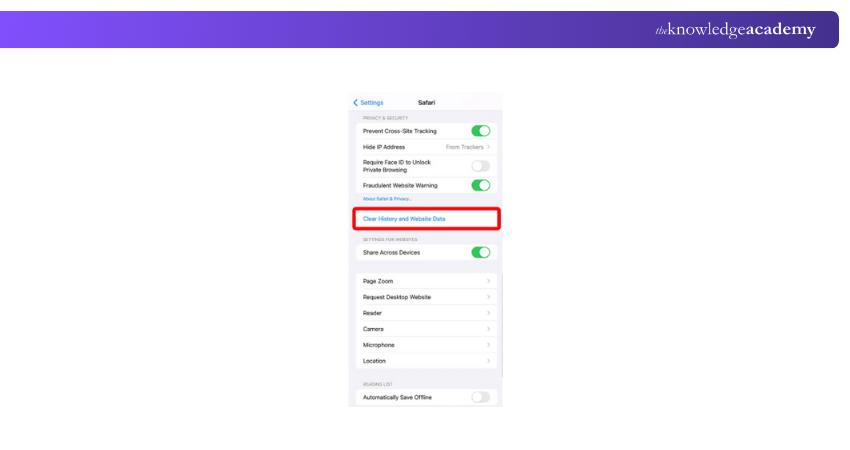
1) Click and Open the Settings app on your iOS device.
2) Scroll down and tap on Safari.
3) Scroll again and tap on Clear History and Website Data.

4) A pop-up screen will ask you to confirm. Tap Clear History and Data to proceed.

5) Once done, the option will turn grey, showing that your Cache and Cookies have been cleared successfully.
Clear Cache and Cookies in Internet Explorer for Windows
1) Click on the Settings menu in the top-right corner.
2) Select Internet options.

3) Under the General tab on the upper-left-hand side, scroll down to Browsing history.
4) Click on Delete.
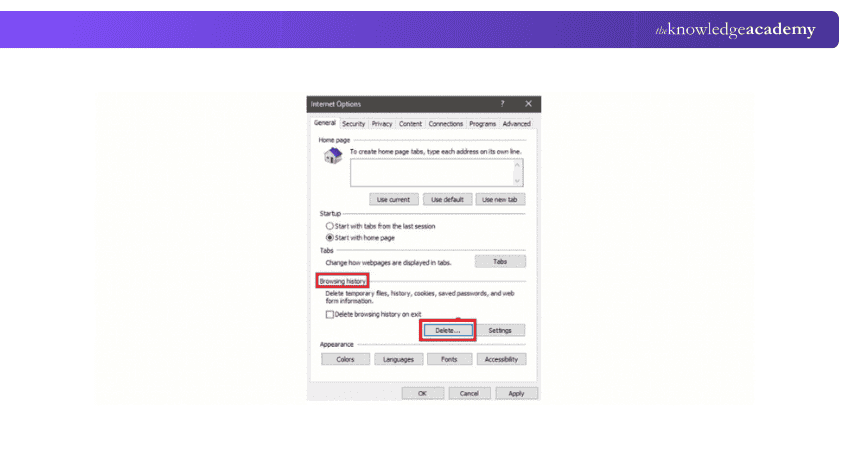
5) Tick the boxes for Temporary Internet files and website files, Cookies and Caches, and Download History.
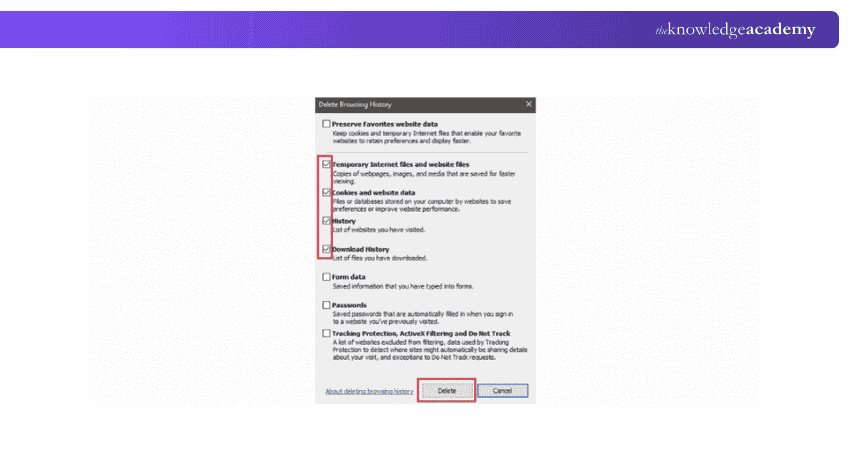
6) Click on Delete.
7) Close Explorer and restart it for the changes to take effect.
Clear Cache and Cookies in Microsoft Edge
1) Tap on the gear icon in the top right-hand corner and then select Settings.
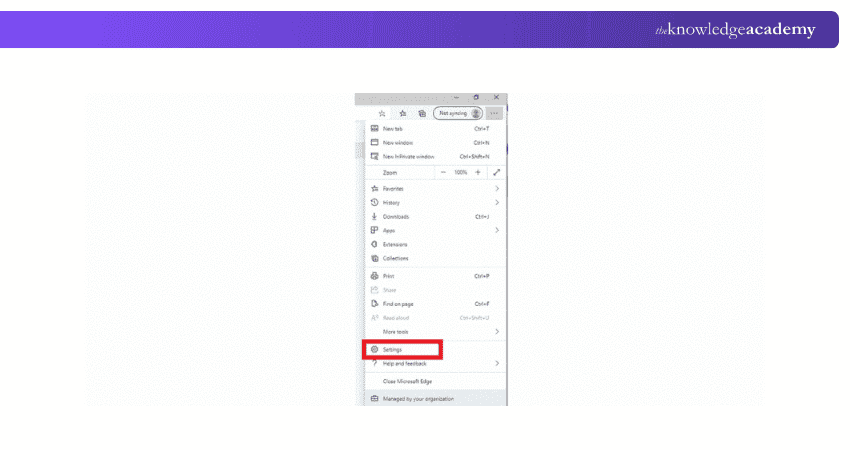
2) Click on Privacy, Search, and Services.
3) Under Clear browsing data, select Choose what to clear if you want to specify what to clear. Alternatively, you can simply click on Clear browsing data now.

4) If you choose what to clear, ensure the check marks are present for Browsing history, other site data, and Cached files. You can also select any other items you wish to delete, but these are the main ones.
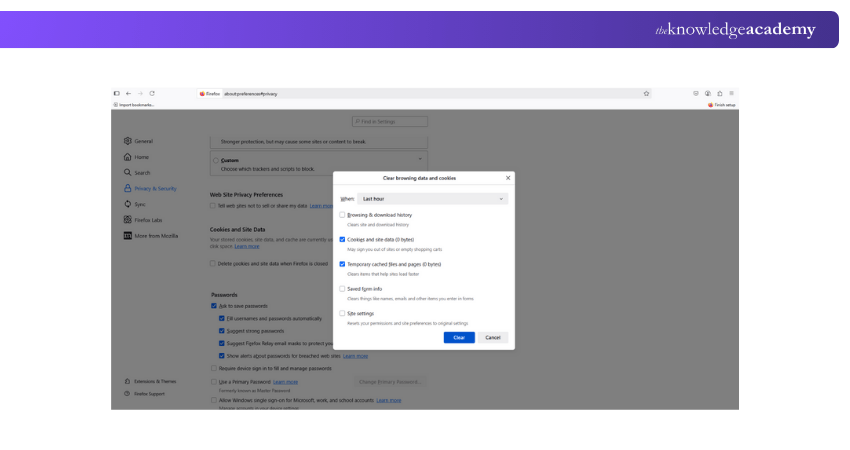
5) Click on Clear now.
What's the Difference Between Cache and Browser History?
Browser history shows a list of all the web pages you’ve visited using a browser. Unlike Cache, you can view this list to find and return to websites you’ve visited before. While browser history helps you remember past pages, Cache helps your device load them faster.
Benefits of Clearing Cache and Deleting Cookies on Your Device
Clearing the cache and deleting cookies offers several practical benefits for both performance and security. Over time, stored data can affect how your device and browser function. Here are the key benefits explained:
1) Improved Performance and Speed: Removes stored temporary files that can slow down your browser, helping your device run faster and more efficiently.
2) Fixes Website Issues: Clears outdated data so websites load correctly and display the latest content without errors or broken layouts.
3) Frees Up Storage Space: Deletes accumulated cache and cookies, creating more space for apps, media, and important files.
4) Enhanced Privacy and Security: Reduces tracking by removing stored data and protects personal information, especially on shared devices.
5) Accurate and Updated Content: Ensures your browser loads the most recent version of websites instead of showing outdated pages.
Conclusion
Regularly clearing your browser helps keep it running smoothly and securely. Understanding How to Clear Cache and Cookies not only improves performance but also protects your privacy. By following simple steps, you can ensure faster loading, fewer errors, and a safer, more reliable browsing experience every time.
Understand advanced file management and organisation. Join our Google Drive Training now!
Frequently Asked Questions
Where are the Clear Cache Settings?

Clear cache settings are found in your browser’s settings menu. Go to “Settings” or “Privacy and Security,” then select “Clear browsing data.” From there, choose cached files and cookies to remove stored data and refresh your browser.
How to Clear All Cache at Once on iPhone?
To clear all cache on an iPhone, go to Settings, open Safari, and tap Clear History and Website Data. For apps, you may need to offload or reinstall them. This removes stored data, improves performance, and frees up space.
What are the Other Resources and Offers Provided by The Knowledge Academy?
The Knowledge Academy takes global learning to new heights, offering over 3,000+ online courses across 490+ locations in 190+ countries. This expansive reach ensures accessibility and convenience for learners worldwide.
Alongside our diverse Online Course Catalogue, encompassing 17 major categories, we go the extra mile by providing a plethora of free educational Online Resources like Blogs, eBooks, Interview Questions and Videos. Tailoring learning experiences further, professionals can unlock greater value through a wide range of special discounts, seasonal deals, and Exclusive Offers.
What is The Knowledge Pass, and How Does it Work?
The Knowledge Academy’s Knowledge Pass, a prepaid voucher, adds another layer of flexibility, allowing course bookings over a 12-month period. Join us on a journey where education knows no bounds.
What are the Related Courses and Blogs Provided by The Knowledge Academy?
The Knowledge Academy offers various End User Training, including the Computer Science Course, OneDrive Training, and the Google G Suite Training. These courses cater to different skill levels, providing comprehensive insights into How to Stop Chrome Notifications.
Our Office Applications Blogs cover a range of topics related to Earned Value Management, offering valuable resources, best practices, and industry insights. Whether you are a beginner or looking to advance your Technical skills, The Knowledge Academy's diverse courses and informative blogs have got you covered.

The Knowledge Academy


Global Training Provider
The Knowledge Academy is a world-leading provider of professional training courses, offering globally recognised qualifications across a wide range of subjects. With expert trainers, up-to-date course material, and flexible learning options, we aim to empower professionals and organisations to achieve their goals through continuous learning.

Upcoming Office Applications Resources Batches & Dates
Date
 Computer Science Course
Computer Science Course
Fri 10th Jul 2026
Computer Science Course
Fri 9th Oct 2026

 If you wish to make any changes to your course, please


