


 Top Rated Course

We may not have the course you’re looking for. If you enquire or give us a call on + 1-866 272 8822 and speak to our training experts, we may still be able to help with your training requirements.
How to Log In and Log Out of Microsoft Word (Microsoft 365)
The Knowledge Academy 05 March 2026Open Microsoft Word, go to File > Account, and click Sign In using your email and password. To sign out, return to Account or select Sign Out from your profile. These steps help manage Microsoft 365 access securely, maintain account control, and ensure safe usage when working across devices or shared environments.

Training Outcomes Within Your Budget!
We ensure quality, budget-alignment, and timely delivery by our expert instructors.
Table of Contents
Ever opened Microsoft Word and realised your files, settings, or recent documents are missing? This often happens when the correct Microsoft 365 account is not signed in, making account access a crucial first step.
In this blog, we will explore How to Sign In/Sign Out Microsoft Word, where to find account settings, and how managing sign-in status affects document access, syncing, and secure use across devices.
Table of Contents
1) How to Sign In/Sign Out Microsoft Word
2) Benefits of Signing in to Microsoft Word
3) Security Tips When Using Microsoft Word
4) Can I Use Microsoft Word Without a Microsoft Account?
5) What is Safer, Google or Microsoft?
6) Conclusion
How to Sign In/Sign Out Microsoft Word
Like anyother applications, Microsoft Word or Microsoft 365 has sign-in and sign-out features. If you are still not aware of how to use it, follow the simple step-by-step guide below on How to Sign In/Sign Out Microsoft Word:

1) Step 1: Launch Microsoft Word
Start by opening Microsoft Word on your computer. This should be done via the desktop shortcut, the Start menu, or the Applications folder based on your operating system, and the method used to install it.
2) Step 2: Go to Account and Select Sign In
After Word is opened, select the File tab, which is in the bottom-left corner above the Feedback. Select Account by clicking the menu and then Sign In to proceed.
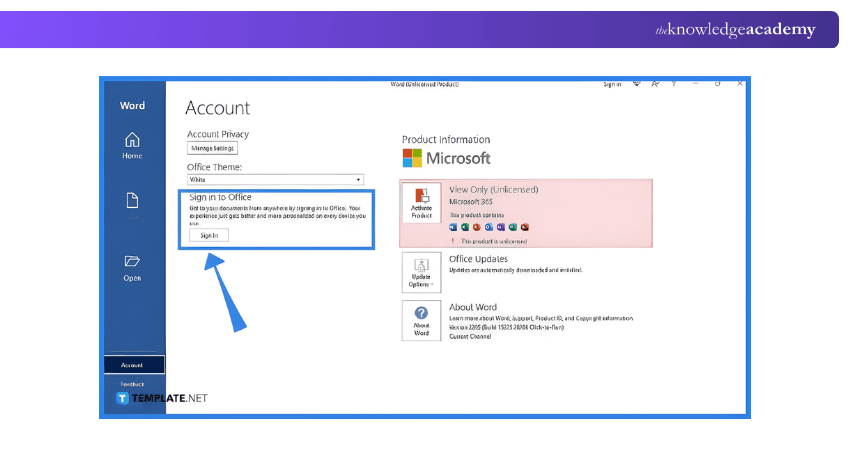
3) Step 3: Sign In to Your Microsoft 365 Account
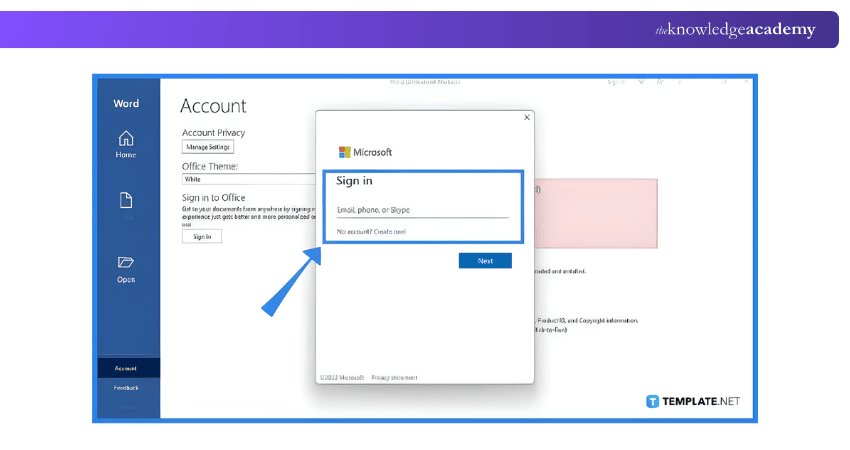
When screen shows the Sign In box, fill out your email address and password. Complete other procedures of verification (where necessary). Upon successful logging in, you will see your account information under the Account section.
4) Step 4: Start Working
Once signed in, you can start working; it will show cloud-based features, synchronised settings, and files in OneDrive. All your documents will now automatically be saved on your Account to ensure uninterrupted access on both devices.
5) Step 5: To Sign Out, Go to File and Head to Account
You may sign out by clicking File, returning to the Account section, and then Sign Out. This deletes your Account on the application, and this assists in safeguarding your data in case of using shared or open systems.
Boost your document efficiency and formatting expertise with our Microsoft Word Course – Join now!
Benefits of Signing In to Microsoft Word
Entering Microsoft Word and signing in admits your name and password to your Microsoft 365 or Office licence, authorising you to access the software. It has the following benefits upon signing in:
1) Install and Activate Microsoft Word: Signing in confirms licence possession, so that you do not have to re-enter a product key, and you can install and use Microsoft Word and Microsoft 365 2013 and later versions with your licence.
2) Access Connected Microsoft Services: With your Account, Word can be integrated with Microsoft products like OneDrive, Office Online, enabling cloud storage, syncing, and seamless document access.
3) Reinstall Microsoft Word Easily: You can also download and reinstall Microsoft Word at any point in time by logging in to your account portal so that your access to this application is not lost after a change of systems.
4) Create and Share Files Securely: OneDrive provides the opportunity to create, update, and share documents stored in OneDrive, and also ensures that your files are available and stored on devices, provided that you have signed in.
Use Microsoft Word on Multiple Devices: A Microsoft 365 subscription allows you to sign in to Word on different devices, as settings and files have been synced.
Security Tips When Using Microsoft Word
In Microsoft Word, document protection is very important as it prevents unauthorised access, data leaks, and tampering. There are some major security guidelines that should be observed when utilising Microsoft Word:
1) Password Protection: The use of a password will limit access to and editing of a document. This makes sure that authorised users get sensitive content and guard files that are sent out.
2) Restrict Editing: The editing restrictions would enable you to manage the interaction with a document by other people. You may restrict users to read only or allow those to be edited by certain individuals or a particular group.
3) Digital Signatures: Document authenticity and integrity are established by the use of digital signatures. They aid the recipients in checking the File against the authenticity of the source.
4) Document Inspector: The Document Inspector is used to scan text and tracked changes, or hidden data, and can identify personal information. Eliminating this information eliminates the possibility of sharing confidential information unintentionally.
5) Trusted Locations: Trusted places enable Word to access files in trusted folders without being warned about security. This lowers the risk level, and documents from credible sources are opened effortlessly.
6) Macro Security: The macro security settings are used to determine the ability of macros to execute in the Word document. By varying these settings, it is possible to prevent the execution of malicious code and still be able to safely automate where necessary.
Learn database creation and management with Microsoft Access Training – Get started now!
Can I Use Microsoft Word Without a Microsoft Account?
Technically, Microsoft Word can be opened and used in a limited capacity without signing in. Basic features like creating, editing, and saving documents locally are available even without a Microsoft account.
However, to install, activate, or access Microsoft 365 Family or Personal subscriptions, a Microsoft account is required. If you already use services like Outlook.com, OneDrive, Xbox, or Skype, your existing account can be used to unlock full features and cloud-based functionalities.
What is Safer, Google or Microsoft?
When the two of Google and Microsoft are discussed in the case of safety, the discussion typically only focuses on their web browsers, i.e., Google Chrome and Microsoft Edge. The two are based on Chromium with a good baseline security and differ in the approach to privacy controls, tracking banning, and inclusion of protection into security features as given below:
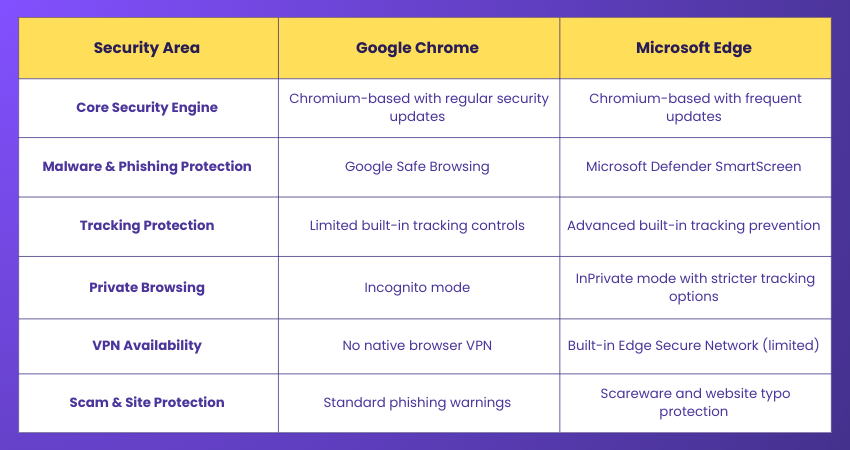
Both Google Chrome and Microsoft Edge provide strong security foundations, but Microsoft Edge offers more built-in privacy and tracking protection features by default. For users who prioritise enhanced privacy controls and integrated security tools, Edge is generally considered the safer option.
Learn to organise, share, and manage content seamlessly with Microsoft SharePoint End User Fundamentals – Sign up today!
Conclusion
Signing in to Microsoft Word unlocks full features, including cloud storage, syncing, and access across devices. Proper account use ensures activation and document security. While basic functions work without an account, full functionality requires signing in. Learning How to Sign In/Sign Out Microsoft Word helps maintain productivity and protect your data effectively.
Enhance your productivity and teamwork capabilities with Microsoft Office 365 Training – Join today!
Frequently Asked Questions
Why Can't I Sign In Microsoft Word?

You might encounter sign-in issues in Microsoft Word due to various reasons, such as incorrect login credentials, network connectivity problems, or issues with the Microsoft Office subscription.
What is the Purpose of Signing into Word?
Signing into Word allows you to access additional features. It also enables you to sync documents across devices and collaborate with others in real-time, enhancing your productivity and workflow efficiency.
What are the Other Resources and Offers Provided by The Knowledge Academy?
The Knowledge Academy takes global learning to new heights, offering over 3,000+ online courses across 490+ locations in 190+ countries. This expansive reach ensures accessibility and convenience for learners worldwide.
Alongside our diverse Online Course Catalogue, encompassing 17 major categories, we go the extra mile by providing a plethora of free educational Online Resources like Blogs, eBooks, Interview Questions and Videos. Tailoring learning experiences further, professionals can unlock greater value through a wide range of special discounts, seasonal deals, and Exclusive Offers.
What is the Knowledge Pass, and How Does it Work?
The Knowledge Academy’s Knowledge Pass, a prepaid voucher, adds another layer of flexibility, allowing course bookings over a 12-month period. Join us on a journey where education knows no bounds.
What are the Related Courses and Blogs Provided by The Knowledge Academy?
The Knowledge Academy offers various Microsoft Office Training, including Microsoft Word Course, Microsoft Office 365 Training, Microsoft SharePoint Training and Microsoft Publisher Training. These courses cater to different skill levels, providing comprehensive insights into Microsoft Word Processor.
Our Office Applications Blogs cover a range of topics related to Microsoft Word, offering valuable resources, best practices, and industry insights. Whether you are a beginner or looking to advance your Microsoft Office skills, The Knowledge Academy's diverse courses and informative blogs have you covered.

The Knowledge Academy


Global Training Provider
The Knowledge Academy is a world-leading provider of professional training courses, offering globally recognised qualifications across a wide range of subjects. With expert trainers, up-to-date course material, and flexible learning options, we aim to empower professionals and organisations to achieve their goals through continuous learning.

Upcoming Office Applications Resources Batches & Dates
Date
 Microsoft Word Course
Microsoft Word Course
Fri 12th Jun 2026
Microsoft Word Course
Fri 21st Aug 2026
Microsoft Word Course
Fri 4th Dec 2026

 If you wish to make any changes to your course, please


